Facebook-f Twitter
GeeksChalk Logo GeeksChalk Logo
Notification
  • Home
  • iPhone
  • iPad
  • Mac
  • Apple Watch
  • Pages
    • About Us
    • Contact Us
    • Advertise With Us
  • 🤩 Trending:
  • 100 new iOS 26 features for iPhone
  • 10 Best iOS 26 Tips & Tricks
  • iPhone 16: Everything We Know
  • iPhone 16 Pro: Everything We Know

GeeksChalk is the leading source for all things iPhone, Mac, iPad, Apple Watch, Vision Pro, and more

GeeksChalkGeeksChalk
  • Home
  • iPhone
  • iPad
  • Mac
  • Apple Watch
Search

Popular Post

iPhone 15 Pro in black titanium, white titanium, blue titanium, and natural titanium finishes.
iPhone

Apple CarPlay GPS Not Working, Showing Wrong Location: Fix

iPhone 14 Pro and iPhone 14 Pro Max are shown in gold.
iPhone

How to Fix iPhone not sending text messages to Android

Connect an iPhone to car Bluetooth
Troubleshooting

How to fix Bluetooth not working on iPhone after iOS 26 update

iPhone outline with an Apple logo
iPhone

Need to restore an iPhone backup? Here’s how

Follow US
Copyright Ā© 2026 www.GeeksChalk.com
The Apple Account Settings shown with a list of options including personal information, subscriptions, Find My, and more.
GeeksChalk > iPhone > How to sign in and manage your Apple Account on iPhone

How to sign in and manage your Apple Account on iPhone

You can sign in to your Apple Account on iPhone, change its settings, and add or update its payment method.

Last updated: October 17, 2026 2:31 pm
By Kevin Shaw - Editor
Share
1 Min Read

On iPhone, your Apple Account gives you access to Apple services such as the App Store, the Apple Games app, the iTunes Store, Apple Books, Apple Music, FaceTime, iCloud, iMessage, and more. When you create a new Apple Account in China mainland or India, you can use your mobile phone number as your Apple Account user name.

You can also change your Apple Account settings, and add or update the payment method associated with it.

Sign in to your Apple Account

If you didn’t sign in during setup, do the following:

  1. Start the Settings app on your iPhone.
  2. Tap Apple Account.
  3. Tap one of the following:
    • Use Another Apple Device: Bring your other iPhone or iPad (with iOS 17, iPadOS 17, or later) nearby and then follow the onscreen instructions.
    • Sign in Manually: Enter your email address or phone number, then enter your password. If you don’t have an Apple Account, you can create one.
  4. If you protect your account with two-factor authentication, enter the six-digit verification code.

Change your Apple Account settings
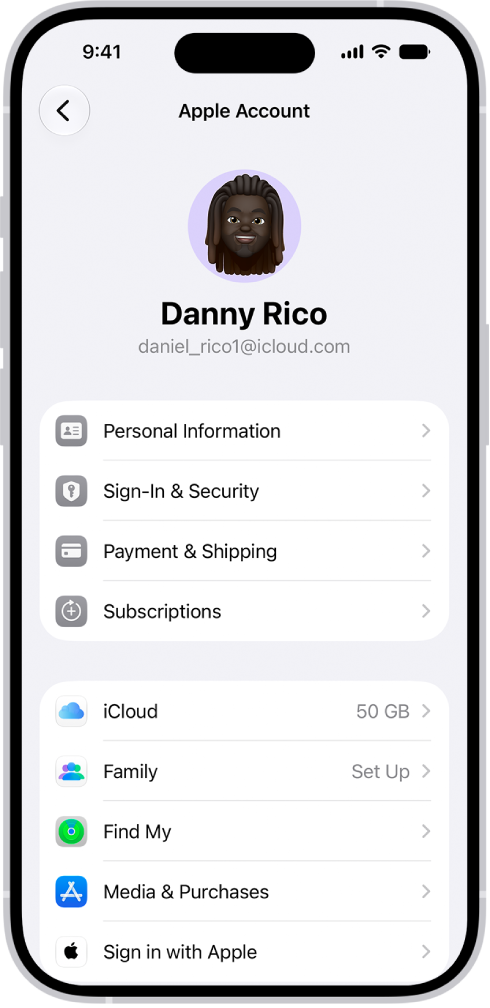
The Apple Account Settings shown with a list of options including personal information, subscriptions, Find My, and more.

  1. Start the Settings app on your iPhone.
  2. Tap your name, then do any of the following:
    • Update Personal Information: Update your name, birthdate, and Memoji or photo associated with your Apple Account. You can also set up your preferences for communication from Apple, and see how your data is managed.
    • Change Sign-In & Security: Change your Apple Account password, turn on two-factor authentication, add or remove phone numbers and emails you can use to sign in, and set up Account Recovery or Legacy Contact.
    • Manage Payment & Shipping: Select your payment methods and shipping address for your Apple Account and purchases from the Apple Store.
    • View and manage your subscriptions: View and manage your subscriptions from Apple and subscriptions that you purchased in apps from the App Store.
    • Use iCloud.
    • Set up Family Sharing.
    • Use Find My.
    • Manage Media & Purchases: Manage the accounts linked to Apple Music, Apple Podcasts, Apple TV, and Apple Books and select purchasing settings.
    • Use Sign in with Apple.

Add or update the payment method associated with your Apple Account

Apple media purchases and services use the payment information associated with your Apple Account.

  1. Start the Settings app on your iPhone.
  2. Tap [your name], then tap Payment & Shipping. You may need to authenticate with Face ID or Touch ID.
  3. Tap Add Payment Method or tap an existing payment method.
TAGGED:Apple Account
ByKevin Shaw
Editor
Follow:
Kevin Shaw is a seasoned tech journalist based in Los Angeles with a penchant for all things Apple. He started writing about Apple products in 2007 and it's been a love affair ever since. He has spent over a decade testing and writing about iPhones, iPads, Macs, and other Apple products. In his spare time, he likes nothing more than catching up with the latest news and sports podcasts on the beach.
Leave a Comment Leave a Comment

Leave a Reply Cancel reply

Your email address will not be published. Required fields are marked *

Recent News Flash

The iPhone Mirroring app appears on a Mac computer desktop.

How to control your iPhone from your Mac

The Places screen in Maps, which shows a list of place categories like Pinned, Saved Places, and Guides. Below this, a Recently Added section lists viewed locations.

How to add places and notes to your Places in Maps on iPhone

The Privacy & Security screen in Settings.

How to use Stolen Device Protection on iPhone

Camera is open in Photo mode. At the bottom of the screen are buttons for the following camera controls: Flash, Depth, Live, Timer, Exposure, and Styles.

How to use iPhone camera tools to set up your shot

Trending Now

The call screen, showing a Call Context card with a flight confirmation.

How to share screens during a phone call on iPhone

macOS 27 next to MacBook Pro Running macOS 27 Golden Gate

Child Safety Features in macOS 27

The Apple Account Settings shown with a list of options including personal information, subscriptions, Find My, and more.

How to sign in and manage your Apple Account on iPhone

Explore More

Recommended For You

The Manage Collaboration screen in the Music app.

How to collaborate on a playlist in Music on iPhone

The Manage Collaboration screen in the Music app.

How to join a collaborative playlist in Music on iPhone

The Now Playing screen with the Reactions button showing several emoji and an Add button that you can click to find more emoji.

How to add a reaction to a collaborative playlist in Music on iPhone

An iPhone with the AssistiveTouch menu visible, showing controls for Notification Center, Device, Control Center, Home, Gestures, and Custom.

iPhone mobility accessibility features: Eye Tracking, Voice Control, and more

GeeksChalk Logo GeeksChalk Logo
  • Home
  • Contact Us
  • Advertise
  • Our Staff
  • Editorial Guidelines
  • Terms
  • Privacy
  • Accessibility
  • Copyright
  • About Us
  • Fact Checking Policy
  • Correction Policy
  • Ethics Policy
  • Ownership Policy
Copyright Ā© 2026 www.GeeksChalk.com
Welcome Back!

Sign in to your account

Username or Email Address
Password

Lost your password?