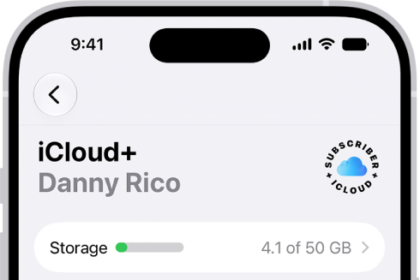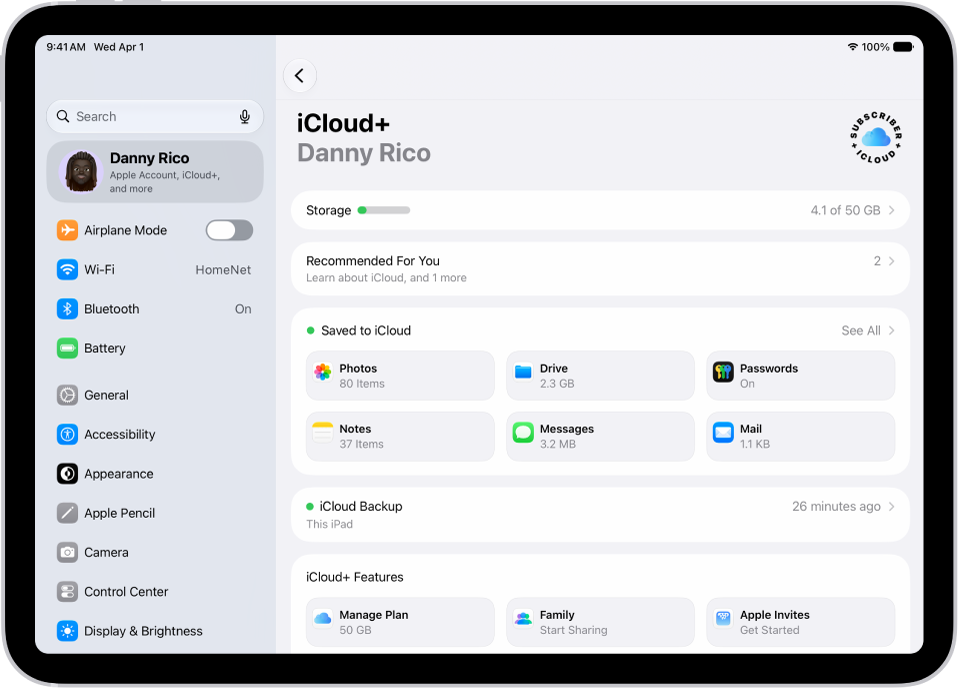
On iPad, iCloud+ gives you everything iCloud offers plus premium features including Apple Invites, iCloud Private Relay, Hide My Email, HomeKit Secure Video support, and all the storage you need for your photos, files, and more. You can subscribe to iCloud+ or to Apple One, which includes iCloud+ and other Apple services.
Plans range from 50 GB to 12 TB of storage, and you can upgrade, change, or cancel your subscription at any time.
Here’s how to subscribe to iCloud+ on iPad.
Note: Some iCloud+ features have minimum system requirements. The availability of iCloud+ and its features varies by country or region.
What’s included with iCloud+
Subscribe to iCloud+, and you can do the following on iPad:
- Get 50 GB, 200 GB, 2 TB, 6 TB, or 12 TB (depending on your plan) of storage for photos, files, backups, and more.
- Create and share custom invitations for your events.
- Create unique, random email addresses that forward to your personal inbox with Hide My Email. See Use Hide My Email in Safari and Use Hide My Email in Mail.
- Browse the web in an even more secure and private way with iCloud Private Relay. See Protect your web browsing.
- Set up home security cameras with HomeKit Secure Video so you can view your footage from anywhere while keeping it private and secure. See Set up security cameras.
- Use a custom email domain to personalize iCloud Mail. See Set up a custom email domain.
Upgrade, change, or cancel your iCloud+ subscription
- Open the Settings app on your iPad.
- Tap your name, then tap iCloud.
- Tap Storage and tap Manage Plan. Follow the onscreen instructions.
Note: Cancel your iCloud+ subscription, and you’ll lose access to the additional iCloud storage and iCloud+ features.
Share iCloud+
Family Sharing lets you share iCloud+ with up to five other family members, and once they accept your invitation, they get instant access to the additional storage and features.
Note: Sharing iCloud+ with a family group ends when you cancel the subscription or leave the family group, and also if you turn off or leave Family Sharing. For more, see our article, Add a member to a Family Sharing group.
See also