On iPad, with Family Sharing, you and up to five other family members can share access to Apple services, eligible purchases, iCloud+ storage, and more. You can even help locate each other’s missing devices.
One adult—the organizer—invites the others, and each family member chooses the features they want to use. When they join, Family Sharing is set up on everyone’s devices automatically. Setting it up on one device is enough, since it’s then available on all your devices signed in to the same Apple Account. A Child Account is required for children under 13.
Family Sharing is available on eligible devices.
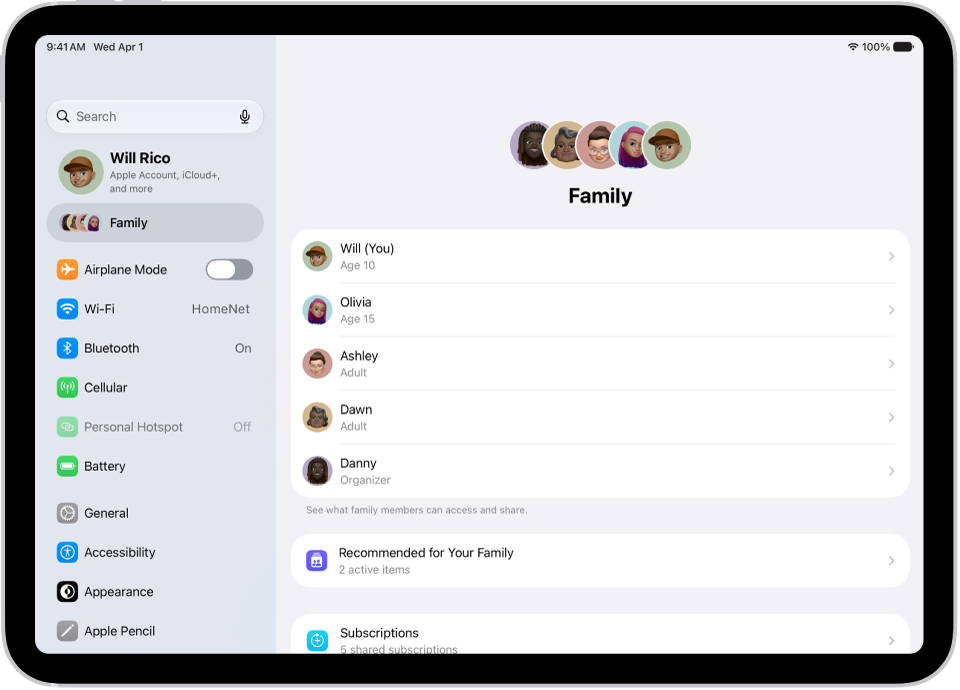
Create a Family Sharing group
You only need to set up Family Sharing on one device, since it’s then available on every device of yours signed in to the same Apple Account. The family organizer can invite family members who already have an Apple Account, or create one for a child who doesn’t have one yet.
Note: A Child Account is required for children under 13 and available for children up to 18. (This age varies by country or region.)
- Open the Settings app on your iPad.
- Tap your name, then tap Family.
- Follow the onscreen instructions to set up your Family Sharing group.
- Tap Invite next to suggested family members (if any are listed), or tap Invite Others and then do one of the following:
- Tap Create Child Account to create a Child Account for your kid.
- Tap Invite People, then follow the onscreen instructions to invite family members and designate added adult members as parents or guardians. Learn about types of Family Sharing members.
You can also add family members later. See Add a member to a Family Sharing group.
- Tap a feature you want to set up for your Family Sharing group (for example, Subscriptions). Follow the onscreen instructions.
To set up parental controls or Apple Cash for a child, tap their name, tap the feature, then follow the onscreen instructions.
You can see what you’re sharing with your family and adjust sharing settings at any time.
What you can do with Family Sharing
With your Family Sharing group, you can set up or share the following:
- Apple and App Store subscriptions: You can share Apple subscriptions, including iCloud+, and eligible App Store subscriptions. See Share Apple and App Store subscriptions with family members.
- Purchases: You can share items purchased in the App Store, Apple Books, and Apple TV. The family organizer pays for everyone’s purchases unless they turn off Purchase Sharing or other adult family members use their own payment method to make purchases.
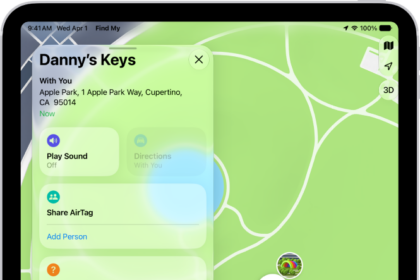
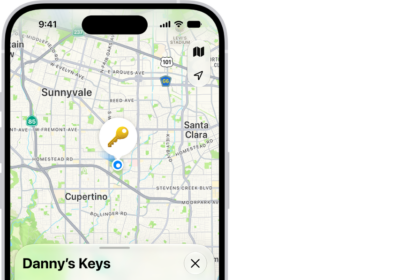
- Locations: When you share your location with your Family Sharing group, all family members, including any new members added later, can use the Find My app to see your location and help locate a missing device. See Share locations with family members and locate their lost devices.
- Passwords and passkeys: You can share passwords and passkeys with people in your family to access important accounts. See Share passwords and passkeys with people you trust.
- Payment methods: The family organizer can set a default payment method in their Apple Account, which can be used by others in the Family Sharing group. By default, all purchases are billed to the family organizer, unless family members add their own payment method for their purchases.
- Parental controls, Apple Card and Apple Cash, and child device set up: You can manage your children’s purchases, how they use their Apple devices, and more. You can share Apple Card with trusted members of your Family Sharing group or set up an Apple Cash Family account for a child.
See recommendations for Family Sharing features
To see suggestions to help you get the most out of Family Sharing, go to Settings > Family, then tap Recommended For Your Family.
See also