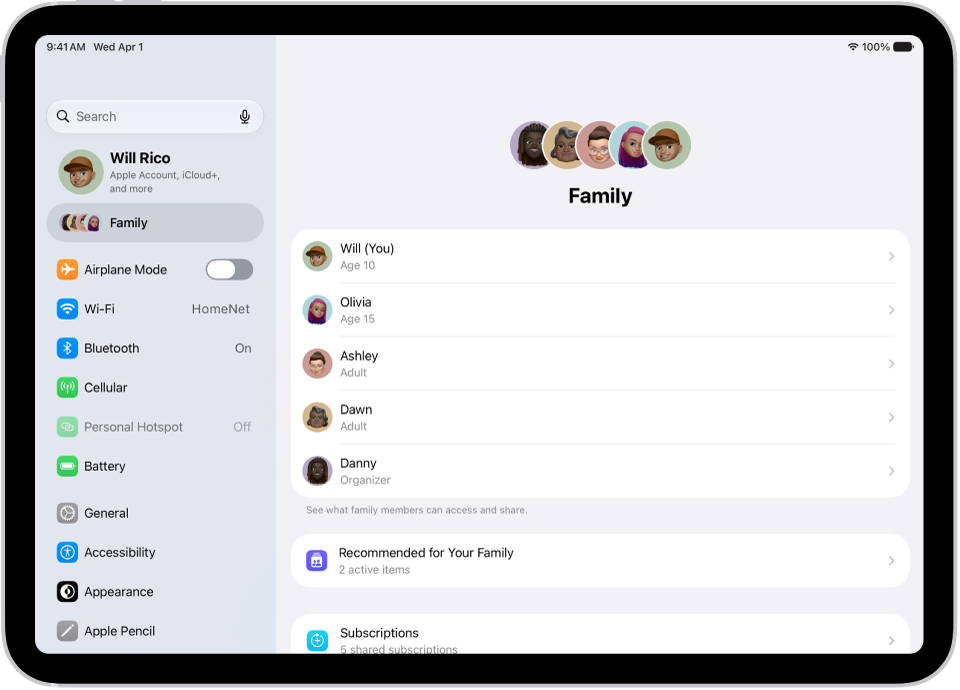
On iPad, with Family Sharing, each family member joins the family group with their own Apple Account. That way you can share access to subscriptions and other features without sharing personal information like photos or documents.
The family organizer can invite family members who have an Apple Account or create a Child Account for a child who doesn’t have one yet. You can send the invitation with AirDrop, Messages, or Mail, or invite someone in person. Children under 13 need a Child Account, which is available up to age 18. And you can belong to only one Family Sharing group at a time.
Learn about types of Family Sharing members.
Add a family member
The organizer of a Family Sharing group can add any family member who has their own Apple Account.
- Start the Settings app on your iPad.
- Tap Family and tap Add Member in the upper-right corner.
- Tap Invite Others, then follow the onscreen instructions.
You can send the invitation using AirDrop, Messages, or Mail. If you’re near the family member, you can also tap Invite in Person and ask the family member to enter their Apple Account email address (or phone number) and password on your device.
The people you invite find your invitation in the Family row at the top of Settings. Haven’t heard back? You can follow up with reminders.
If you’d like to join an existing Family Sharing group, the organizer has to add you. You can only belong to one Family Sharing group at a time, so leave your current group before joining a different one. For the steps, read our guide, Leave a Family Sharing group.