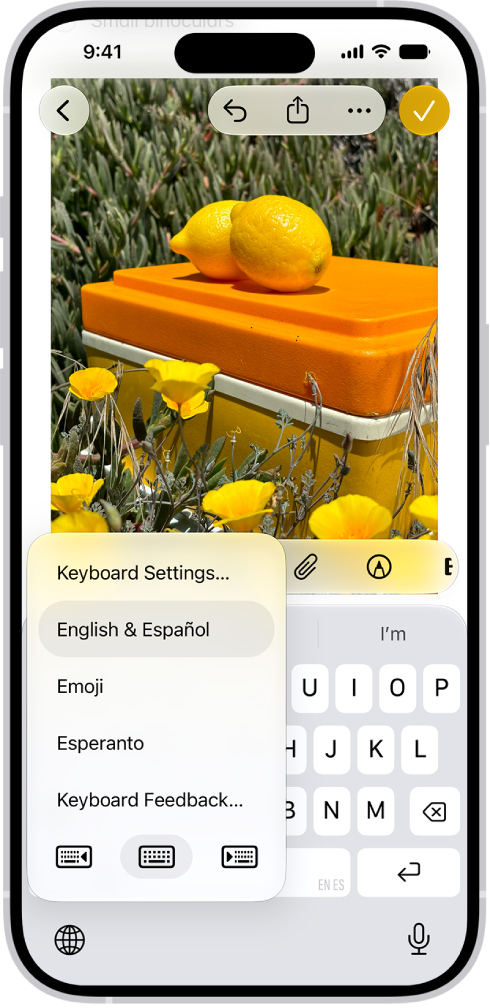
On iPhone, with Magic Keyboard, you can switch between the language keyboard for your region, an emoji keyboard, other language keyboards that you add, and the onscreen keyboard. A keyboard shortcut cycles between them, and you can show or hide the onscreen keyboard, too.
Switch between language keyboards and the onscreen emoji keyboard
- On Magic Keyboard, press and hold the Control key.
- Press the Space bar to cycle between the language keyboard for your region, the emoji keyboard, and any keyboards you added for typing in different languages.
Show or hide the onscreen keyboard
To show the onscreen keyboard, press the Eject key on Magic Keyboard. To hide the onscreen keyboard, press the Eject key again.