Want to keep your iPad® and iPhone® in sync so they share the same data and files effortlessly? It’s simpler than you might think. We’ll guide you through syncing your devices to ensure you’re always connected, whether you’re updating contact info, sharing photos, listening to Apple Music®, or managing your email accounts.
Follow these simple steps to sync your iPhone and iPad with cloud storage.
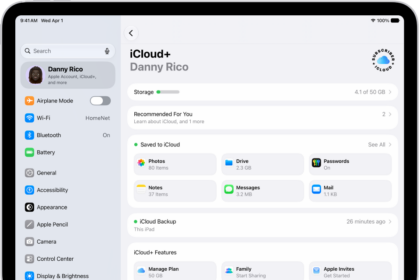
Check your iCloud storage
Before you sync, make sure you have enough iCloud storage space. Here’s how to check:
- On your iPhone or iPad, go to Settings > [your name] > iCloud.
- The bar graph at the top shows your overall storage usage.
Tap Storage or Manage Account Storage for more details.
How to get more iCloud storage
Apple automatically gives you 5 GB of free iCloud storage when you create an Apple account. If you are running low on storage, you can upgrade to iCloud to get more storage. Here’s how:
- Make sure your device is connected to internet.
- On your iPhone or iPad, go to Settings > [your name], and tap iCloud.
- Tap Upgrade to iCloud . In iOS 17 or earlier, tap iCloud, tap Manage Account Storage, then tap Change Storage Plan.
- Choose a plan and follow the onscreen instructions.
Back up your devices
After making sure that you have enough iCloud storage space, back up your devices. Here’s how:
- Make sure your device is connected to a Wi-Fi network.
- Go to Settings > [your name], and tap iCloud.
- Tap iCloud Backup.
- Tap Back Up Now. Stay connected to your Wi-Fi network until the process ends. Under Back Up Now, the date and time of your last backup is shown
Sync your iPhone and iPad using iCloud
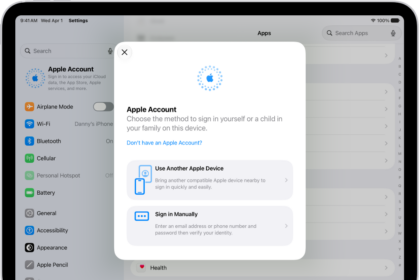
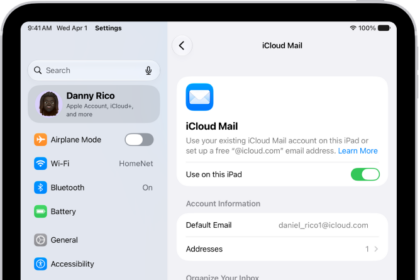
To sync your iPhone and iPad, just sign in to the same Apple Account on both devices.
For example, if you sign in to your Apple Account on your iPhone and turn on Contacts in iCloud settings, the contacts you create in the Contacts app on your iPhone are stored in the cloud.
If you also sign in to your Apple Account on your iPad and turn on Contacts in iCloud settings, you see those iCloud contacts in the Contacts app on your iPad.
Because your information is stored in the cloud, if you make a change in one place, you see it everywhere. So if you add a new contact or change a contact’s email address on your iPhone, those changes are saved in iCloud. The next time your iPad goes online, you can see the updated contacts in the Contacts app on your iPad.
To make sure you’re signed in to the same Apple Accountt on your iPhone and iPad, follow these steps:
- Go to Settings > [your name].
- Check the email address below your name and make sure they are the same on both devices.
After making sure your iPhone and iPad are signed into the same Apple account, here’s what to do next:
Choose apps to sync
You can choose which apps sync between your iPhone and iPad. Here’s how:
On your iPhone:
- Go to Settings > [your name], and tap iCloud.
- Tap See All next to Saved to iCloud. In iOS 17 or earlier, tap Show All under Apps Using iCloud.
- Turn on every app you’d like to sync by tapping the switch.
On your iPad:
- Go to Settings > [your name], and tap iCloud.
- Tap See All next to Saved to iCloud. In iPadOS 17 or earlier, tap Show All under Apps Using iCloud.
- Turn on every app you’d like to sync by tapping the switch.
If both devices are connected to the internet and are using the same Apple Account and iCloud settings, they’ll stay connected once they’re synced.
Turn on Automatic Downloads
Once you’ve synced those apps on your iPad and iPhone using iCloud, you can also turn on Automatic Downloads to sync other apps found in Settings, such as Music, Apps, Books & Audiobooks, and Updates. Follow these steps for automatic syncing on both your iPhone and iPad:
- On your iPhone and iPad, go to Settings > Apps > App Store.
- Below Automatic Downloads, turn on App Downloads and App Updates.