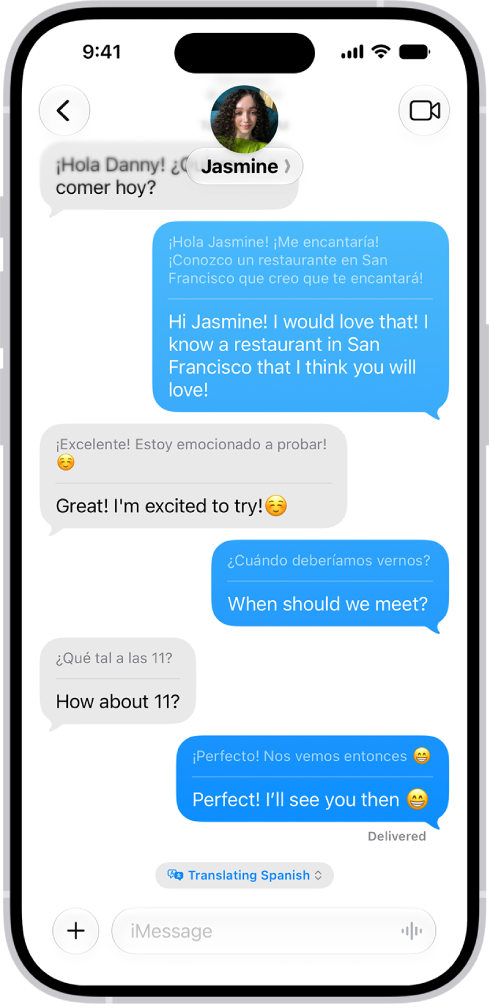
On iPhone, you can select any text to translate in apps such as Notes, Mail, and supported third-party apps. When you enter text, you can even replace what you wrote with a translation.
You can choose the languages you want to translate from and to, and hear the original text or its translation spoken. You can also download languages, so you can translate locally on your iPhone. Translation is available for supported languages.
Note: Translation is available for supported languages.
- Go to an app like Notes or Mail on your iPhone.
- Select the text you want to translate and tap Translate.
If you don’t see Translate, tap the Show More Items button to see more options.
- Tap the Language Menu. Choose the languages you want to translate your selected text from and to.
- To hear the text spoken, tap More. Tap the Gray Play button on the original text or its translation.
- Swipe down to see options for any of the following:
- Replace your original, editable text with the translation: Tap Replace with Translation.
- Translate locally on your iPhone: Tap Download Languages.
Note: Not all options are available with all translation apps.