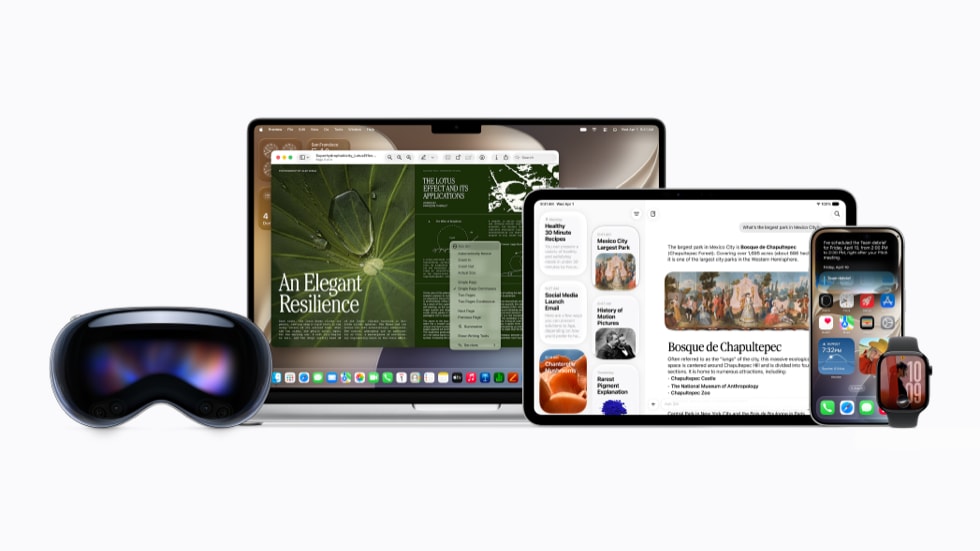
Safari has several features that rely on Apple Intelligence, ranging from subtle (page highlights) to dramatic (describe an extension).
View page summaries
Safari offers Apple Intelligence-generated summaries for most webpages. Click or tap the Page icon on the left side of the address bar, then click or tap Summarize. Safari switches into Reader mode, with a brief summary at the top of the page.
Organize tabs automatically
Drowning in tabs? Safari can reduce clutter by grouping them. Enable this feature on a Mac by going to Safari > Settings > Tabs and choosing Automatically Create Topics from the “Organize tabs” pop-up menu; on an iPhone, tap the Tab Overview button, then tap the Filter button and choose Organize Tabs > Automatically Create Topics; on an iPad, tap the Tab Overview button, then tap the More button and choose Organize Tabs > Automatically Create Topics.
Having done that, browse normally—which, for most of us, means opening lots of tabs. Safari examines the contents of each page and groups them by similarity, reducing the amount of space open tabs take up. Click a group to expand its contents. (This grouping type apparently has no name.)
Use Notify Me to monitor pages for changes
Safari can monitor a webpage and let you know when it changes. To set a notification, click or tap the Page icon in the address bar and choose Notify Me. Describe the type of change you’re looking for (such as a new news article or a change in a particular number), click Edit to adjust when and how often Safari should check, and click Done. When Safari notices the change in question, a notification appears.
You can close the tab, but you must enable notifications for Safari in Settings > Notifications on iPhone or iPad, or System Settings > Notifications on a Mac to receive these…notifications.
Safari checks daily by default. You can tap Edit—either while creating the notification or afterward—to switch to hourly, weekly, or monthly checks, and set the time of day. Manage these notifications in Settings > Apps > Safari > Notify Me on iPhone or iPad, or System Settings > Apps > Safari > Notify Me on a Mac. Delete a notification by clicking or tapping the Edit link on the tracked page, then clicking and tapping Delete and confirming, or via the Settings link.
Describe an extension to create it
Can’t find the extension you need? Safari can create a custom extension for you on the fly. It syncs to your other devices via iCloud but can’t be shared with anyone else. To create an extension, click or tap the Page icon in the address bar and choose Describe an Extension. A new dialog appears.
Here, you can click one of the existing categories to get ideas or start from scratch by typing something in the “Describe something else” field at the bottom and clicking Next. Safari then displays a new page that may include existing extensions from the App Store that perform a similar function. Ignore those and click the Create button at the bottom. Safari churns for a bit, with a progress indicator at the top of the page. When it’s ready, you can click Try.
If you like what you see, click Save; if not, click Edit to describe changes. Each extension has its own toolbar icon, which you can use to invoke it later. If you use this extension on a page other than where you created it, you’ll be prompted to grant permission.
This is a cool feature, but a word of caution: you can’t create anything complex, like an ad blocker. Instead, it’s for small things like modifying the contents of a page or taking action on various text or graphics.