On iPhone, you can open and use a website as if it’s an app. You add it to your Home Screen from Safari’s Share menu, with Open as Web App turned on, and it opens just like an app. You can even get notifications from the web app.
- Start the Safari app on your iPhone.
- Go to the website.
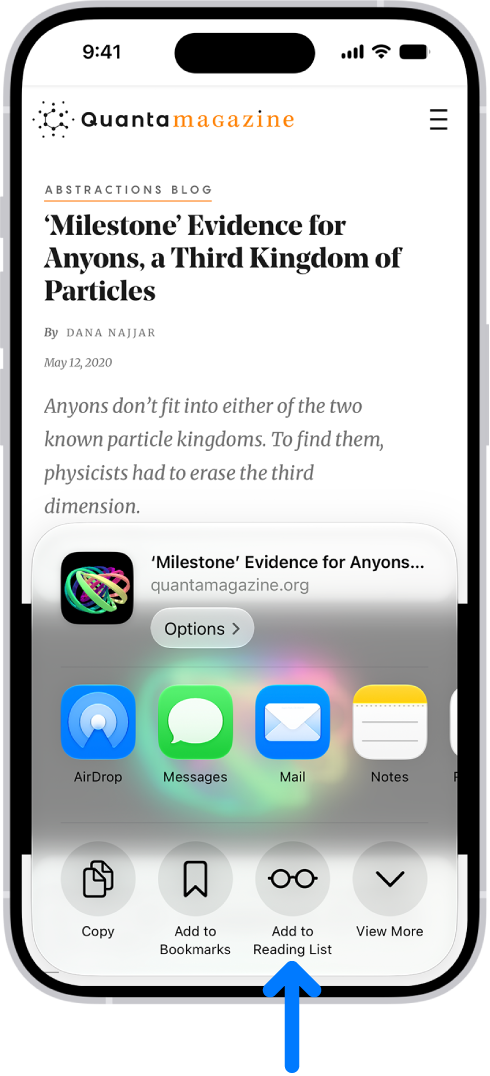
- Tap the Page Menu button and tap Share. If your Tabs layout is Bottom or Top, tap the Share button.
- Scroll down the list of options and tap Add to Home Screen. If you don’t see Add to Home Screen, you can add it. Scroll down to the bottom of the list, tap Edit Actions, and then tap Add to Home Screen.
- Turn on Open as Web App.
- Tap Add.
An icon for the web app is added to your Home Screen. When you tap the icon, the website opens just like an app. You can receive notifications from the web app and quit the web app like you would any app.