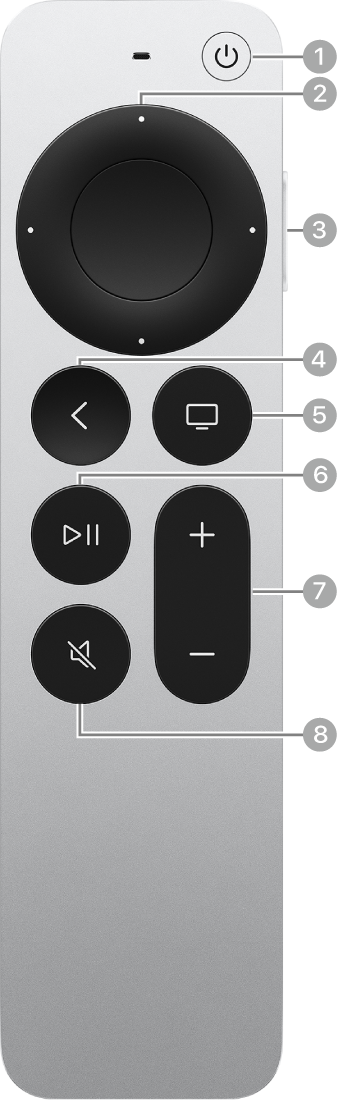
There are several ways to turn Apple TV 4K on or off. You’ll do most of them on your remote, and you can set how long Apple TV 4K waits before it turns off after a preset period of inactivity. With HDMI-CEC, your Apple TV 4K automatically turns on whenever your TV does.
Turn on Apple TV 4K
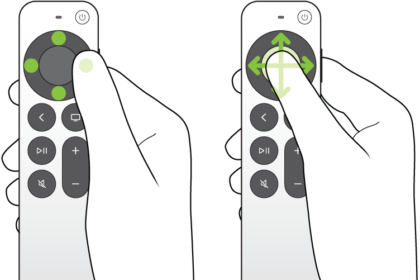
There are a few ways to do it on your remote:
- Press the TV button.
- Press the Back button or the Menu button.
- Press the Power button (silver remote only).
Turn off Apple TV 4K
To turn it off from your remote, do either of the following:
- Press and hold the TV button to open Control Center, then select Power Off in Control Center.
- Press and hold the Power button (silver remote only).
You can also turn off Apple TV 4K in Settings, by selecting Power Off.
Set the delay before Apple TV 4K automatically turns off
After a preset period of inactivity, Apple TV 4K turns off automatically, and you decide how long Apple TV 4K waits before turning off.
- Go to Settings on Apple TV 4K.
- Go to General > Sleep After and choose an option.
You can also set a one-time sleep timer.
Important: Delaying or preventing sleep may increase power consumption.
If your TV or audio/visual receiver supports HDMI-CEC, turning on the TV or receiver, or selecting its HDMI input, automatically turns on Apple TV 4K, too, and turning off your TV or receiver turns it off. You’re also able to program the remote you use for Apple TV 4K so it turns your TV or receiver on or off.
Not all features and content are available in all countries or regions or on all Apple TV hardware models.
See also