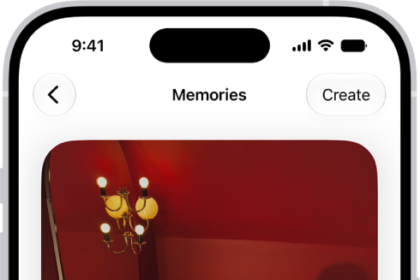
On Apple TV 4K, the Memories screen in the Photos app arranges photos and videos from trips, events, and other favorite moments into a short movie that you can watch on the big screen. You can’t create or edit memories on Apple TV 4K. You can still see all the photos and videos in a timeline, though, and skip to your favorite ones during playback.
Memories can also appear as a screen saver on Apple TV 4K. See Set up Apple TV 4K screen savers.
Browse and play your photo memories
- Go to the Photos app on Apple TV 4K.
- Go to Memories at the top of the screen.
- Browse any of the memories in the Watch Now row, or navigate down to browse Favorites.
Note: If you haven’t added any memories to Favorites, you won’t see a Favorites row. See Add or remove favorite memories.
- Select a memory to play it.
- During playback, do any of the following:
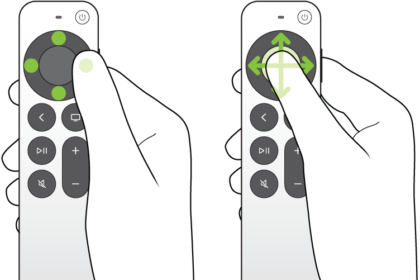
- Pause or play: On your remote, press the Play/Pause button, or press the clickpad center or touch surface.
- Go back to the previous or skip to the next photo or video: Press left or right on the clickpad ring, or swipe left or right on the touch surface.
- Skip to a specific photo or video: Pause the memory, then go to the timeline of photos and select a photo or video.
- Start playback from the beginning: Show playback controls, then select the Replay button.
- Add a memory to Favorites: Show playback controls, then select the Favorite button.
- See more info: Show playback controls. Navigate down to see more information such as the music used and total number of items in the memory.
Once playback is finished, the next memory in the queue begins playing automatically. To play a different memory instead, find it in the Watch Next row and select it.
Note: Open a memory in Photos on an iPhone, iPad, or Mac that’s signed in to the same Apple Account to edit it, change playback settings like music and duration, or see more information about people or locations. Apple TV 4K updates automatically with any changes you make.
Add or remove favorite memories
- Go to the Photos app on Apple TV 4K.
- Go to Memories at the top of the screen.
- Go to a memory, press and hold the clickpad or touch surface on your remote, and then select one of the following:
- Add to Favorite Memories: Add the memory to your favorite memories across all of your devices. You can also set up a screen saver that plays only your favorite memories.
- Remove from Favorite Memories: Remove a memory from your favorite memories across all of your devices.
Delete a memory
- Go to the Photos app on Apple TV 4K.
- Go to Memories at the top of the screen.
- Go to a memory and press and hold the clickpad or touch surface on your remote. Then select Delete Memory.
The memory is permanently deleted on Apple TV 4K and on all devices connected to your Apple Account.
Turn memories on or off
- Go to Settings on Apple TV 4K.
- Go to Profiles and Accounts > [default profile] > Photos.
- Select Show Memories to turn memories on or off in the Photos app.
When memories are turned off, Memories does not appear in the menu bar of the Photos app. Instead, Library is the first screen you see when you open the app.
Not all features and content are available in all countries or regions or on all Apple TV hardware models.
See also