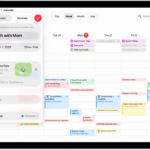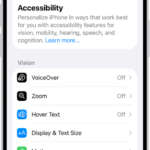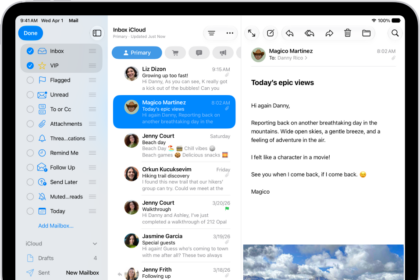
Apple issues a big update to iPadOS (the operating system that runs on all iPads) once a year, bringing new features and interface tweaks to many iPads. The latest of these major iPadOS updates – iPadOS 26 – arrived on September 15, 2025. Following the arrival of iPadOS 26 there are subsequent updates to iPadOS 26 with new features, bug fixes and security upgrades. These tend to come out every six to eight weeks on average.
- How to get your iPad ready for an iPadOS update
- How to update iPadOS
- How to update iPad automatically
- How to update iPad manually
- How to automatically update system files only on iPad
- Troubleshooting iPadOS update problems
- Problem: I don’t have enough space to update iPadOS
- Problem: I can’t update iPadOS because I don’t have Wi-Fi
- Problem: I can’t see the iPadOS update!
- Solution: If an update to an older version of iPadOS shows, swipe down to the bottom of the screen to see the new update.
- Solution: Check compatibility, Wi-Fi, battery… or use the Finder to download it
- Problem: The iPad update has frozen
- Problem: The iPad update is stuck Verifying Update
- How to upgrade iPadOS from a beta version
- How to go back to an old version of iPadOS
In this article, we run through how to update an iPad to the latest version of the iPadOS software, including how to prepare your iPad for a major update, and what to do if you encounter problems, like not having enough space or not being able to connect to Wi-Fi. We’ll also address how to update your iPad to the latest version of iPadOS to apply the bug fixes, security patches and additional new features, that arrive throughout the year.
How to get your iPad ready for an iPadOS update
Before you update iPadOS, especially if it’s a major update, we recommend that you do the following:
- Back up your iPad: You can do this using iCloud, or via the Finder on a Mac or iTunes on a PC. We explain how to back up an iPad here. In the past people have lost data like old SMS messages and photos during an update, so we can’t emphasize enough how important this step is!
- Make some space on your iPad: You will need a fair amount of space available for the update. If you don’t have a spare 20GB or so on your device then delete some apps to make room—you can reinstall them afterwards as you already own them so they are associated with your account. If you still don’t have enough space, iPadOS will also offer to temporarily remove some files for you.
- Plug your iPad into a power supply: iPadOS won’t install if your battery is low.
- Connect to WiFi: Make sure you’re downloading over Wi-Fi, not via cellular, or you may end up running out of data. Also, check it’s a safe network—we don’t recommend you do this over hotel Wi-Fi, for instance.
- Grab a copy of the iPadOS you are updating from (if you can): It may be comforting to have the option to revert to the version of iPadOS you updated from, although Apple doesn’t make it easy to downgrade iPad software. We’ll run through those steps on another section far below.
How to update iPadOS
When you update to the latest version of iPadOS, your data and settings remain unchanged. You can also automatically install system file updates to improve the features of your iPad without updating iPadOS.
Before you update, set up iPad to back up automatically, or back up your iPad manually.
How to update iPad automatically
If you didn’t turn on automatic updates when you first set up your iPad, do the following:
- Open the Settings app on your iPad.
- Tap General, tap Software Update, then tap Automatic Updates.
- Turn on one of the following settings:
- Automatically Install: When an update is available, iPad downloads and installs it overnight while charging and connected to Wi-Fi. You’re notified before an update is installed.
- Automatically Download: Downloads an update automatically when your iPad is connected to Wi-Fi, charging, and locked so you can install the update later. To see this option, first turn off Automatically Install.
How to update iPad manually
At any time, you can check for and install software updates.
- Open the Settings app on your iPad.
- Tap General, then tap Software Update.
- If an iPadOS update is available, tap Update Now, then follow the onscreen instructions.
How to automatically update system files only on iPad
iPad can automatically download and install system file updates to improve iPad features without updating iPadOS.
- Open the Settings app on your iPad.
- Tap General, tap Software Update, then tap Automatic Updates.
- Under iPadOS Updates, turn off Automatically Install.
- Under System Files, turn on Automatically Install.
Troubleshooting iPadOS update problems
Unfortunately, as easy as an iPadOS update should be, and even if you have done all the preparation recommended above, there can be problems. We run through fixes for the most common issues encountered while installing a new version of iPadOS below.
Problem: I don’t have enough space to update iPadOS
If you have an iPad with limited space available, perhaps a 64GB model, clearing sufficient space to install an iPadOS update can be stressful.
If you’re low on space you may be worried that you will lose some of your data if you install the new iPad update. It’s understandable that some people are concerned about this because it’s happened to them in the past. However, it should be the case that once the iPadOS update has been installed, all your data will be intact, and if it isn’t, well you have a backup don’t you?
If you don’t want to delete lots of your data there is another option available.
Solution: Use your computer to install iPadOS
Downloading and installing iPadOS via the Finder (or iTunes on a PC or an older Mac) is a great way to update iPadOS if you don’t have enough space on your iPad.
- Connect iPad and your computer with appropriate cable.
- Do one of the following:
- On a Mac (macOS 10.15 or later): In the Finder sidebar, select your iPad, then click General at the top of the window.
- On a Mac (macOS 10.14 or earlier) or a Windows device: Open the iTunes app, click the button resembling an iPad near the top left of the iTunes window, then click Summary.
- Click Check for Update.
- To install an available update, click Update.
By downloading and installing the software this way the iPad will not require as much space.
Alternatively, you could try these steps to make some more space on your iPad.
Problem: I can’t update iPadOS because I don’t have Wi-Fi
Are you really excited about updating iPadOS but don’t have access to Wi-Fi right now? Or maybe you do, but it’s hotel/restaurant Wi-Fi, and you aren’t sure you can trust it? You might be wondering whether you can update iPadOS using cellular data or mobile data.
Solution: Download using cellular
Apple used to have a download cap, meaning you couldn’t download more than 200MB over a data connection. This cap was lifted way back, so you can now download apps of any size. This is applicable to Wi-Fi plus Cellular iPad models.
- Go to Settings > Apps > App Store.
- Scroll down to the Cellular Data (or Mobile Data) section and tap on App Downloads.
- You can choose from Ask If Over 200MB, Always Allow, or Always Ask.
Before you start, make sure you don’t use up all your data for the month! Even “unlimited data” isn’t always completely unlimited and you might be penalized later on.
Alternatively, if your Mac happens to be connected to the internet via Ethernet, or another way, you could download iPadOS using the Finder in exactly the same way as we describe above.
Problem: I can’t see the iPadOS update!
You may be wondering why your iPad isn’t showing the iPadOS update as available.
Solution: If an update to an older version of iPadOS shows, swipe down to the bottom of the screen to see the new update.
You don’t need to install the update to the older version of iPadOS, you can just jump to the new version. Just make sure you do keep which ever version of iPadOS you choose to run up to date with additional updates.
Solution: Check compatibility, Wi-Fi, battery… or use the Finder to download it
There are a few other reasons why you might not seen an update.
- You might just be too eager. There can be a delay before the big yearly iPadOS update appears. Inevitably someone you know will see it sooner.
- Your iPad might be too old to run the latest version of iPadOS. Check in: iPadOS compatibility: Find out the latest version your iPad can run.
- You might not be connected to Wi-Fi. As we said above, you need Wi-Fi for such a big update, but there are workarounds.
- Your battery may be low. Apple required your iPad to be plugged in or your battery to be above a certain level in order to update.
If those points don’t apply to you, try installing via the Finder as we detailed above. Your Mac may be able to see the update.
Problem: The iPad update has frozen
So, you followed all our advice and yet the update is taking AGES! Perhaps your iPad appears to have frozen, or the update is stuck near the end. What should you do?
Solution: Be patient, check Wi-Fi, restart
First off, it might just be slow, especially if you are updating just after a major update has been issued. Sometimes an update can take all night! Whenever a new iteration of iPadOS comes out, we recommend giving it a few days just to let the clamor die down and any bugs get ironed out before you put it on your device.
Another reason why an iPad update might stop is if your Wi-Fi connection has dropped. If you are installing the update a few months after the launch there should be no problems with busy servers or long delays. In that case, if you are having issues with the download time, it may be that your Wi-Fi network isn’t performing. Simply restart your router and try again.
If you think your update has frozen wait a little longer just in case it’s just taking a long time. If you are sure that the update has frozen, rather than just slowed to a snail’s pace, you should restart your iPad. The process to restart your iPaddepends on the model you have, however for most iPad models you will only need to know the following steps:
- Quickly press and release the volume up button.
- Press and release the volume down button.
- Press and hold the top button, keep holding it until the Apple logo appears, then release.
Hopefully, you will be able to start the installation again without any problems.
Problem: The iPad update is stuck Verifying Update
Once the iPadOS update is downloaded on your device it will be verified by Apple.
Solution: Check Wi-Fi, restart
If your device gets stuck on this screen it may be because your Wi-Fi connection has dropped, so check your internet connection.
If that’s not the culprit then try restarting your device as per the steps above.
How to upgrade iPadOS from a beta version
If you previously tried out a beta version of iPadOSahead of its full release, you should be able to update to the full version once it launches.
- Go to Settings
- Tap General
- Tap Software Update
- Tap on Beta Updates
- Tap on Off
Now the next time a non-beta update arrives you should be able to install that version of iPadOS, without being offered any beta updates.
How to go back to an old version of iPadOS
What happens if you change your mind later and want to downgrade to the previous version of iPadOS? Downgrading is really tricky, so we can’t guarantee that even if you have the installer for an old version of the iPadOS you can revert to it, but here’s the method to try.
- Download the correct version of iPadOS for your iPad from IPSW.me. It needs to still be signed by Apple, which these days is a very narrow window indeed. It should start downloading to your Downloads folder.
- On your Mac, open the Finder.
- Plug in your iPad.
- You will need to turn off Find My on your device. Go to Settings and click on your name. Tap Find My > Find My iPad and switch the slider to off. Enter your Apple account password.
- Hold down the Option/Alt key and click on Restore iPad. This should allow you to select the version of iPadOS you wish to install on the iPad from your downloads folder, locate it and click on Open.
- A message will appear saying which version of iPadOS you will install. Click to confirm this and wait while your iPad is restored.
- Once your iPad boots up you can choose to restore it from a backup, but beware that if this backup is since the version of iPadOS was updated you will recover that version of iPadOS. You may be lucky enough to find an older version of your backup — tap on the devices to see what version of iPadOS they are in. You can back up using a different device’s back up, but some data may not sync.