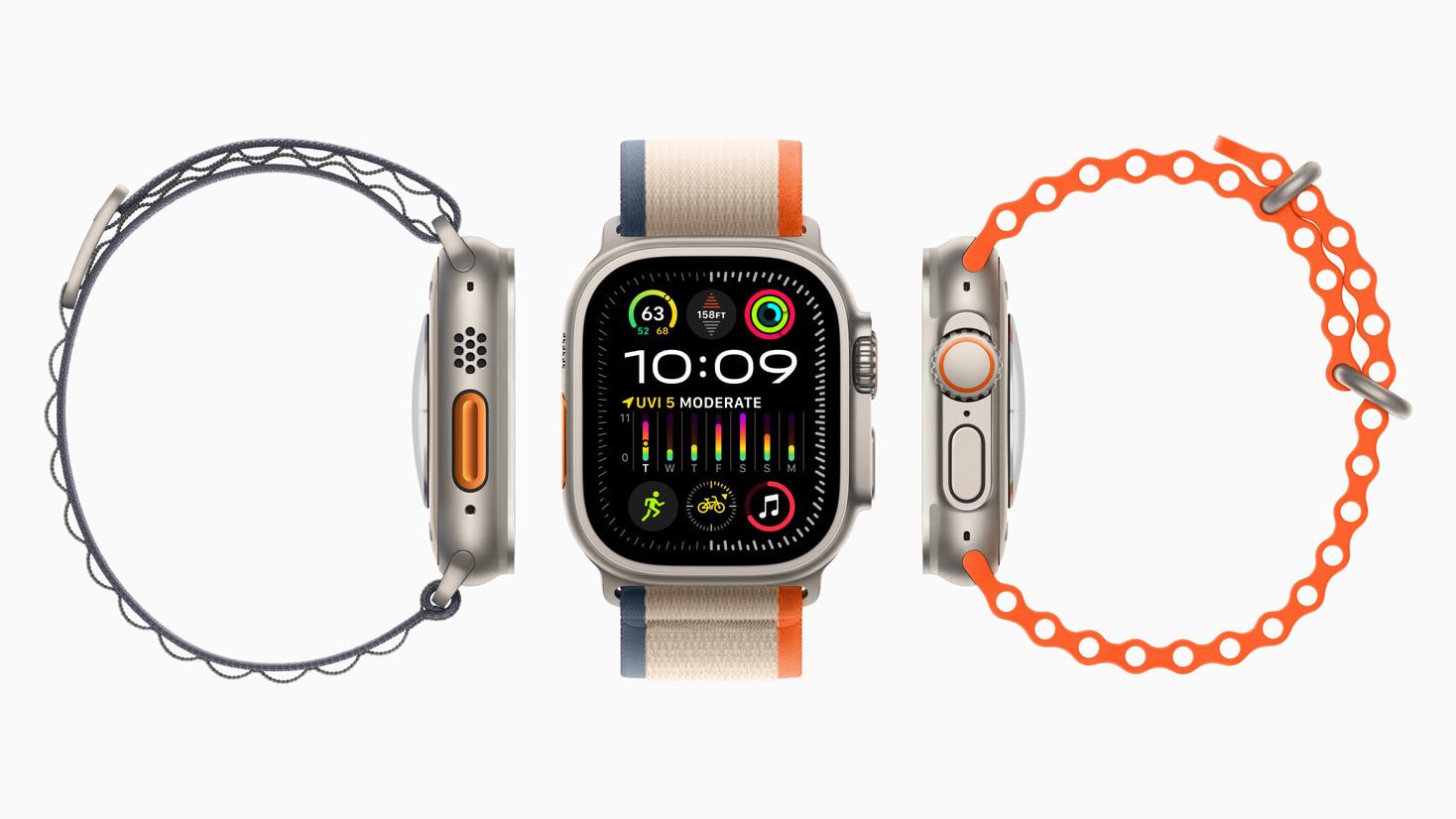
This guide explains how to use your Apple Watch. Get to know your Apple Watch and learn more about some useful gestures and features starting in watchOS 26.
Pair Apple Watch with your iPhone
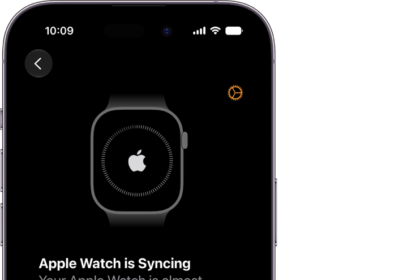
To use your Apple Watch, start by pairing it with your iPhone. To set up your Apple Watch, put it on your wrist snugly, then press and hold the side button to turn it on. Bring your iPhone near your watch, then follow the onscreen instructions. To prepare an Apple Watch for a person in your family who doesn’t have an iPhone, tap Set Up for a Family Member.

Respond to Notifications on Apple Watch
When you receive a notification like an incoming message, you’ll feel a tap on your wrist. To respond right away, raise your wrist.
Tap the app’s button to the left of the text field to share your location, send an emoji or a GIF and more. Tap the text field to dictate or type a response.
View Timely Information with Smart Stack
You can access the smart stack from your watch face to view widgets that contain timely information. Turn the digital crown and scroll to access more widgets.
You can add favorites to ensure the information you care about is always easy to find.
Use One-Handed Gestures on Apple Watch
On supported models, you can use one-handed gestures to interact with your Apple Watch.
The double-tap gesture lets you take actions like answering calls, replying to messages and opening and scrolling through your smart stack. Tap your index finger and thumb together twice to perform the gesture. You can customize what it does in your Apple Watch settings.
The wrist flick gesture helps you dismiss notifications, timers, and more. Turn your wrist away from you and back again to return to the watch face, then repeat the gesture to dismiss a notification.
Manage Notifications on Apple Watch
If your notifications have been stacking up, you can find them all in Notification Center. Swipe down from the top of the watch face and scroll through your notifications.
To remove a single notification, swipe left and tap the delete button. To clear all of your notifications at once, scroll to the top and tap Clear All.
Access Control Center on Apple Watch
Control Center gives you instant access to Silent Mode, Do Not Disturb, Wi-Fi, flashlight, and more—just like on iPhone.
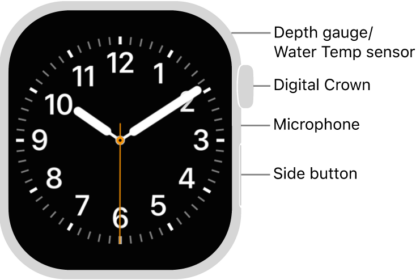
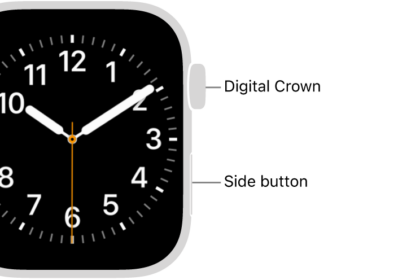
To open Control Center on your Apple Watch, press the side button. To close it, press the side button again.
Customize Your Watch Face
Apple Watch comes with both stylish and functional watch faces. To change the appearance of your Apple Watch, touch and hold the watch face.
Tap Edit to customize the current face, or swipe left or right to change to a different watch face saved in your collection. To create a new face, swipe all the way left and tap the New button.
Use Siri on Apple Watch
You can use Siri with your Apple Watch.
Press and hold the digital crown, then say something like, ”Remind me to pick up dog food in the morning.”Siri will add the reminder for you.
Navigate Apps on Apple Watch
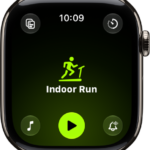
Your Apple Watch comes with a variety of apps for staying on top of your health, working out, and keeping in touch. To open an app, press the Digital Crown to return to the Home Screen, then tap the app.
For example, open Activity to view your rings and check your progress. Turn the digital crown for more detailed activity information like your move goal, your exercise minutes and more. To return to the Home Screen, press the Digital Crown. You can download more apps from the App Store on Apple Watch.
Switch Between Recent Apps on Apple Watch
To view all the apps you’ve used recently, double-click the digital crown to open the app switcher. Tap an app to reopen it, or scroll to view more.
Notes on Apple Watch
Notes is new to Apple Watch, starting in watchOS 26. With Notes, you can view your notes directly from your wrist.
Emergency Calling and Power Options
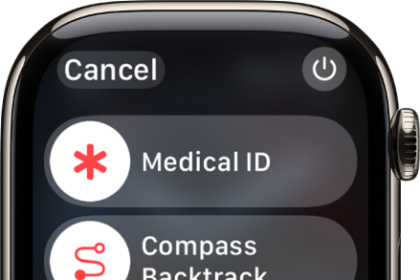
If you need to make an emergency call on your Apple Watch, press and hold the side button and drag the emergency call slider to the right. Apple Watch attempts to call emergency services and send a text message with your location to your emergency contacts if you have any set up.
You can also keep holding the side button until your Apple Watch issues a warning sound and starts a countdown. When the countdown ends, your Apple Watch attempts to contact emergency services.
From this screen, you can turn off your Apple Watch by tapping the power button at the top and dragging the slider to the right. To turn it back on, press and hold the side button until the Apple logo appears.
Conclusion
This is just the start of what you can do with your Apple Watch. With watchOS 26, you’re ready to explore even more ways to stay informed, active, and connected.
Not all features are available in all regions, on all models, or with Apple Watch for your kids.