





CarPlay has been around since 2014, so there’s a good chance that you’ve either driven a car with it or been in a car where someone else has been using it.
But be honest, beyond using it as a GPS, do you actually know how to use Apple CarPlay?
This stock iPhone function is actually really impressive, but you need to know how to get the most out of it to get the most out of it.
Read to the end of this article to learn how to use CarPlay with your iPhone.
Without further ado, let’s get into it.
Prerequisites
When we talk about CarPlay, I’m talking about you connecting your iPhone to a compatible car entertainment unit so that you can see a CarPlay dashboard like the one you can see on the image below.

There are two types of CarPlay connection: wired and wireless, and the one that you can access will depend on the multimedia unit that you’re operating.
For example, in my main car, which is a relatively new Audi, I’ve got the option of both a wired and a wireless connection.
In my secondary car, which is a 2008 Ford Focus, I’ve also got the option of both, but that’s because I installed an aftermarket unit which offers both.
You’ll need to check your setup to see what options are available to you.
Wired is by far the most common, but then regardless of what kind of display you’ve got, the beauty of CarPlay is that it will function exactly the same in any vehicle once you’re connected.
Set up CarPlay
- Start your car, then make sure that Siri is on.
- Connect your iPhone to your car:
- If your car supports CarPlay with a USB cable, plug your iPhone into the USB port in your car. The USB port might be labeled with a CarPlay icon or a smartphone icon. Be sure to use an Apple Lightning to USB cable.
- If your car supports CarPlay both wirelessly and with a USB cable, plug your iPhone into the USB port in your car. An alert on your iPhone will offer to connect you wirelessly on your next drives.
- If your car supports only wireless CarPlay, press and hold the voice command button on your steering wheel. Make sure that your stereo is in wireless or Bluetooth mode. Then on your iPhone, go to Settings > Wi-Fi, and make sure that Wi-Fi is also turned on. Tap the Info button for your CarPlay network, and check that Auto-Join is turned on. Then, go to Settings > General > CarPlay, and select your car. Check your car manual for more information.
If you’re having problems connecting your iPhone to CarPlay, check out this troubleshooting guide for help.
Use Siri to control CarPlay
Obviously, when driving, the most important thing is that you’re keeping your hands on the steering wheel and your eyes on the road, and so, in general, you’re going to be using Siri a lot while you’re using CarPlay.
Depending on your car, there are three ways you can use Siri to control CarPlay:
- Press and hold the voice command button on your steering wheel. Then ask Siri a question or to do something.
- Touch and hold the CarPlay Dashboard or CarPlay Home button on your touchscreen. Then ask Siri a question or to do something.
- If your vehicle supports "Hey Siri," say "Hey Siri." Then ask Siri a question or to do something. Go to Settings > Siri or Apple Intelligence & Siri, and make sure that Talk & Type to Siri is on.
You can input things using the keyboard, although your access to this is going to vary from vehicle to vehicle and whether you’re driving or not.
Some car manufacturers will remove the ability for you to use the keyboard while the vehicle is in motion, for example.
Essentially, when you open Maps and then tap on search, if you have the keyboard option, you can use that. Otherwise, you’re going to use Siri.
In terms of navigation, you can be specific and ask it to direct you to a certain location, or you can search.
So, you could ask it to get you directions to a specific shop or business in a particular town, or you could ask it to take you to a specific postal or zip code or full residential address.
If you’ve got an address stored against a contact, you could ask Siri to get you directions to that specific contact. So, if I’ve got an address stored for John Smith, I could just say, "Get me directions to John Smith."
You can ask Siri to find you places to go for coffee near where you are, or find a nearby gas station (or petrol station, as we call them here in the UK).
If you own an electric vehicle, you can ask Siri to search for EV chargers near your location.
If your phone knows where your home address or your work address is, you can ask Siri to get you home or get you directions to work.
Additional Siri Commands
Siri can do more than simply help you access the map and directions, but like anything related to Siri, you need to know how to ask for what you want.
For example, if you want to call someone, you would simply ask Siri to call that person. If they have multiple phone numbers, like a work phone and an iPhone, for example, you could specify that you’d like them to be called on the iPhone.
You can send someone a message, and you can do it via third-party apps, not just Apple Messages.
What’s quite handy here is that your iPhone will recommend a preferred method of sending a text for you based on what you usually do.
For example, I typically message my sister using WhatsApp, so if I ask Siri to send my sister a message from the car, it will reply and say, "You usually text your sister using WhatsApp. Would you like to use WhatsApp for this message?"
You can also send an audio message from the car if you like, although I believe this only works via Apple Messages.
You would simply say, "Send an audio message to [whoever]," and your phone will begin recording you speaking.
You can set reminders while you’re driving.
This is super helpful to me, especially if I’m driving on my own. I tend to get my best ideas when I’m driving or in the shower, so if I think of something and want to be reminded about it later, I simply access Siri and ask it to remind me of whatever the thing is.
A much more practical example is whenever my wife and I use the Dartford Crossing, which is a paid crossing here in the UK.
You have to remember to pay for it within 24 hours of making your crossing, so whenever we do it, I immediately access Siri and say, "Remind me to pay the Dartford Crossing charge tonight at 7 p.m." or whatever time works, and it will remind me at that time.
For entertainment purposes, I find it best if you specify the type of media that you want to listen to.
So, if I wanted to listen to the Off Menu podcast, I would ask Siri to "play the latest episode of the Off Menu podcast."
If I wanted to listen to the album Illmatic by Nas, I would say, "Play the album Illmatic by Nas."
This is handy as it stops Siri from mistaking albums for songs.
You can do this for playlists too, and you can also specify which platform to play the music on.
Your car will default to Apple Music, but if you say, "Play [such and such] on Spotify," for example, your car should then oblige.
Navigation
The entire point of CarPlay is to try and give you a very iPhone experience, but within your car, and that’s pretty clear when you view the main screen.
You’ve got very familiar tiles, and tapping on each one will open the relevant app up.
The dots at the bottom represent the different pages of apps, just like on your other Apple devices, and you can swipe to scroll between the pages.
If you keep swiping from left to right on the screen, you’ll move back pages, and eventually, you’ll get to a dashboard view.
This is where CarPlay will display what it thinks is the most relevant information for you, split into sections.
The map will always take up the majority of the display, but you might also be able to see the track that you’re listening to on Apple Music or Spotify or whatever you’re using.
Perhaps your next calendar appointment may be a more detailed explanation about the next term that you’ve got coming up.
If you want to view any of your apps in full-screen mode, simply tap on them.
So, tapping on the map section of the dashboard, for example, will jump you into the Maps app in its entirety, and you can then tap the dashboard button to get you back to the dashboard.
Your most recent three apps will show here as well, along with the time, your current cell signal, and battery status if you’re using CarPlay wirelessly or if your connected phone is charging.
The sidebar might show on the right or the left of your screen, depending on your CarPlay setup.
Apple Maps
One of the great things about CarPlay in its current form is the ability to use lots of different maps apps, so you might decide to use Google Maps, Waze, or TomTom. Go with whatever suits you.
Because it’s the stock app that every iPhone owner has access to, I’m going to mainly focus on Apple Maps.
For the sake of this article, I’ve asked CarPlay to find me a route from my current location.
If you notice on the map, you’ve got a route marked out in a deep blue color, but if there are other routes available to your chosen destination, those would show in a lighter shade of blue, and you can tap on the different routes to choose one.
CarPlay will typically choose the route that requires the least amount of time to get you to your location, but you’ve always got the option to choose an alternative route if one’s available.
If a route involves tolls or similar costs, that route will be marked with a currency symbol to let you know.
At the bottom of the screen, you can see your estimated arrival time, the time to get there, and the distance. This will, of course, update in real-time as you’re traveling, so if you hit traffic or the system sees that you’re about to, this will fluctuate accordingly.
This might be on the bottom left or bottom right for you. It will all vary depending on your car’s screen.
Also, where it’s available, Maps will display the direction that you’re currently traveling in and the speed limit of the road that you’re on.
Once on the route, you’ve got a few different buttons that will change various settings.
At any point, if you tap on the compass arrow icon, that will give you the detailed 3D map view with turn-by-turn directions.
That button will then turn to a squiggly line icon, which essentially represents a point A to point B view.
If you tap on that, the map view will zoom out and show you the route in its entirety in 2D. You can use the plus and minus buttons to zoom in and out of the map, and if your screen is touch-sensitive, you can swipe to move around the map if you’re looking for something or want to look ahead at the route, for example.
At any point, you can then tap "resume," but if you wait a moment, the map will bounce back to your current location without you having to do anything anyway.
Also, while on the route, you can tap on the upward-pointing arrow in the ETA section to access some additional options.
You can share your ETA with someone via a text message, you can add a stop to your route, and you can report a crash, a hazard, or a speed check.
I’ll be honest, this isn’t as up-to-date as a purely community sat nav app like Waze, but it is pretty good.
The audio button allows you to choose how much Siri should speak out turn-by-turn directions to you.
If you tap on that, you can then choose between directions being spoken, everything being muted, or just having important messages and warnings being spoken to you.
I’d recommend that if you prefer not to have directions spoken out, at least have speed check enabled, as Maps can now also include warnings of things like hazards in the road, broken-down vehicles, and speed cameras while you’re en route.
A nice feature for speed checks is that it will also warn you about them, but if you’re speeding, it will also remind you to slow down.
It isn’t as good as a mapping service like Waze, but it’s pretty good and might help keep you safe.
And a bonus tip while we’re discussing turn-by-turn directions: one annoying feature that I hear people ask about often is their Apple Watch buzzing on their wrist while they’re driving each time they come to a turn.
This might be something you find useful—I really don’t—so there is a way to disable this.
If you open the Watch app on your iPhone, then select your watch, then scroll down to Maps. Ensure that turn alerts are disabled for both driving and driving with CarPlay.
Settings
You can access various different CarPlay settings, some from the car and some from your phone, but you can’t access everything from everywhere.
On your iPhone, if you go to Settings, then General, and then CarPlay, you can view the CarPlay options for the cars that you’ve got set up on your phone.
If you tap on a car, you can toggle CarPlay on and off, as well as forget the connection with that car.
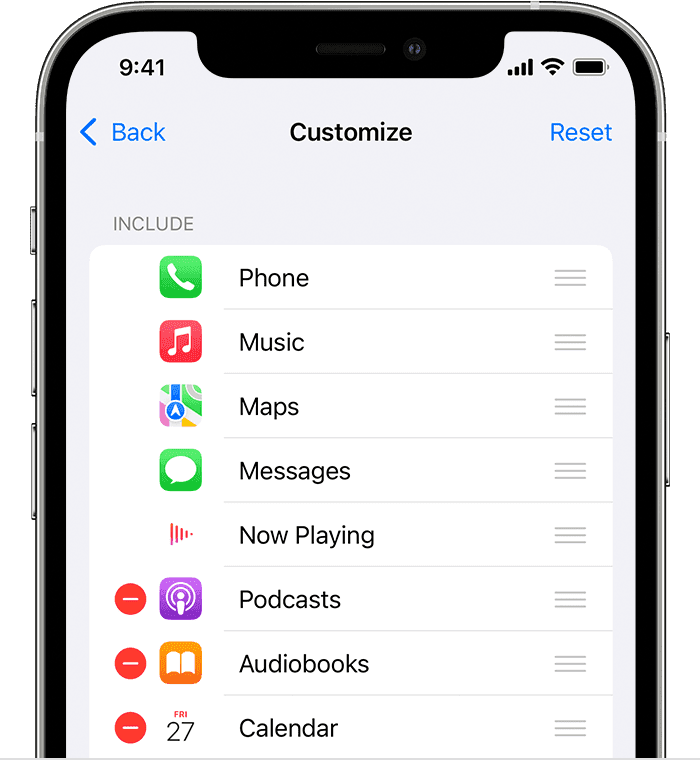
If you choose Customize, you can enable or disable apps and change the order of the apps as they’re going to show on the CarPlay screen, and this goes from top to bottom. Simply tap the Add button or Delete button to enable and disable apps. Tap and drag an app to change the order the apps appear in.
If you go to your car and choose Settings, you can choose to switch your Driving Focus on or off.
You can then choose the settings for how Siri should announce messages when they’re received while you’re using CarPlay.
Under Appearance, you can choose whether you view using Light Mode, Dark Mode, or have your device automatically choose it for you, and in Wallpaper, you can choose a wallpaper.
Siri and Suggestions is exactly what it sounds like, as is Show Album Artwork.
Driving Focus
I mentioned Driving Focus Mode earlier on, and it’s worth taking a moment to talk about this.
If we open Settings, then choose Focus, and then Driving, we can start to customize our Driving Focus Mode.
A Focus Mode is essentially a way of changing your iPhone’s look and behaviors during a certain period of time.
So, the example that I use the most is having one for work and one for personal, where the Work Focus Mode has different apps showing on the homepage and mutes notifications from certain apps and people.
We can set one up for driving, which will automatically enable when your phone is connected to CarPlay.
The Driving Focus Mode is slightly different from other Focus Modes in that it won’t allow you to choose apps to override this like you can with other Focus Modes.
It’s essentially a case that only calls and messages will come through while you’re driving, which is a good thing if we’re being honest here.
But you can tap into it where it says People and give certain people the ability to always contact you while you’re driving, or specifically stop certain people from contacting you while you’re driving, whatever you’d prefer.
You can choose to customize your phone and watch screen if you like.
I wouldn’t bother with this personally, but it’s there if you want it.
Use your car’s built-in controls to operate CarPlay
Cars supported by CarPlay should have built-in controls, such as a touchscreen, rotary knob, or touchpad. To learn how to operate your CarPlay display, check the manual that came with your car. You can also use Siri to control CarPlay, even if you have built-in controls.
Some Final Tips
So to conclude this guide, let me show you a few tips that are a bit more general and don’t really fit into any of the other categories, but that I still think you might be interested in knowing.
You can share your ETA—your estimated time of arrival—with someone while you’re driving via Siri.
You would simply access Siri and say, "Share my ETA with [whoever]," and Siri will send a text message to that person letting them know when to expect you.
You can take a screenshot of CarPlay if you ever need to.
I’ve used it for certain parts of this tutorial today, so it is pretty handy.
Simply take a screenshot with your connected iPhone the way that you normally would, and your phone will take a screenshot of both your phone screen and the connected CarPlay screen. Both will show in your iPhone’s photo library.
Your car can remember your parking location.
If you’re using CarPlay, simply disconnect and walk away, and your phone will remember the last location where it knows you and your car were, and it will mark this on Maps as your parked car.
Simply open Maps and search for Parked Car to find your way back to where you were.
I mentioned previously in the guide that there are other maps options available to you other than Apple Maps.
These are going to vary based on region.
I’m in the UK, so I can only really speak on the ones available here, but Google Maps and Waze are the main two competitors that I know people use a lot over here.
Waze is great.
It shows you all kinds of user information that you don’t get on the other apps, and Google Maps is good if you want a satellite view while you’re driving.
It’s also worth you having a look in the App Store to see if there are any other CarPlay-compatible apps that you might find useful.
Here in Kent, for example, almost all car parks are managed by a company called Ringo, where you can pay for parking via your phone.
They’ve got a really good iPhone app that’s compatible with CarPlay.
You can literally get directions to a specific car park using their app.
It will just route you via your mapping software, and once there, you can pay for your parking without having to get out of the car or even access your phone.
Final tip: be careful with in-car wireless charging.
My Audi offers this, and I thought this was great when I first got in the car, but I did a 90-minute journey with my phone on the wireless charging pad, and when I took the phone out at the end of the journey, it was so hot it was almost too hot to touch, and it lost a percentage of battery health in the process.
Wireless charging is good, provided the charging pad is ventilated.
If not, I’d advise against it and switch it off if you have that option.
So there you go. That’s everything that I think you need to know about CarPlay right now, almost at the end of 2024.
What do you think?
Any CarPlay tips that I should have included here?
Are you excited about the next version of CarPlay?
Drop me a comment and let me know, and as ever, if you found this article useful, do please consider sharing it with others.










Question. 2021 Dodge Ram has CarPlay. When connecting iPhone for GPS, the radio and CarPlay seem to interfere. If you shut the radio off, you can’t hear GPS. If you turn it up to hear directions, the radio is on. Is there something we are missing? Thanks for any info you can give.