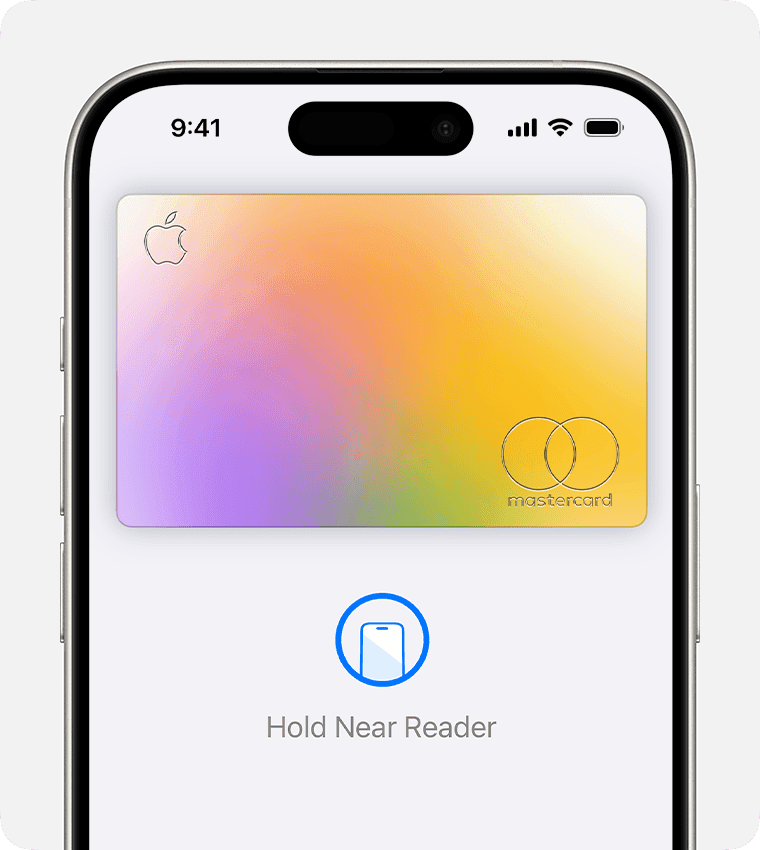
You can use Apple Pay to make purchases in stores, on websites, and in apps. It’s widely accepted, simple, safe, secure, and private. In this guide, we’ll show you how to set up and use Apple Pay on your Apple device so that you can use it for in-store and online purchases.
Add a debit or credit card
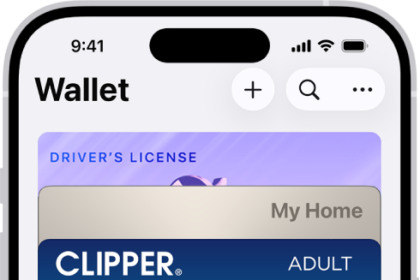
On your iPhone, open the Wallet app and tap the Add button in the upper right corner to add a credit or debit card. Then, use the camera to scan your card or enter your card information manually.
Your bank or card issuer might request additional verification to approve the use of your card with Apple Pay.
Once you’ve added a card on your iPhone, you can verify it for use on your Apple Watch, too.
Once you’ve added multiple cards, you can change your default card at any time in Settings under Wallet and Apple Pay.
Make purchases using Apple Pay
When making a purchase in person, check for the contactless symbol or Apple Pay logo. You can use Apple Pay with your iPhone or Apple Watch at stores, restaurants, vending machines, when paying for rideshares or public transit, and more.
When you want to make a purchase, you don’t need to unlock your iPhone or open Wallet.
- On an iPhone with Face ID, simply double-click the Side button and glance at your iPhone to authenticate. If you have an iPhone with Touch ID, double-click the Home button, then rest your finger on it to authenticate. Or, depending on your settings, you can use your passcode.
-
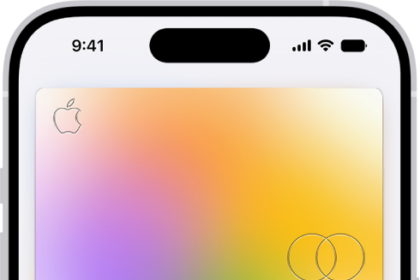
Your default card will appear for use. You can also tap your cards at the bottom of the screen to switch to a different one.
-
When you’re ready to pay, just hold the top of your iPhone near the contactless symbol on the card reader. When the transaction is complete, a chime will play, and a done message and checkmark will appear on your screen.
How to use Apple Pay online or in apps
You can use Apple Pay to pay online or in apps when you see Apple Pay as a payment option.
- Tap the Apple Pay button or choose Apple Pay as your payment method.
- To use a payment method different from your default card, tap Other Cards & Pay Later Options or Change Payment Method.
- If necessary, enter your billing, shipping, and contact information.
- Confirm the payment.
- iPhone or iPad with Face ID: Double-click the side button, then use Face ID or your passcode.
- iPhone or iPad without Face ID: Use Touch ID or your passcode.
- Apple Vision Pro: Use Optic ID or your passcode.
- Apple Watch: Double-click the side button.
- Mac with Touch ID: Place your finger on Touch ID.
- Mac without Touch ID: Confirm the payment on your Bluetooth-connected iPhone or Apple Watch. Make sure that you’re signed in to the same Apple Account on all devices.
- When your payment is successful, you’ll see Done and a checkmark on the screen.
How to use Apple Pay online with third-party browsers
You can use Apple Pay to pay online using third-party browsers on Mac, PC, and other devices by scanning a code with your iPhone or iPad.
- Tap the Apple Pay button or choose Apple Pay as your payment method. A code will be presented to you on the webpage.
- Use your iPhone or iPad camera to scan the code on the third-party browser webpage.
- If necessary, enter your billing, shipping, and contact information.
- Confirm the payment.
- iPhone or iPad with Face ID: Double-click the side button, then use Face ID or your passcode.
- iPhone or iPad without Face ID: Use Touch ID or your passcode.
- When your payment is successful, you’ll see Done and a checkmark on the screen.
Note:
- In addition to accepting Apple Pay, the merchant must accept your payment card and payment network.
- In China mainland, you can use Apple Pay on the web in Safari only on a compatible iPhone and iPad with the latest version of iOS or iPadOS. In China mainland, using Apple Pay with a third-party browser is not available.
- In Italy, you can use your iPhone and Apple Watch to make Apple Pay purchases in stores with your Maestro card. Maestro cards can’t be used within apps and on the web. In the Netherlands, you can add Maestro cards to all compatible devices except Mac.
- Available on compatible browsers with participating merchants. Compatible browsers require WebSocket support. This feature is not available in all markets. Software requirements apply. To ensure you have all features of this product, update your iPhone or iPad to the latest software version.
Pay with your Apple Watch
- Double-click the side button.
- Your default card opens automatically. Scroll down to choose another card.
- Hold the display of your Apple Watch near the contactless reader until you feel a gentle tap and hear a beep.
And that’s how you can make purchases securely and easily with Apple Pay.
Important notes
- To use Apple Pay, you need a supported card from a participating card issuer. To check if your card is compatible with Apple Pay, contact your card issuer.
- Apple Pay is not available in all markets.
- Features are subject to change.
- Some features, applications, and services might not be available in all regions or all languages.
- Some features require specific hardware and software.
- For more information, visit apple.com/apple-pay.
Apple Pay is a service provided by Apple Payments Services LLC, a subsidiary of Apple Inc. Neither Apple Inc. nor Apple Payments Services LLC is a bank. Any card used in Apple Pay is offered by the card issuer.