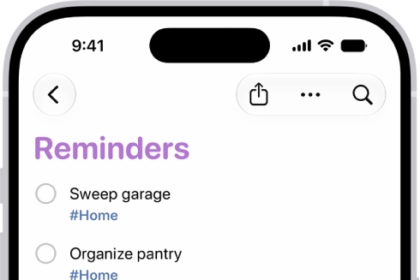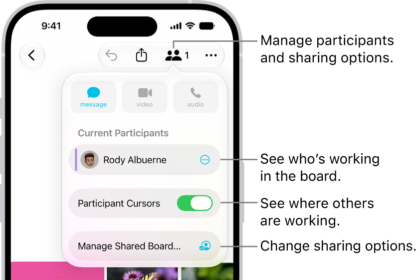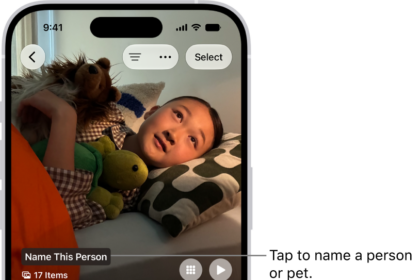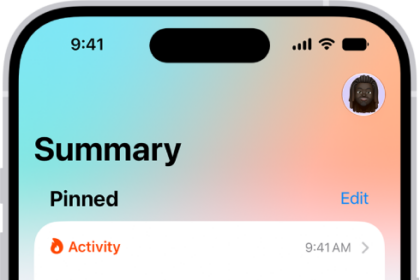
- The Dynamic Island is an interactive notch that surrounds the iPhone’s front camera and FaceID sensor.
- It doubles as a hub for alerts, notifications, and app shortcuts, and can change in appearance.
- Dynamic Island is available on all the iPhone 17 models.
- This article explains what Dynamic Island does, how it works, and how you can interact with it to perform actions on iPhone 17 models.
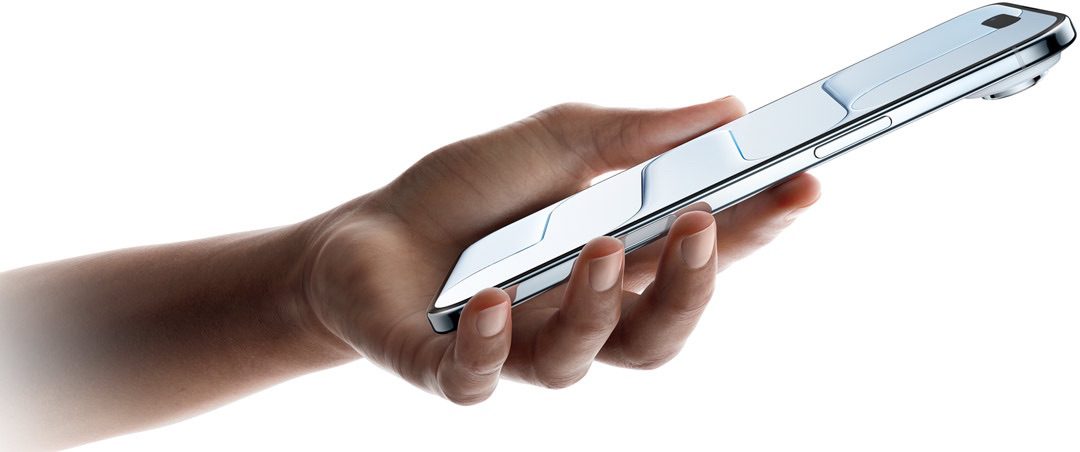
Dynamic Island offers a new and creative way for the space at the top of the iPhone’s screen to be used. The feature is available on iPhone 17, iPhone Air, iPhone 17 Pro and iPhone 17 Pro Max.
"Dynamic" refers to its interactive nature. Unlike the notch, which is static and takes up space, the Dynamic Island can not only display basic information and notifications, but it can also appear to expand in size to show more information. Users can tap on it, giving them a new way to interact with their iPhone.
Here’s everything to know about what Dynamic Island does, how it works, and how you can interact with it to perform actions on your iPhone 17.
What Is Dynamic Island and How Does It Work?
Dynamic Island is Apple’s designed "notch" for the iPhone 17, iPhone air, iPhone 17 Pro and iPhone 17 Pro Max. The oval-shaped cutout sits at the top of the screen, and hides the front camera and FaceID sensors. Instead of a "dead space" at the top of the device, the Dynamic Island can show notifications, alerts, or real-time information.
The Dynamic Island appears whenever your phone is unlocked. Through on-screen animations, the cutout appears to expand and shrink, depending on whatever information it’s displaying. It also serves as a hub for shortcuts you can tap to bring you directly to apps you’re using running in the background, like a music-streaming app and a timer.
On the iPhone 17, iPhone Air, iPhone 17 Pro and iPhone Pro Max, display pixels around the Dynamic Island merge it into one pill-shaped area that changes size and shape to accommodate various types of alerts, notifications, and interactions, turning it into a kind of front-and-center information hub.
What Can Dynamic Island Do on an iPhone 17?
Here’s a breakdown of the many functions Dynamic Island can fulfill on an iPhone 17, iPhone Air, iPhone 17 Pro and iPhone 17 Pro Max.
Dynamic Island: Display Outputs and Alerts
- Apple Pay transaction confirmations
- Privacy indicators when microphone or camera is in use
- AirDrop file transfers
- AirPods connection status and battery life
- iPhone charging status and battery life
- Low battery alerts
- Silent mode turned on or off
- Face ID unlocking
- Carkey locking/unlocking
- Apple Watch unlocking
- NFC interactions
- AirPlay connections
- Focus mode changes
- Shortcut actions
- Airplane mode/no data alerts
- SIM card alerts
- Accessories connect
- Find My alerts
- Flashlight on indicator
Dynamic Island: Background Activities
- Upcoming and turn-by-turn Maps directions
- Incoming phone call and duration of call
- Time remaining of playing song
- Active timers
- Live Activity sports scores
- SharePlay sessions
- Screen Recording
- Voice memo recordings
- Personal Hotspot connection
Can I Interact With Dynamic Island?
It’s possible to interact with certain types of content displayed in the Dynamic Island. For example, if it’s showing something related to an app’s background activity, you can tap the Dynamic Island to switch straight into the associated app.
In certain circumstances, such as when media is playing, you can also long press the Dynamic Island to bring up a widget containing playback controls.
The Dynamic Island is also capable of displaying multiple background activities at once, such as when a timer is counting down and when you’re listening to music. When that happens, the island splits into a larger pill-shaped area and a smaller circular area, so you can see and interact with both activities. You can swap between them and tap into them, just like you can with the standard Dynamic Island interface.
Can I Disable Dynamic Island Animations?
There’s currently no way to outright disable Dynamic Island content on an iPhone 17, however if you’re distracted by its animations you can dismiss them by swiping left or right across the Dynamic Island, without affecting any related background activity. This will return the pill-shape to its previous inert status.
Final Thoughts
Overall, the Dynamic Island on iPhone 17 models is the type of impressive integration of software and hardware that Apple is known for, and the ability of third-party developers to tap into its potential means it is now more interactive than ever.
Note that Dynamic Island also works with Live Activities in third-party apps.
See also: How to use and customize the Action button on any iPhone 17