How to use keyboard shortcuts in Notes on iPad

You can use keyboard shortcuts in Notes on iPad with an iPad keyboard to start notes, add checklists, links, and more.

By Chris Smith - Senior Editor
0 Min Read

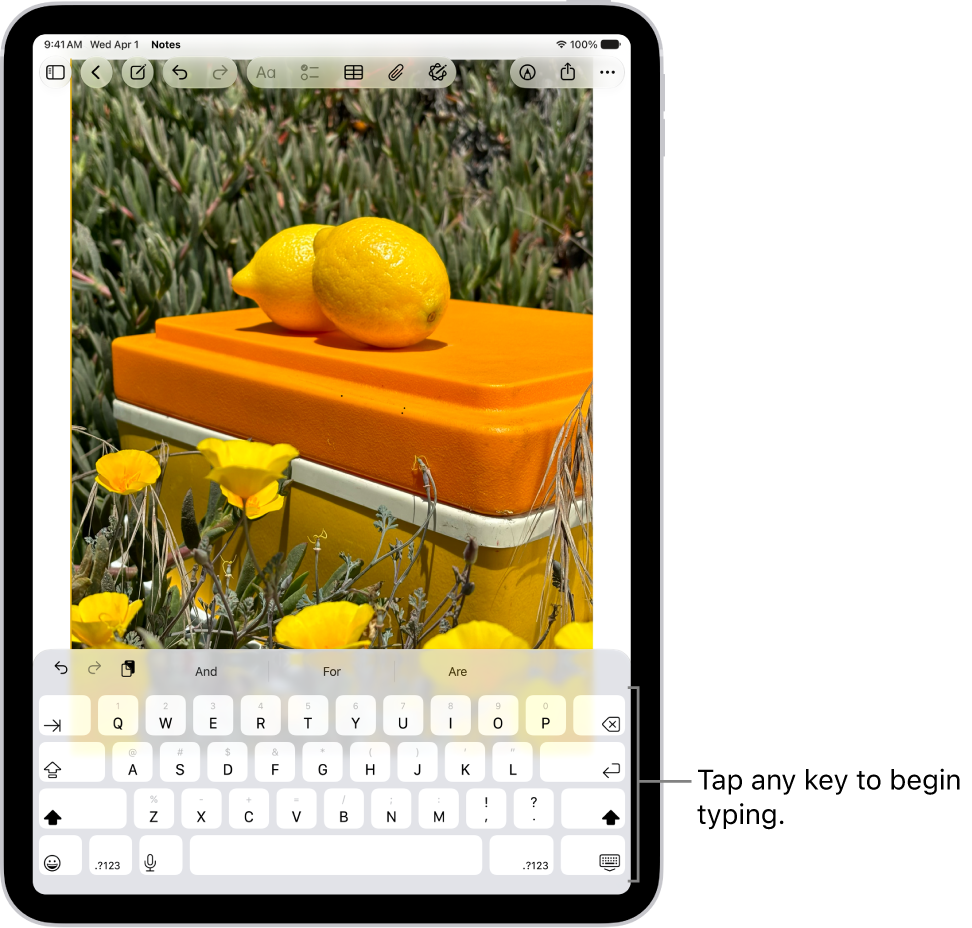
If your iPad is connected to an iPad keyboard, you can use keyboard shortcuts to quickly perform actions in the Notes app. You can learn keyboard shortcuts right on your iPad. It’s one of the ways you can use shortcuts on an Apple external keyboard with iPad.

Examples of keyboard shortcuts

  • Start a new note: Press Command-N.
  • Add a checklist: Press Shift-Command-L.
  • Create a bulleted list: Press Shift-Command-7.
  • Add a link: Press Command-K.
  • Add a divider line: Press Command-L.
  • Hide the sidebar: Press Control-Command-S.

Learn keyboard shortcuts

Press and hold the Globe key or Command (⌘) key until the shortcuts appear.

See also
Senior Editor
Follow:
Chris Smith is a senior editor at GeeksChalk based in Canada. He likes to think of himself as a jack of all trades (and a master of at least a few), though he mainly focuses on iPhones and Macs. Often covering both at the same time. When not surrounded by various Apple devices while putting them through their paces, Chris can be found streaming the latest movies or series, gaming on his PS5, or getting fresh air on a hike in the beautiful wilderness of British Columbia.
Leave a Comment