Facebook-f Twitter
GeeksChalk Logo GeeksChalk Logo
Notification
  • Home
  • iPhone
  • iPad
  • Mac
  • Apple Watch
  • Pages
    • About Us
    • Contact Us
    • Advertise With Us
  • 🤩 Trending:
  • 100 new iOS 26 features for iPhone
  • 10 Best iOS 26 Tips & Tricks
  • iPhone 16: Everything We Know
  • iPhone 16 Pro: Everything We Know

GeeksChalk is the leading source for all things iPhone, Mac, iPad, Apple Watch, Vision Pro, and more

GeeksChalkGeeksChalk
  • Home
  • iPhone
  • iPad
  • Mac
  • Apple Watch
Search

Popular Post

iPhone 15 Pro in black titanium, white titanium, blue titanium, and natural titanium finishes.
iPhone

Apple CarPlay GPS Not Working, Showing Wrong Location: Fix

iPhone 14 Pro and iPhone 14 Pro Max are shown in gold.
iPhone

How to Fix iPhone not sending text messages to Android

Connect an iPhone to car Bluetooth
Troubleshooting

How to fix Bluetooth not working on iPhone after iOS 26 update

iPhone outline with an Apple logo
iPhone

Need to restore an iPhone backup? Here’s how

Follow US
Copyright Ā© 2026 www.GeeksChalk.com
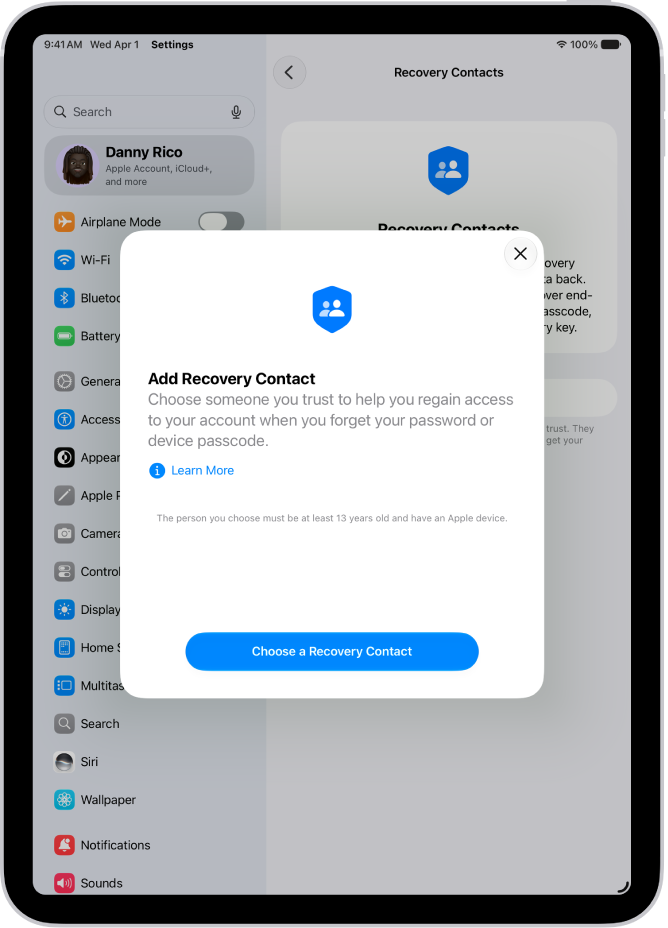
The Account Recovery Contact screen with information about the feature. The Add Recovery Contact button is at the bottom
GeeksChalk > iPad > How to use security keys to sign in to your Apple Account on iPad

How to use security keys to sign in to your Apple Account on iPad

You can use security keys to sign in to your Apple Account on iPad for extra protection from targeted attacks.

Last updated: October 18, 2026 9:55 am
By Dave Johnson - Senior Staff Writer
Share
2 Min Read

On iPad, Security Keys for your Apple Account is an optional security feature designed for people (such as celebrities, journalists, and members of government) who want extra protection from targeted attacks on their account, including phishing and social engineering scams.

A security key is a small third-party hardware device that you connect to your iPad to verify your identity when you sign in to your Apple Account. The physical key replaces the six-digit verification codes normally used in two-factor authentication, which keeps them from being intercepted or requested by an attacker. You need at least two keys, and you can pair up to six.

Set up security keys

Set up at least two security keys, so you’ve got a backup if one is lost, damaged, or stolen. Your account supports pairing up to six keys.

Note: NFC security keys are not currently supported on iPad.

  1. Open the Settings app on your iPad.
  2. Tap your name and tap Sign-In & Security.
  3. Tap Two-Factor Authentication, tap Security Keys, and then tap Add Security Keys and follow the onscreen instructions.

Sign in to a device, website, or app using a security key

  1. When prompted, insert your security key.
  2. Follow the onscreen instructions.

Use a security key to reset your Apple Account password

You can reset your Apple Account password with a security key that’s paired with your account if you forget it.

  1. Open the Settings app on your iPad.
  2. Tap your name and tap Sign-In & Security.

    If you aren’t already signed in to your Apple Account on your iPad, first use your paired security key to sign in.

  3. Tap Change Password, then follow the onscreen instructions.

Use a security key to unlock your Apple Account

Six unsuccessful attempts in a row to sign in to your Apple Account, or other signs of suspicious activity your iPad detects, bring up an onscreen notification that your Apple Account is locked. To unlock it, use your security key.

  1. Open the Settings app on your iPad.
  2. Tap your name and tap Sign-In & Security.
  3. Tap Unlock Account and then follow the onscreen instructions to unlock your Apple Account.
  4. If you think your account might have been locked because someone else knows your password, tap Change Password and enter a new one.
  5. Tap Done.

Remove security keys

Your Apple Account takes up to six security keys. If you hit the limit and need to pair additional keys, remove one or more of your paired keys first, and replace removed keys whenever you like.

  1. Open the Settings app on your iPad.
  2. Tap your name and tap Sign-In & Security.
  3. Tap Security Keys.
  4. To remove all keys, tap Remove All Keys, then tap Remove.

    To remove individual keys, tap the ones you want to remove, then tap Remove Key.

Note: If you remove all security keys from your Apple Account, the account reverts to using six-digit verification codes for two-factor authentication.

See also
  • Use two-factor authentication for your Apple Account on iPad
  • Keep your Apple Account secure on iPad
TAGGED:Apple Account
ByDave Johnson
Senior Staff Writer
Follow:
Dave Johnson is a staff writer for GeeksChalk based in New Jersey. He covers news, how-tos, and user guides for iPhone, iPad, Mac, and Apple Watch.
Leave a Comment Leave a Comment

Leave a Reply Cancel reply

Your email address will not be published. Required fields are marked *

Recent News Flash

The Magnifier app showing a close-up of an unripe apple.

How to magnify or get information about things around you with Magnifier on iPad

The Magnifier app is open and a door is being detected. A description shows how far away the door is.

How to detect doors, people, and furniture around you using Magnifier on iPad

A Settings screen showing Accessibility options such as VoiceOver, Live Recognition, and Audio Descriptions.

How to turn on and practice VoiceOver on iPad

The Magnifier app detecting a finger pointing at text on a sign.

How to detect text around you and have it read out loud using Magnifier on iPad

Trending Now

A preview of a website followed by a list of possible actions: Open, Open in New Tab, Open in Tab Group, Download Linked File, and Add to Reading List.

How to browse the web using Safari on iPhone

The Control Center screen showing that tapping the top-left button turns on Airplane Mode.

How to choose iPhone settings for travel

The Noise app showing a sound level of 89 decibels with the word "Loud" above.

How to measure noise levels with Apple Watch

Explore More

Recommended For You

The Magnifier app showing a close-up of an unripe apple.

How to customize controls in Magnifier on iPad

The Display and Brightness screen in Settings.

How to adjust iPad display and text settings

The iPad Home Screen with Dark Mode on.

How to adjust the screen brightness and color on iPad

Recovering several recently deleted messages.

How to recover deleted messages in Messages on iPad

GeeksChalk Logo GeeksChalk Logo
  • Home
  • Contact Us
  • Advertise
  • Our Staff
  • Editorial Guidelines
  • Terms
  • Privacy
  • Accessibility
  • Copyright
  • About Us
  • Fact Checking Policy
  • Correction Policy
  • Ethics Policy
  • Ownership Policy
Copyright Ā© 2026 www.GeeksChalk.com
Welcome Back!

Sign in to your account

Username or Email Address
Password

Lost your password?