With Vocal Shortcuts, you can teach iPhone to perform an action when you speak a word or another sound of your choosing. Vocal Shortcuts can be useful if you have moderate to severe atypical speech but can reliably vocalize certain utterances. Audio is processed on device.
You can add a Vocal Shortcut, use it, and delete it when you no longer need it.
Here’s how to use Vocal Shortcuts on iPhone.
Set up Vocal Shortcuts
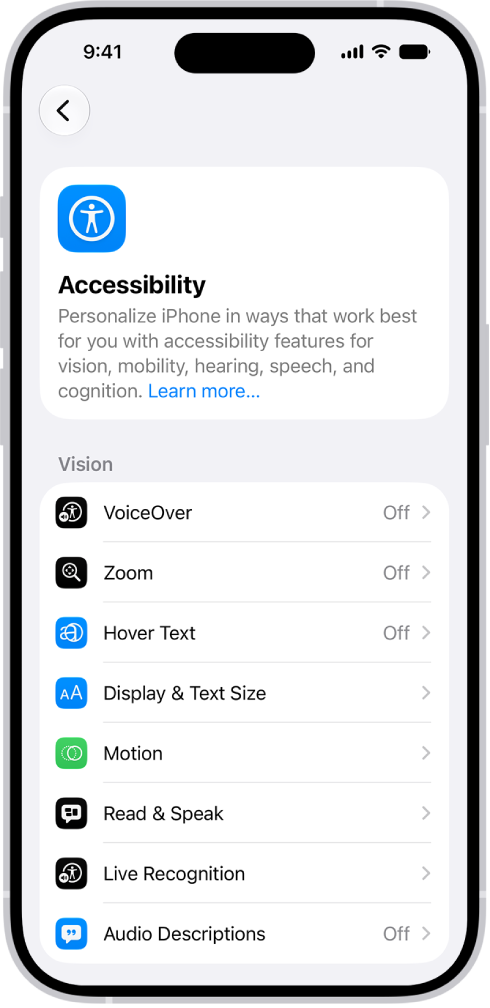
- Open Settings, tap Accessibility, and then tap Vocal Shortcuts.
- Tap Set Up, then tap Continue.
- Choose an action for iPhone to perform when you say the shortcut. If you want the action to be a request to Siri, tap Siri Request. Enter the request.
- Enter the phrase you’ll say when you want iPhone to perform the action and then follow the onscreen instructions to repeat the phrase out loud so that iPhone can recognize it.
After you set up Vocal Shortcuts, the Microphone In Use icon is shown in the status bar to indicate that Vocal Shortcuts is using the iPhone microphone to listen for shortcuts. When you don’t want Vocal Shortcuts to use the microphone, go to Settings > Accessibility > Vocal Shortcuts, then turn off Vocal Shortcuts.
Add a Vocal Shortcut
- Open Settings, tap Accessibility, and then tap Vocal Shortcuts.
- Tap Add Action, then tap Continue.
- Choose an action for iPhone to perform when you say the shortcut. If you want the action to be a request to Siri, tap Siri Request. Enter the request.
- Enter the phrase you’ll say when you want iPhone to perform the action and then follow the onscreen instructions to repeat the phrase out loud so that iPhone can recognize it.
Use a Vocal Shortcut
Once Vocal Shortcuts is set up, say the phrase for one of the shortcuts you’ve created.
Delete a Vocal Shortcut
- Open Settings, tap Accessibility, and then tap Vocal Shortcuts.
- Tap Edit, tap the Remove button next to the shortcut you want to delete, and tap Delete.
Quick tip: If you have an acquired or progressive condition that affects speech, you can have Siri listen for and recognize a wider range of atypical speech patterns.