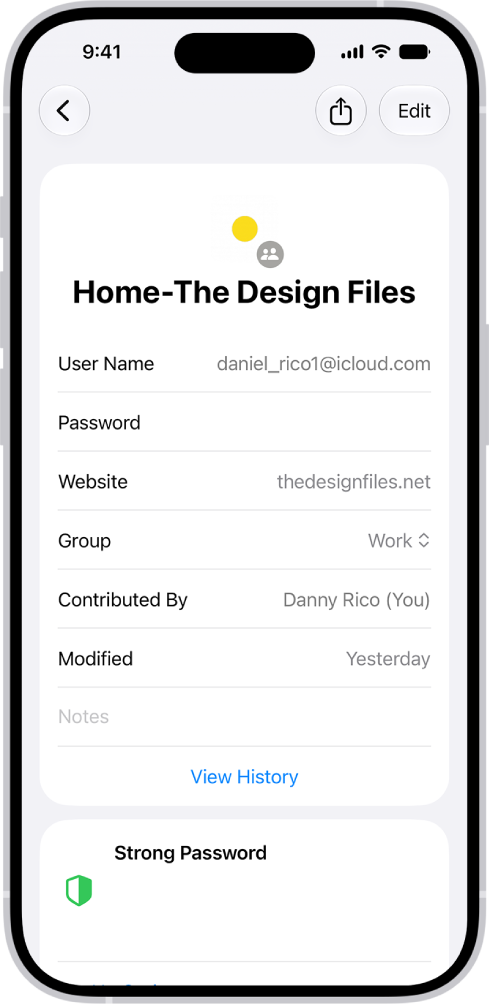
You can view and copy passwords, add notes like security question reminders, and more with the encrypted account information stored on iPhone. iCloud Keychain securely keeps this information up to date across all your approved devices.
You can also view and copy a password for a website or app account, go to the website for an account, or remove an account from your iPhone and iCloud Keychain.
Here’s how to view your passwords and related information on iPhone.
View and copy a password for a website or app account
- For an account that uses a password, do one of the following:
- Ask Siri something like, “Show me my passwords.”
- Open the Passwords app on your iPhone.
- On a sign-in screen, tap the Password AutoFill button.
- Tap an account, then tap the Password field.
- To copy the password to use elsewhere, tap Copy Password.
Add notes for an account with a password or passkey
You can securely store notes about security questions, recovery key information, PIN numbers, and similar details.
- Open the Passwords app on your iPhone.
- Tap All, then tap an account.
- Tap Edit, tap Notes, enter your text, and then tap the Save button.
To update the notes, tap Edit, then tap the Notes field.
Go to the website for an account
- Open the Passwords app on your iPhone.
- Tap All, then tap an account.
- Do one of the following:
- Tap the Safari button.
- Tap the website URL, tap Copy Website, then paste the URL into the address field of your browser.
Remove an account from your iPhone and iCloud Keychain
- Open the Passwords app on your iPhone.
- Tap All, then tap an account.
- Swipe left on the account, tap Delete, and then tap Delete Password to confirm.
For example, you might want to remove the account for a website or app that’s no longer available. Note: This action doesn’t remove the account from the website or app where you created it.
Remove a password or passkey from your iPhone and iCloud Keychain
- Open the Passwords app on your iPhone.
- Tap All, then tap an account.
- Tap Edit.
- Tap Delete. Tap Delete Password or Delete Passkey to confirm.
Note: The password or passkey stays on the website or app where you created it.