




Facebook-f Twitter
GeeksChalk Logo GeeksChalk Logo
Notification
  • Home
  • iPhone
  • iPad
  • Mac
  • Apple Watch
  • Pages
    • About Us
    • Contact Us
    • Advertise With Us
  • 🤩 Trending:
  • 100 new iOS 26 features for iPhone
  • 10 Best iOS 26 Tips & Tricks
  • iPhone 16: Everything We Know
  • iPhone 16 Pro: Everything We Know

GeeksChalk is the leading source for all things iPhone, Mac, iPad, Apple Watch, Vision Pro, and more

GeeksChalkGeeksChalk
  • Home
  • iPhone
  • iPad
  • Mac
  • Apple Watch
Search

Popular Post

iPhone 14 Pro and iPhone 14 Pro Max are shown in gold.
iPhone

How to Fix iPhone not sending text messages to Android

iPhone 15 Pro in black titanium, white titanium, blue titanium, and natural titanium finishes.
iPhone

Apple CarPlay GPS Not Working, Showing Wrong Location: Fix

iPhone outline with an Apple logo
iPhone

Need to restore an iPhone backup? Here’s how

The iPhone’s Messages app, showing iMessages and SMS messages side-by-side. Ā 
Troubleshooting

Is Your iPhone Not Sending Pictures? Here’s How to Fix It

Follow US
Copyright Ā© 2026 www.GeeksChalk.com
A burgundy iPhone 18 Pro with coordinating case is paired with a magenta Crossbody Strap.
GeeksChalk > Troubleshooting > Invalid Phone Number for Apple Account on iPhone 18 Pro

Invalid Phone Number for Apple Account on iPhone 18 Pro

If your iPhone 18 Pro or iPhone 18 Pro Max says "Invalid Phone Number," double-check the number and the phone number in Sign-In & Security settings.

Last updated: September 27, 2026 1:27 pm
By Chris Smith - Senior Editor
Share
2 Min Read

Some people have run into a problem when trying to create an Apple Account or trying to use Apple Pay. They get an error saying, ā€œInvalid Phone Number. This phone number is invalid. Please enter a new number and try again.ā€

There are a few situations where someone may see this error message or a similar one:

  • When trying to create an Apple Account
  • When trying to use Apple Pay
  • After entering a verification code for two-factor authentication

How to Fix ā€œInvalid Phone Numberā€

Try the following until your problem has been resolved.

Check the phone number on your iPhone 18 Pro

  • Double-check the number you are entering:

    1. Open Settings on your iPhone 18 Pro.
    2. Tap Apps, then tap Phone.
    3. Your phone number is listed next to My Number.

Check the phone number for your Apple Account

  1. Open Settings on your iPhone.
  2. Tap on your Apple Account name at the top.
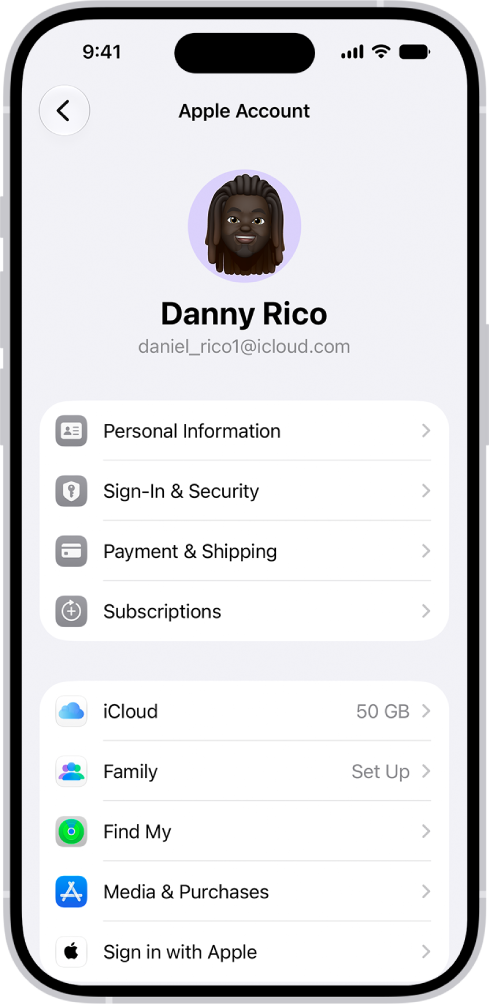
    The Apple Account Settings shown with a list of options including personal information, subscriptions, Find My, and more.

  3. Tap on Sign-In & Security. Check that the number is correct there.

For Apple Pay issues, check the default phone

  1. Open Settings and tap on Wallet & Apple Pay.
  2. Tap Apple Pay Defaults, then tap Phone.
  3. If you have a phone number listed there, make sure it matches exactly, including the ā€˜+’ and country code.

When entering your number

  • Make sure not to have spaces.
  • Don’t use the first zero for the country code. Check that the country code is there and is correct.

Update your iPhone 18 Pro

Go to Settings and tap on General. Then, tap on Software Update and install any available updates.

Restart your iPhone 18 Pro

  1. Press and hold the Side button and one of the volume buttons until the power off slider appears.
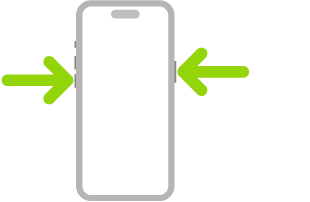
    An illustration of iPhone with arrows pointing to the side button on the upper right and a volume button on the upper left.

  2. Slide the slider, then wait for your iPhone to completely power off.
  3. Hold the Side button until the Apple logo appears.

Update your carrier settings

  1. Make sure you are connected to a Wi-Fi network.
  2. Open Settings, then select General.
  3. Tap About. If a popup appears with a carrier update, tap on Update. If there is no popup, there are no updates available.

If you receive ā€œInvalid Phone Numberā€ after entering 2FA code

Try getting the verification code sent to another device.

If the phone number is new

Wait and try again

  • If you just got the phone number, you might wait a day or two if possible.
  • Have someone call you to make sure the number is active.

Request a different number from the carrier

It is possible that someone had your phone number before. They may have created Apple Accounts with the number or gotten put on some kind of spam list. These things could cause your phone number to be considered invalid.

  • Someone may have had the number previously and created an Apple Account with it, and then the carrier recycled the number.
  • You can get a new phone number from the carrier. If your phone number is new, it shouldn’t make too much difference to you if you have to change it.

If the phone number is not new

  • Have you created other Apple Accounts with the number?

Manage your Apple Account online

Go to account.apple.com to manage your Apple Account.

If you still get the ā€œInvalid Phone Numberā€ error

There are two places that may be able to help you: Your carrier or Apple Support.

Contact your carrier (for a new number)

If you haven’t yet, you should contact your carrier to see if there is anything they can do to check your phone number or give you a new one (if yours is new).

Contact Apple Support

If you have double-checked your phone number, tried again a couple of days later and can’t get any help from your carrier, it is probably time to contact Apple Support.

  • If you already have an Apple Account, you may need to request an account recovery. The process can take a few days.

TAGGED:Apple AccountiPhone 18 Pro
ByChris Smith
Senior Editor
Follow:
Chris Smith is a senior editor at GeeksChalk based in Canada. He likes to think of himself as a jack of all trades (and a master of at least a few), though he mainly focuses on iPhones and Macs. Often covering both at the same time. When not surrounded by various Apple devices while putting them through their paces, Chris can be found streaming the latest movies or series, gaming on his PS5, or getting fresh air on a hike in the beautiful wilderness of British Columbia.
Leave a Comment Leave a Comment

Leave a Reply Cancel reply

Your email address will not be published. Required fields are marked *

Recent News Flash

iPhone 18 Pro, burgundy finish, partial back exterior angled to show pro camera system in top left corner, 3 lenses, microphone, flash

Not Enough Space to Transfer a Backup to iPhone 18 Pro

The front of a burgundy iPhone 18 Pro is displayed next to a rear-facing burgundy iPhone 18 Pro Max.

iPhone 18 Pro Not Showing Up in Finder on Mac? Here’s Why

A burgundy iPhone 18 Pro with coordinating case is paired with a magenta Crossbody Strap.

Notes Disappeared on iPhone 18 Pro? How to Recover Them

iPhone 18 Pro in glacier is paired with the Clear Case.

Wordle Shows a Blank Page on iPhone 18 Pro? Here’s the Fix

Trending Now

A collection of Apple products, including Apple Vision Pro, MacBook, iPad, iPhone 17 Pro, and Apple Watch, all displaying various Siri AI interfaces.

Which iPhones, iPads, and Macs Support Siri AI

An iPhone showing Siri AI finding content specified in the request.

15 Siri AI Tips Worth Knowing

14-inch MacBook Pro, open, silver color, rounded raised feet, 16-inch MacBook Pro, open, space black color, rounded raised feet Ā 

How to Set Up Safe User Accounts on a Shared Mac

Explore More

Recommended For You

iPhone 18 Pro Max, iPhone 18 Pro, a hand holds each model

Can’t Transfer Photos From iPhone 18 Pro to Windows? Fix

iPhone 18 Pro is displayed in black, silver, glacier, and burgundy.

Notifications Disappearing From iPhone 18 Pro Lock Screen

The front of a burgundy iPhone 18 Pro is displayed next to a rear-facing burgundy iPhone 18 Pro Max.

Google Unusual Traffic Error on iPhone 18 Pro? How to Fix

iPhone 18 Pro and iPhone 18 Pro Ma iPhone 18 Pro, back exterior, burgundy color (dark red)

iPhone 18 Pro Unable to Download App From The App Store? Fix

GeeksChalk Logo GeeksChalk Logo
  • Home
  • Contact Us
  • Advertise
  • Our Staff
  • Editorial Guidelines
  • Terms
  • Privacy
  • Accessibility
  • Copyright
  • About Us
  • Fact Checking Policy
  • Correction Policy
  • Ethics Policy
  • Ownership Policy
Copyright Ā© 2026 www.GeeksChalk.com
Welcome Back!

Sign in to your account

Username or Email Address
Password

Lost your password?