- To fix an iPhone 17 alarm that’s not going off, start by checking the alarm’s configuration in the Clock app, such as AM/PM and recurring settings.
- Double check your Apple Watch, if you have one, to make sure it’s not in Mute or Theater mode.
- Here are ten ways to troubleshoot an iPhone 17 alarm that isn’t waking you.
While the old-fashioned alarm clock isn’t extinct, it’s certainly on the endangered species list. For many people, it’s simply easier to rely on their iPhone to wake up in the morning — not only is it probably on the bed stand charging overnight, but it’s the first thing many of us look at after waking.
But if your iPhone 17 alarm doesn’t go off, that can be a serious problem. Here are nine ways to troubleshoot your iPhone 17 alarm problem so you don’t oversleep in the morning.
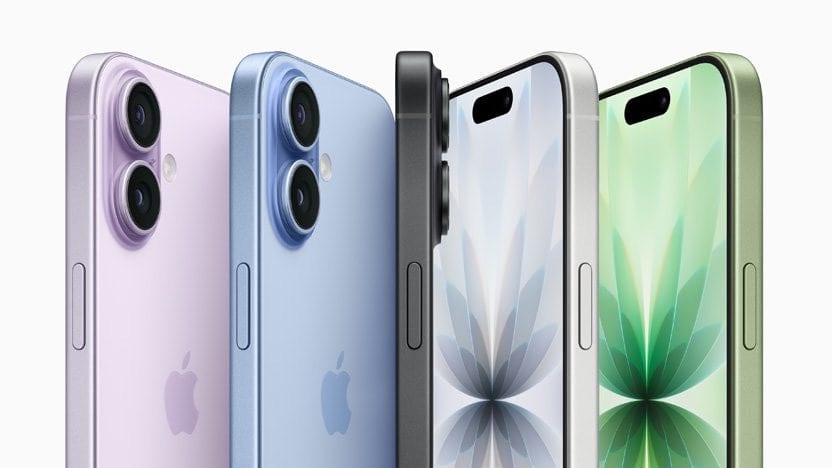
Note: Information in this article applied to iPhone 17, ipPhone Air, iPhone 17 Pro, and iPhone 17 Pro Max.
Double-check the alarm settings
The first thing you should do when your iPhone 17 alarm is not going off is to doublecheck your alarm settings. This is because most of the time when an iPhone 17 alarm doesn’t go off when you expect, the root cause is user error — you probably simply set the alarm incorrectly. The most common errors? Choosing PM instead of AM (or the other way around) or believing the alarm was set to recurring when in fact it was a one-time alarm. To check, follow the steps below:
- Open the Clock app and tap the Alarms tab.
- Tap Edit in the upper-left corner.
- Tap the alarm that didn’t go off.
- Check for the proper time, AM/PM setting, and see if it’s set to recur on the days of the week you want. If not, tap Repeat and make the necessary changes. Next, tap Sound to pick a sound that plays when the alarm sounds.
- Tap Done in the upper-right corner.
Check your alarm volume
By default, alarm sounds are controlled in the Settings app, not with the volume buttons on the side of the iPhone. Make sure it’s set high enough to wake you — otherwise, the alarm could go off and you simply won’t even know.
- Open the Settings app and tap Sounds & Haptics.
- Under the Ringtone and Alerts section, adjust the volume slider so it’s loud enough to get your attention in the morning.
- Make sure Change with Buttons is off, with the button swiped to the left, or else you can easily lower the volume of the alarm by accident using the volume buttons.
Use an Apple Watch? Check your settings there
If you use an Apple Watch in conjunction with your phone’s Clock app, certain settings on your watch can interfere with the watch’s ability to gently wake you in the morning when the alarm is scheduled to go off.
First, make sure your Apple Watch isn’t locked. If necessary, enter your passcode on the watch so you can gain access to your watch apps. Then swipe up from the bottom to see the Settings screen and make sure that it is not set to Mute, Theater mode, or Airplane mode. If any of those three icons are selected, tap them to turn them off.
Make sure your phone isn’t connected to a Bluetooth device
If you connect headphones to your iPhone, the alarm plays at a set volume through the built-in speakers on your iPhone as well as wired and wireless headphones. However, an iOS bug may cause audio to only play through a connected audio device, like headphones, earbuds, or a portable speaker that’s in another room. To fix this, ensure there are no connected Bluetooth devices, or simply toggle Bluetooth off and then turn it back on again. Any devices will disconnect and the alarm should play through the iPhone’s speaker.
To do that, open the Settings app then tap Bluetooth. Turn Bluetooth off, then wait about five seconds. Then you can turn Bluetooth back on again (or, if you prefer, simply leave it off).
Restart your iPhone
There might be some sort of software glitch that’s preventing your iPhone 17 alarm from working properly. You can clear out this kind of temporary glitch by turning your iPhone 17 off and then back on again.
Update iOS
There’s also a good chance your iPhone 17 has a major software bug that’s preventing alarms from going off. The remedy? Update your iPhone 17 software and try the alarm again. Go to Settings ⇒ General ⇒ Software Update. If an update is available, tap Update Now.
Reset All Settings
It’s possible a deep software problem is preventing your iPhone 17 from making noise when an alarm goes off. Some software issues can be difficult to track down, so we’re going to reset everything.
When you Reset All Settings, everything in the Settings app is restored to factory defaults. You’ll have to pair your Bluetooth devices to your iPhone again and reenter your Wi-Fi passwords.
To reset all the settings on your iPhone, open Settings and tap General ⇒ Transfer Or Reset iPhone ⇒ Reset ⇒ Reset All Settings. If asked, enter your iPhone’s Passcode. Tap Reset All Settings to confirm the reset. Your iPhone will turn off, reset, and turn on again when the reset is complete.
Use a different alarm app
If you have tried everything in this guide and alarms are not going off on your iPhone 17, it might be time to move on from the Clock app. There are a lot of third party alarm apps for the iPhone, and you can probably find alternatives that you like as well (or better) than the Clock app.
Quick tip: Some of the best alternative alarm apps include Loud Alarm Clock, Alarmy, and Alarm Clock for Me.
Contact Apple support
If alarms are still not working on your iPhone 17, you may want to contact Apple Support for assistance.