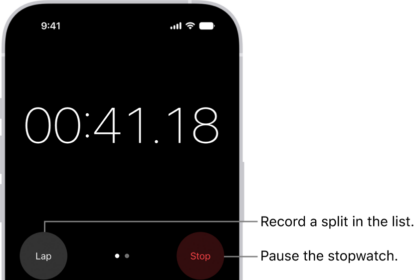
The recent iOS update has brought a lot of issues (CarPlay, Wi-Fi, Cellular, Calls) we keep reporting, and one of them seems to be with alarms.
Since the recent iOS update, many iPhone 18 Pro users have reported a serious problem with their alarms. Some alarms show up on the screen but play no sound, while others are accidentally silenced because of changes to how the side button works. In many cases, alarms no longer snooze the way people expect, leading to missed wake-ups, late arrivals at work, and general frustration.
The issue:
After the recent iOS update, users have noticed:
- Alarm shows on the screen, but no sound plays.
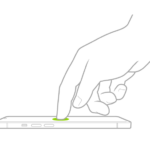
- Side button behavior has changed:
- Press once > completely silences the alarm.
- Press twice > snoozes the alarm (but not always).
- Snooze alarms never ring again after being muted.
- Alarm volume is inconsistent — sometimes too quiet, other times extremely loud.
- Flashlight alerts for Deaf users have stopped working.
- Siri sometimes says alarms were “turned off.”
- Apple Watch alarms are also unreliable, with no haptic taps or sounds.
Fixes:
Try these until your issue is gone:
1) Turn off Attention Aware Features
- Go to Settings > Face ID & Passcode > Attention Aware Features and toggle it off.
- Some users say this restored alarm sound.
2) Use double side button press for snooze
- A single press now cancels the alarm. Pressing twice may snooze instead.
3) Avoid Sleep Schedule alarms
- Set alarms directly in the Clock app instead of through Health/Sleep.
4) Check alarm volume
- Go to Settings. Tap Sounds & Haptics, then do any of the following below Alarms and Timers: Turn off Match Ringtone Volume, then drag the volume slider. Turn on Match Ringtone Volume.
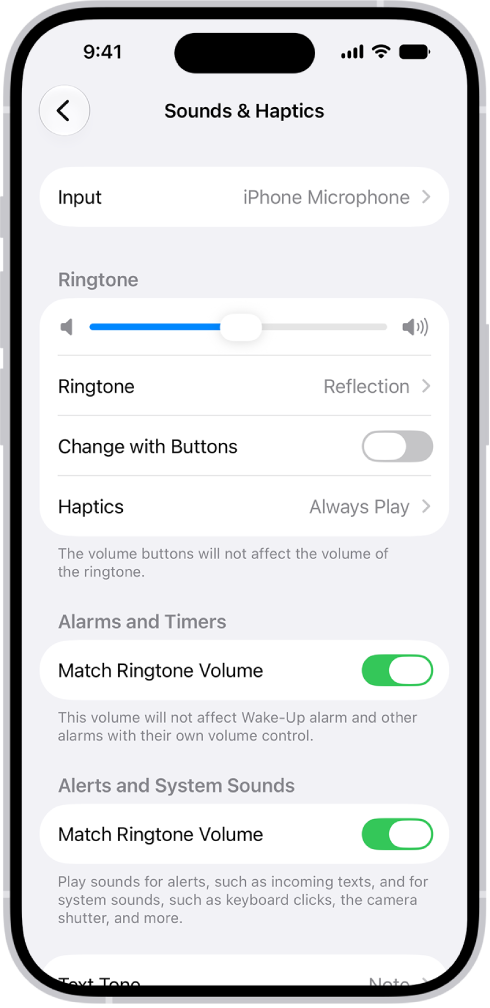
- Turn on Change with Buttons if you want to control alarm volume with side buttons.
5) Confirm your alarm sound isn’t set to None
- Open the Clock app > Alarms > Tap a time > Sound and pick a tone.
- If set to “None,” the alarm will only vibrate.
6) Watch for StandBy behavior
- In StandBy mode, alarm sound plays but haptics are disabled.
Note: When your iPhone 18 Pro is charging and placed horizontally (for example, on a nightstand), StandBy mode can activate.
7) Add backups
- Set multiple alarms a few minutes apart. I always do this myself, like setting the alarm for 7:15 and 7:20 and 7:30 etc. You can cancel multiple alarms at once easily, later if you want.