You can easily locate your FaceTime call history on your iPhone 18 Pro or iPhone 18 Pro Max. This call history consists of a list of FaceTime calls you’ve made, answered, or missed. You can view this list by opening the Phone app or the FaceTime app. The Phone app lists all of the calls, including cellular and FaceTime calls, while the FaceTime app only lists the FaceTime calls.
I have recently noticed that some of the calls from the FaceTime call log are disappearing and FaceTime is not showing all calls, even though it appears that there is space on the screen for many more entries. The purpose of this article is two-fold:
- To explain why FaceTime is not showing all calls on iPhone 18 Pro.
- To fix this problem by bringing back the missing call entries.
iPhone 18 Pro FaceTime call history
As stated above, the list of the recent calls can be viewed in the Phone and FaceTime apps.
Both apps can filter the call list, and a filter that has been left on will show only one type of call. That is the first thing to check when your calls look like they have disappeared. To check the filter in the FaceTime app:
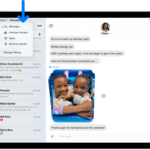
- In FaceTime, tap the Filter button in the upper right corner.
- Tap any of the options from the list:
- Calls (your recent FaceTime video and audio calls)
- Missed (FaceTime video and audio calls that were not answered)
- Video (video messages from other callers)
- Voicemail (voicemails from other callers)
- Unknown Callers (calls from unsaved Contacts)
- Spam (calls identified as spam or fraud)
- Manage Filtering (your settings to screen, silence, and filter calls)
The Phone app also has a filter. In the Unified layout:
- Open the Phone app.
- Tap the Calls tab at the bottom of your screen.
- Tap the Filter button in the upper-right corner.
- Tap the type of calls you want to see: Calls, Missed, Unknown Callers, or Spam.
After choosing a filter, you can return to the default Unified view by reopening the filter menu and tapping Calls.
In the Classic layout:
- Open the Phone app.
- Tap the Recents tab at the bottom of your screen.
- Tap the Filter button, then tap Calls or Missed. In the Classic layout, you may also have the option to filter by Unknown Callers.
Please note that in this history, the list entries are ordered chronologically.
If you deleted calls, you can recover the call history by restoring your iPhone from a backup you made before the data was deleted. Your carrier (Verizon, AT&T, etc.) may also have more information about deleted calls or older call histories — check your carrier account page or contact your carrier.