Facebook-f Twitter
GeeksChalk Logo GeeksChalk Logo
Notification
  • Home
  • iPhone
  • iPad
  • Mac
  • Apple Watch
  • Pages
    • About Us
    • Contact Us
    • Advertise With Us
  • 🤩 Trending:
  • 100 new iOS 26 features for iPhone
  • 10 Best iOS 26 Tips & Tricks
  • iPhone 16: Everything We Know
  • iPhone 16 Pro: Everything We Know

GeeksChalk is the leading source for all things iPhone, Mac, iPad, Apple Watch, Vision Pro, and more

GeeksChalkGeeksChalk
  • Home
  • iPhone
  • iPad
  • Mac
  • Apple Watch
Search

Popular Post

iPhone 14 Pro and iPhone 14 Pro Max are shown in gold.
iPhone

How to Fix iPhone not sending text messages to Android

iPhone 15 Pro in black titanium, white titanium, blue titanium, and natural titanium finishes.
iPhone

Apple CarPlay GPS Not Working, Showing Wrong Location: Fix

iPhone outline with an Apple logo
iPhone

Need to restore an iPhone backup? Here’s how

The iPhone’s Messages app, showing iMessages and SMS messages side-by-side.  
Troubleshooting

Is Your iPhone Not Sending Pictures? Here’s How to Fix It

Follow US
Copyright © 2026 www.GeeksChalk.com
iPhone 18 Pro, burgundy finish, partial back exterior angled to show pro camera system in top left corner, 3 lenses, microphone, flash
GeeksChalk > Troubleshooting > Why Does iPhone 18 Pro Keep Asking for My Apple Account Password?

Why Does iPhone 18 Pro Keep Asking for My Apple Account Password?

If your iPhone 18 Pro or iPhone 18 Pro Max keeps asking for your Apple Account password, check whether you recently changed your account details and restart your iPhone.

Last updated: September 27, 2026 3:55 pm
By Kevin Shaw - Editor
Share
2 Min Read

Some iPhone 18 Pro users occasionally have a problem where their iPhone keeps asking for their Apple Account password. The message will say something like, “Sign in with Apple Account. Enter the password for your Apple Account “[email protected].” For some, this happens randomly and repeatedly. It seems to make no difference if you actually enter your password or not. This issue is certainly inconvenient and annoying. In this article, we’ll tell you why your iPhone might keep asking for your Apple Account password and how to fix the problem.

How to get your iPhone 18 Pro to stop asking for your Apple Account password

There could be various reasons for this issue, including an iOS bug. You may not be able to figure out the exact cause, so we recommend trying the following troubleshooting steps until the problem is resolved.

Before you begin:

  • Have you recently changed any of your Apple Account information? If so, you may need to reenter your password. But you should only need to do this once.
  • Did this problem just start? You may want to check Apple’s iCloud servers. If there is a problem, just wait, and they should be back up shortly.
  • Are you sure you know your Apple Account password? You can go to account.apple.com and sign in to check your password.

1. Restart your iPhone 18 Pro

If you are ever having issues with your device’s software, this is often the best first move because it is simple, and if it fixes the problem, it can save you unnecessary work later.

  1. Press the side button and one of the volume buttons simultaneously and hold them down until the power off slider appears.

    An illustration of iPhone with arrows pointing to the side button on the upper right and a volume button on the upper left.

  2. Slide the power off slider to turn off your iPhone 18 Pro, then wait approximately 30 seconds until your iPhone has fully powered off.
  3. To power back on, press and hold the side button until the Apple logo appears.

2. Update iOS

If you are not already using the latest version of iOS, you should consider updating. To look for an update, open Settings and tap on General. Tap Software Update and then wait to see if any updates are available for your device. If there is one, tap Update Now.

3. Sign out of iCloud

Signing out of iCloud is easy, but you will need to re-add any credit and debit cards or car keys you have saved in Wallet.

To sign out of iCloud

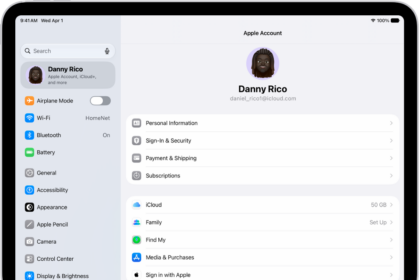
  1. Open Settings on your iPhone 18 Pro and tap on your Apple Account at the top.
  2. Scroll down to the bottom and tap on Sign Out.
  3. If you are using Find My iPhone, you will be prompted to enter your Apple Account password to turn it off. Tap Turn Off.
  4. You can choose to keep a copy of all of the listed items if you prefer. You will need to re-add all of your Wallet cards (like the credit and debit cards you use with Apple Pay) and any car keys you have saved there. Some things are automatically removed that are saved in iCloud, such as your iCloud Drive items and any optimized (lower resolution) photos you have. These will all still be available in iCloud and will sync when you sign back in.
  5. Tap on Sign Out.

To sign back in to iCloud

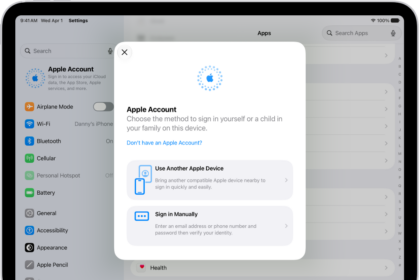
  1. To sign back in, open Settings and tap on Sign in to your iPhone and enter your Apple Account and password.
  2. In Settings > [your Apple Account], tap on iCloud.
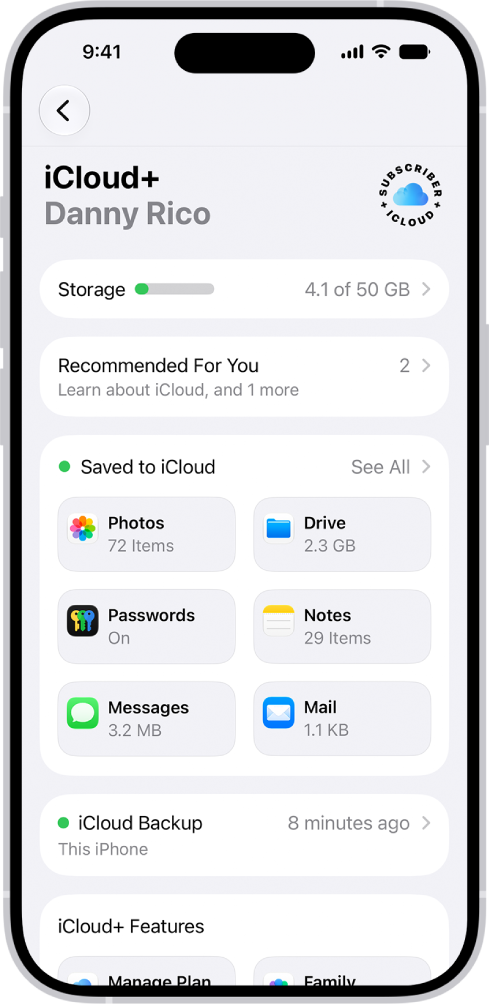
    The iCloud settings screen showing the iCloud storage meter and a list of features—including Photos, iCloud Drive, and iCloud Backup—that can be used with iCloud.

  3. Under Saved to iCloud, turn on the ones you want. Tap See All to see all apps.
  4. Also, in Settings > [your Apple Account], tap on Find My and turn it back on.

Other things to try

If the above suggestions haven’t worked for you:

  • Try updating your apps in the App Store.
  • Change your Apple Account password.
  • Contact Apple Support if you are still having problems. You can use live chat.

TAGGED:Apple AccountiPhone 18 Pro
ByKevin Shaw
Editor
Follow:
Kevin Shaw is a seasoned tech journalist based in Los Angeles with a penchant for all things Apple. He started writing about Apple products in 2007 and it's been a love affair ever since. He has spent over a decade testing and writing about iPhones, iPads, Macs, and other Apple products. In his spare time, he likes nothing more than catching up with the latest news and sports podcasts on the beach.
Leave a Comment Leave a Comment

Leave a Reply Cancel reply

Your email address will not be published. Required fields are marked *

Recent News Flash

A burgundy iPhone 18 Pro with coordinating case is paired with a magenta Crossbody Strap.

Automatic App Updates Not Working on iPhone 18 Pro, Fix

The front of a burgundy iPhone 18 Pro is displayed next to a rear-facing burgundy iPhone 18 Pro Max.

All Inboxes Disappeared in Mail on iPhone 18 Pro? What to Do

iPhone 18 Pro, burgundy finish, partial back exterior angled to show pro camera system in top left corner, 3 lenses, microphone, flash

Mail Slow to Download Emails on iPhone 18 Pro? What to Do

iPhone 18 Pro in glacier is paired with the Clear Case.

Continuity Camera Not Working on iPhone 18 Pro? How to Fix

Trending Now

14-inch MacBook Pro, right side exterior, open, silver color, thin profile, 16-inch MacBook Pro, left side exterior, open, space black color, thin profile

How to Share Files Safely in iCloud Drive and Dropbox

iPhone screen showing Find My settings  

What Someone Sees When They Find Your Lost Device

iOS 27 Icon iPhone

iOS 27 Is Available Now: 10 New Features to Try First

Explore More

Recommended For You

A burgundy iPhone 18 Pro with coordinating case is paired with a magenta Crossbody Strap.

Keyboard Typing Lag on iPhone 18 Pro? How to Fix It

The front of a burgundy iPhone 18 Pro is displayed next to a rear-facing burgundy iPhone 18 Pro Max.

Genmoji Not Appearing on iPhone 18 Pro? Here’s How to Fix It

iPhone 18 Pro, burgundy finish, partial back exterior angled to show pro camera system in top left corner, 3 lenses, microphone, flash

‘Get Help During an Emergency’ Won’t Go Away on iPhone 18 Pro, How to Fix

iPhone 18 Pro in glacier is paired with the Clear Case.

#images Not Working on iPhone 18 Pro, Fix

GeeksChalk Logo GeeksChalk Logo
  • Home
  • Contact Us
  • Advertise
  • Our Staff
  • Editorial Guidelines
  • Terms
  • Privacy
  • Accessibility
  • Copyright
  • About Us
  • Fact Checking Policy
  • Correction Policy
  • Ethics Policy
  • Ownership Policy
Copyright © 2026 www.GeeksChalk.com
Welcome Back!

Sign in to your account

Username or Email Address
Password

Lost your password?