You may be having a problem where your iPhone 18 Pro seems to ring too softly even though you have checked and turned up the volume. There are several settings on your iPhone that can affect the ring volume. In this article, we will take a look at those settings to help you find the problem and get your iPhone ringing as loudly as you would like it to.
The basic volume controls
Silent mode
If your iPhone is in Silent mode, it won’t ring. Press and hold the Action button to turn Silent mode on. Press and hold the Action button again to turn Silent mode off. If your Action button isn’t set to Silent mode, go to the Settings app on your iPhone, tap Sounds & Haptics, then turn Silent mode on or off.
Volume buttons and Control Center volume controls
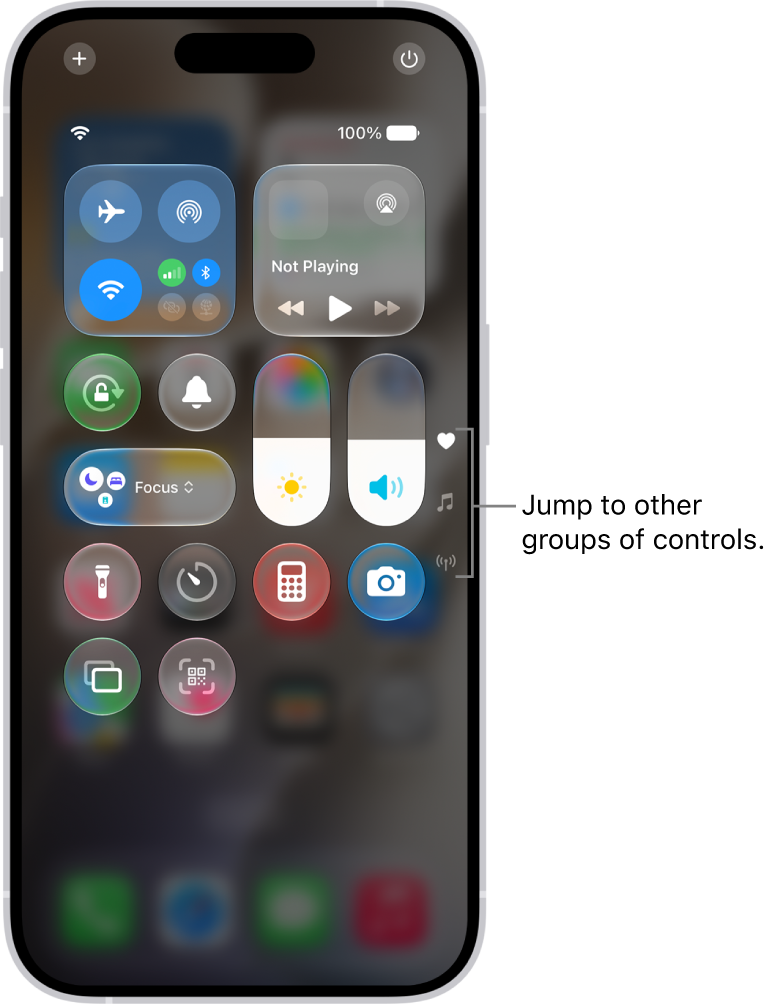
You can turn up your iPhone’s volume using either the physical buttons on the side of your phone or the volume slider in the Control Center. To open Control Center, swipe down from the upper-right corner of your iPhone 18 Pro screen. These controls may or may not increase your ringtone volume, depending on your settings (see the next section).
Ring tones and ring settings
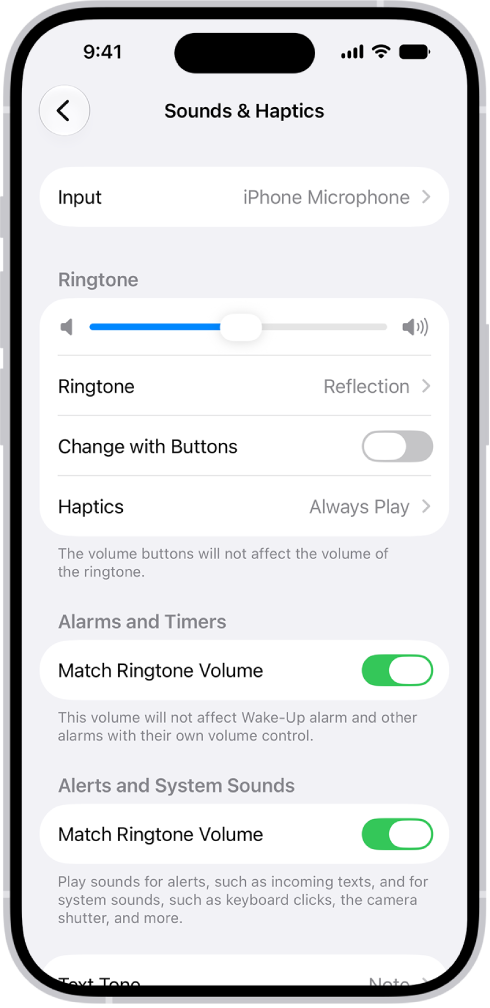
You’ll find the ringtone and ring volume settings in Sounds & Haptics. Open Settings, then tap on Sounds & Haptics.
Ringtone
The main volume controls for your ringtone are in the Ringtone section. Here you can:
- Adjust the volume slider to increase your ringtone volume.
- Toggle the Change with Buttons switch. Turn this off if you want to make sure you don’t accidentally turn your ring volume down too low. With it toggled off, your ring volume will always stay at the level you set it with the volume slider.
Sounds & Haptics
In this section, you can choose your ringtone and vibration pattern.
- Tap on Ringtone.
- If you want to change the vibration pattern, tap on Haptics.
- Under Ringtones, tap on a ringtone to hear a preview. Choose one, then tap on Back in the upper-left corner.
Other settings that affect the ringer
Focus (fka Do Not Disturb)
Any of the Focus modes can affect whether your iPhone rings or not when you receive a call. If you have one of the Focus modes enabled, you will see a small icon at the top of your iPhone 18 Pro screen, such as a crescent moon (Do Not Disturb) or a bed (Sleep). If you have any of your Focus modes set on a schedule, however, you may not see the icon just now, but your Focus modes could still be interfering with your iPhone’s ring during the scheduled times. To check your Focus modes:
- Open Settings, then tap on Focus.
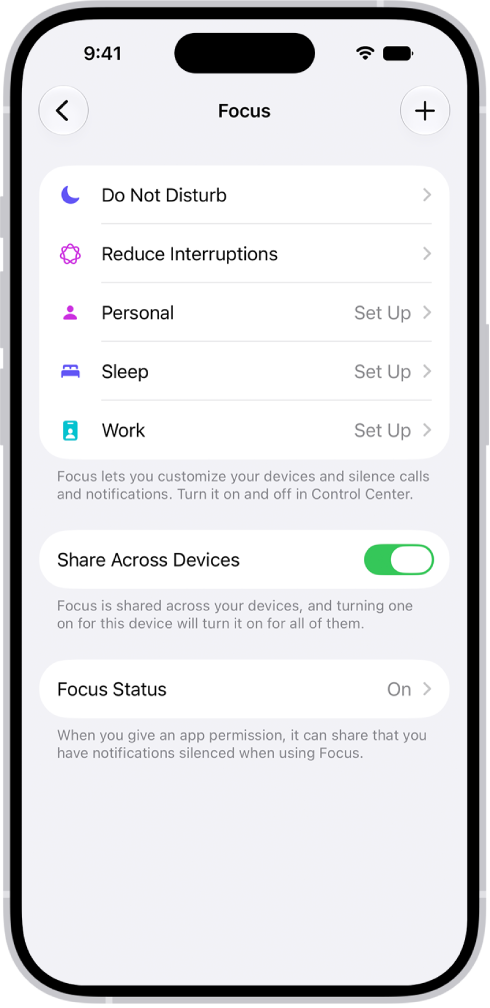
- Tap on a Focus mode, then scroll down to the Set a Schedule section.
- If you see a schedule there, you can modify it if you like.
- You can also scroll to the top under Allow Notifications and tap on People. Under Phone Calls, you’ll see your Allow Calls From setting. Tap on that to change it. Choose from Everybody, Allowed People Only, Favorites or Contacts Only.
- Check each of your Focus modes.
Attention Aware
Your iPhone 18 Pro has a feature called Attention Aware that detects whether or not you are looking at your device. This works even when Face ID has not been set up on the phone. Attention Aware makes sure the display doesn’t dim while you are looking at it. It also lowers the volume of some alerts if you are looking at your phone. If you don’t want your phone to automatically fade the ringer volume while you are looking at the phone:
- Open Settings.
- Tap on Face ID & Passcode. Enter your passcode if prompted.
- Scroll down to find Attention Aware Features and toggle it off.