If you have had your iPhone 18 Pro for a while and have ignored the full storage warnings – you also have probably not updated your iPhone in a while because there has not been enough space to update it – you could run into a bootloop problem with your phone. Bootloop means your iPhone will not fully start up; it will just turn on and show the Apple logo and then maybe restart itself (crash) over and over.
In this article, we’ll give you some steps to try and get your iPhone going again. Once you do, it is important that you immediately free up some storage space so you don’t have this problem again.
How to fix a bootlooping iPhone
First of all, if your iPhone 18 Pro does boot up before crashing again, if you are able to keep your iPhone going long enough to do so, the first thing you should try to do is make a backup.
Below we describe the steps for force restarting your iPhone and for updating using iTunes/Finder. If you are successful, you will want to immediately make a backup (using iTunes/Finder or iCloud). After backing up your iPhone, you need to free up storage space.
1. Force restart your iPhone 18 Pro
Doing this may allow the phone to start up fully. This is by no means a permanent solution. If your iPhone starts up successfully, you should immediately back it up to your computer and/or iCloud. Then you will need to free up some storage space.
Press and quickly release the volume up button. Press and quickly release the volume down button. Press and hold the side button. When the Apple logo appears, release the side button.

Now, backup your iPhone to your computer using iTunes or Finder. You can also use iCloud. After backing up your iPhone, start freeing up some storage space.
2. Try Recovery Mode to fix bootlooping iPhone
Recovery Assistant
If you need to manually start Recovery Assistant:
- Connect your device to a computer or power source.
- Power the device off.
- Press and hold the side button until you see the connect to computer screen, then release the side button.
- Double press the side button.
- Click Continue.
- Review the information and choose to send or not send data to Apple.
The recovery process requires a Wi-Fi connection. After the recovery process completes, restart your device. If the startup issue continues, make sure your device is on the latest version of iOS. If your device is on the latest version of iOS, use recovery mode to restore your iPhone.
Before you begin, make sure your Mac is up to date. On PC, get the latest version of the Apple Devices app. The first thing to try here is just updating your iPhone. This will not erase your phone.
Update your iPhone 18 Pro using the Finder or the Apple Devices app
- Connect your iPhone to your computer using a cable.
- Open the Finder on your Mac, or open the Apple Devices app on your PC. Tap/click Trust on your iPhone and on your computer if asked.
- Put your iPhone in recovery mode:
- Press and quickly release the Volume Up button. Press and quickly release the Volume Down button. Press and hold the side button until you see the “Connect to computer” screen.
- Locate your iPhone in the Finder sidebar or the Apple Devices app. You should see a popup asking if you want to update or restore the phone. Choose Update.
- Wait for the update to finish. If your iPhone quits the recovery mode, wait for the download to finish, then try again. You can try this a few times.
- If you were able to successfully update your iPhone and get it to boot up, immediately create a backup to your computer. You are still in danger of the phone going back to its previous state.
Restore your iPhone 18 Pro
If the update didn’t work, you might need to restore your iPhone. This will erase your iPhone. If you have made recent backups to your computer or to iCloud, this shouldn’t be too much of a problem. You will be able to restore your iPhone from the backup. If you are unsure if you have a recent iPhone backup, you can check:
Check for backups to your Mac/PC:
- If you are still in recovery mode, exit by disconnecting your iPhone from your computer and performing a force restart (see above).
- With your iPhone connected to your computer, look in the Finder or the Apple Devices app under the General tab to see your backups.
Check for iCloud backups:
You can use one of your other devices to check for iCloud backups of your iPhone:
- iPhone: Open Settings and tap on your name at the top. Tap on iCloud, then tap iCloud Backup.
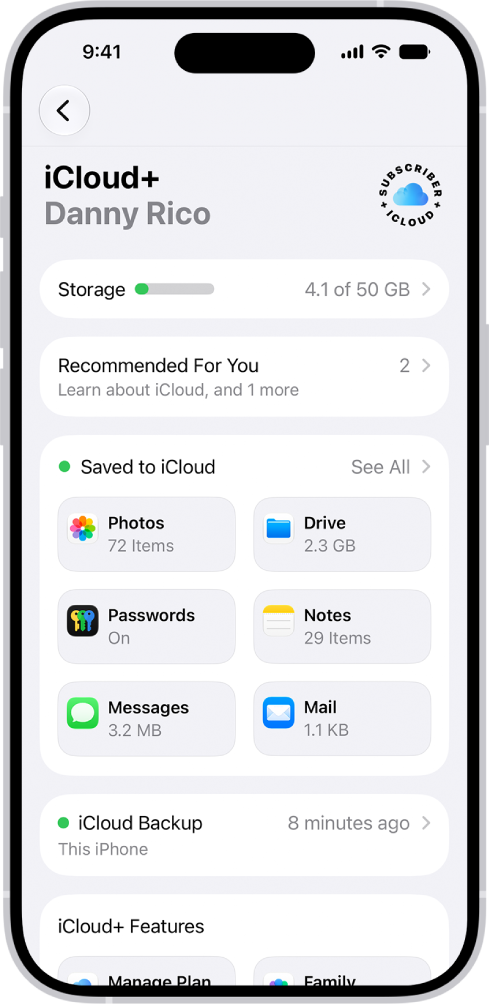
- macOS Ventura or later: Open System Settings and click your name at the top of the left sidebar. Click on iCloud, then click the Manage button next to Account Storage. Click on Backups.
- Windows: Open iCloud for Windows and click on Storage. Click Backups on the left.
To restore your iPhone:
If updating failed, repeat the recovery mode steps above, but this time choose Restore instead of Update.
3. Try Apple Support
If none of the above has worked for you, or if you are not comfortable trying recovery mode, you can contact Apple Support. You can start a text chat or have Apple Support call you. Apple Support can talk you through troubleshooting steps to help fix the issue. You can also make a Genius Bar appointment at a nearby Apple Store and have an Apple-certified technician help you with your iPhone.