- If your iPhone’s Mail app is not working, try refreshing, restarting, or reinstalling the Mail app.
- Ensure Background App Refresh is enabled and email addresses and passwords are correct.
- Check iOS Fetch, Mail and notification settings, and the outboxes of linked email accounts.
Mail is one of the most important apps on your iPhone. You can use it to view and send emails, reply to messages, manage your inbox, and more. This article explains what to do if Mail app is not working on your iPhone.
Some of the problems iPhone users are experiencing with the Mail app include:
- iPhone Mail app won’t open
- iPhone Mail app keeps crashing
- Mail app not loading
- iPhone Mail app not receiving emails
- Delayed emails
- iPhone is stuck checking for mail
- iPhone not showing emails in the inbox
- Mail app not sending email notifications
Apple Mail app issues, such as inability to send or receive emails can be caused by a variety of problems — it might be a lost connection with the server, a software bug, or incorrect mail settings.
If you are also having issues with Mail on your iPhone, here’s how to troubleshoot.
How to fix iPhone mail app not working issue
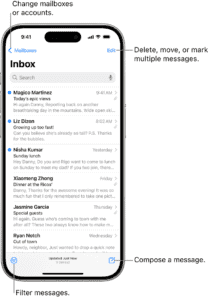
1. Manually refresh the Mail app
The first thing you should do when you are not receiving emails on your iPhone is to manually refresh Mail to see if the emails will come through.
- Open the Mail app.
- Drag your finger down on the screen and release it once the spinning wheel becomes full. You will know it’s time to release your finger when you feel your iPhone vibrate as you drag the finger down.
- Wait for the Mail app to refresh.
2. Verify your connectivity
If emails are still not coming through on your iPhone, then the next step would be to make sure you have a good internet connection, aren’t in Airplane mode, etc.
To test your internet connection, open your Web browser and visit geekschalk.com. If our website loads, your Internet is good. If it doesn’t, this could explain why Apple Mail is not working on your iPhone.
Toggle airplane mode
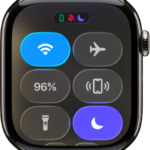
Slide down from the top right corner to bring up the Control Center, then tap the Airplane Mode icon to switch off all of the connectivity features built into your iPhone. This includes WiFi, Bluetooth and Mobile Data. Then switch Airplane Mode back off. This re-enables your internet connection and helps to reset any potential issues preventing emails from coming through.
Make sure you are connected to the right wifi
Getting connected to your neighbor’s network instead of yours is a common mistake, especially if they have similar names that consist of random letters and numbers. You might be connected to a restricted network or one that simply doesn’t have the required ports open for email. Make sure you are connected to the correct network by going to Settings > “Wi-Fi”.
3. Restart Mail app
If your iPhone Mail app is still not working after checking your Internet connection, then you may need to restart the Mail app. This is especially useful if your iPhone Mail is not working after update.
Like other system apps, the Mail app could end up crashing or not working, especially if it’s left open or running in the background during the update process. In this case, you will need to force close the mail app to give it a fresh start. Swipe up from the bottom to the middle of the screen to reveal the App Switcher, then swipe up on the Mail app to close it.
Then launch it once more via your Home Screen, Siri or Spotlight. This sometimes helps to get the Mail app back up and running if it somehow froze or quit working properly.
4. Check Mail Fetch settings
By default, Fetch New Data settings are based on what’s provided by your email service. If Push isn’t available as a setting, your account will default to Fetch. These settings will affect how your device receives emails. To adjust these settings:
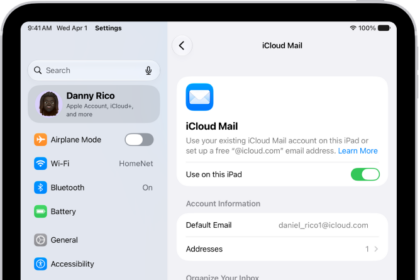
Go to Settings > Apps > Mail, then tap Mail Accounts.
Tap Fetch New Data.
Make sure Push is turned on then scroll down and choose a setting – such as Automatically or Manually – or choose a schedule for how often the Mail app will fetch data.
5. Check Notification Settings
Make sure your Notification settings are correct for the Mail app. Here’s how:
- Start the Settings app, then tap on Apps.
- Tap Mail, then tap on Notifications.
- Turn on Allow Notifications.
- Under Alerts, select Allow on Lock Screen, Allow in Notification Center, and Allow as Banner.
- Tap Sounds and select your preferred alert tone.
- Go back to the notification settings screen and make sure Badges are turned on.
6. Check for iOS update
Mail is a native iOS app. This means the app can only be updated through a software update. There is a possibility Apple has already released an update addressing the problem you are experiencing. Therefore, go ahead and check for iOS update and update your iPhone if necessary.
Go to settings > General > software update.
7. Restart your iPhone
Your iPhone might have experience a temporary glitch that affects the Mail app, so the next thing you need to do is to restart your device.
To restart your iPhone, go to settings > General > shut down.
Once your device is back up and running, open up the mail app to see if it’s working as expected. If it doesn’t, move onto the next solution.
8. Check your outbox
If you’re not getting emails on your iPhone, you might not be able to send them either.
After you troubleshoot your email settings, check your Outbox, which stores unsent messages, to ensure that everything has been sent properly.
To do this:
- Launch the Mail app and tap the back button at the top left of the screen.
- Your email accounts will be listed under separate headings – the account’s name will be the heading. Find the Outbox folder of the email account you want and tap it to select it.
- If you’re able to open your Outbox and see your unsent email, tap it to ensure that the recipient’s email address is correct.
- Tap Send to try sending again.
If all else fails, contact your email provider or system administrator for additional troubleshooting assistance.
9. Check that your email address and password are entered correctly
One of the most common problems with email is that your password is incorrect — if you changed your password on another device, you’ll need to change it on your iPhone, too.
When the Mail application prompts you to re-enter your password, ensure that you’ve entered it correctly.
10. Remove and Re-Add the Email Account
This is a little tongue in cheek, but often when you’re experiencing problem receiving emails on your iPhone, removing the account from your phone and setting it back up again will resolve a lot of problems. The beauty of email account is that everything is stored in the cloud — your mail, your documents, your movies, videos, and more. All of those will come back, once you reset up your account. It is a nuclear option of sorts, but it’s also the easiest way to wipe everything and bring it all back. It’s nuclear, but simple. To do so:
- go to Settings > Apps > Mail > Mail Accounts
- Select your account
- Tap on Delete Account
- Tap on Delete from my iPhone. Then, re-add the same account using the option in settings app.
Fixed iPhone Mail not working
The above methods should fix any issue you might be having with Mail app on your iPhone. If you’re still having problems with the Mail app, drop a comment and we will do our best to help.