The built-in QR code scanner is one of the best quality-of-life features of your iPhone. You can access information, make payments, join Wi-Fi networks, and more with a simple scan.
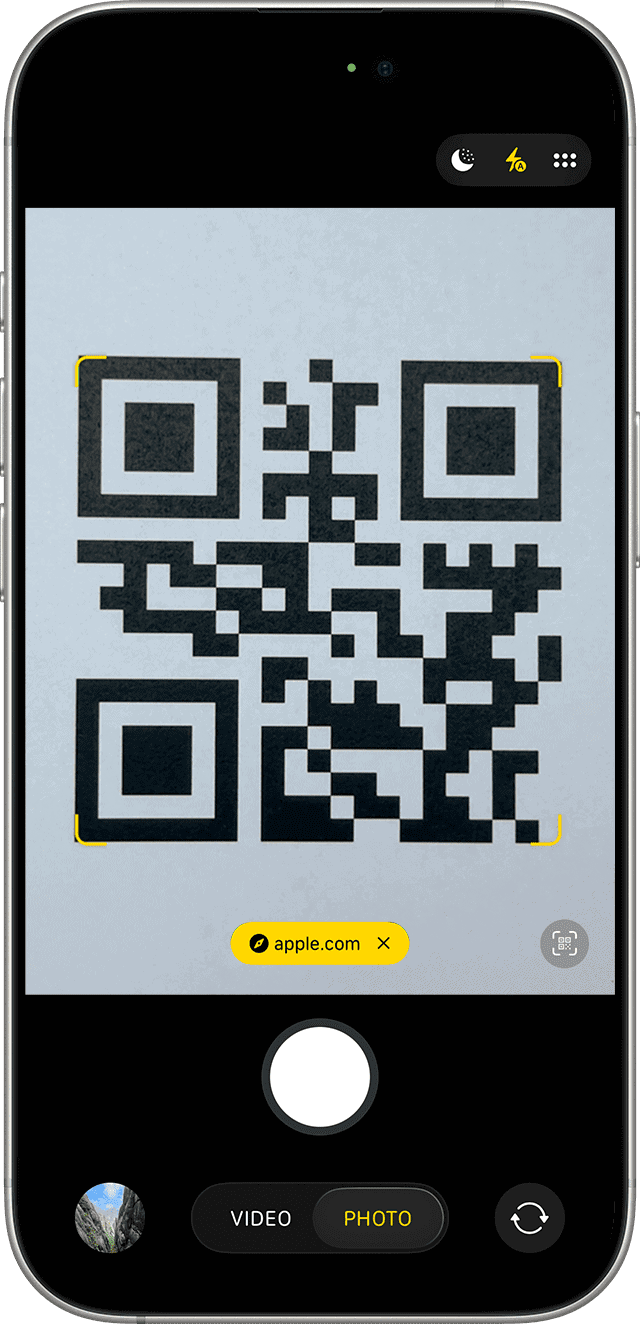
To scan a QR code with your iPhone:
- Open the Camera app on your iPhone.
- Hold your iPhone so that the QR code appears, then tap the link to open the content.
Sometimes, your iPhone QR code scanner may sometimes fail to recognize or read the codes correctly. This can be frustrating, especially when you urgently need to access the content within the code. Before you give up, here are some fixes you can try to get your iPhone QR code scanner to work again.
1. Check if the QR Code Scanner Is Enabled on Your iPhone
The first thing you should do if your iPhone Camera is not scanning QR Code is to make sure that the QR Code scanning feature is enabled on your device. There’s a chance you accidentally disabled the feature in your Camera app. Here’s how to enable QR code scanner on your iPhone:
- Open the Settings app on your iPhone.
- Scroll down and tap Camera.
- Toggle on the switch next to Scan QR Codes.
Now, open the Camera app on your iPhone. Hold your iPhone so that the QR code appears, then tap the link to open the content.
2. Ensure Your iPhone Camera Is in Photo Mode
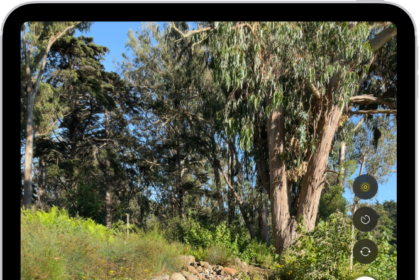
The QR code scanner on your iPhone only works when the camera is set to Photo mode. If you’ve mistakenly switched to Video, Portrait, Pano, or any other camera mode, this could be the reason your iPhone is not reading QR codes. So, swipe left or right in the Camera app to switch back to Photo mode. Then, point the camera at the QR code and try to scan it again.
3. Position Your Camera Properly When Scanning
For a quick and successful scan, make sure the QR code is positioned within the frame of your camera. Avoid scanning at steep angles, and try to keep the QR code parallel to your device. Also, ensure the QR code isn’t wrinkled, obscured, or damaged in any way, as this can prevent a successful scan.
4. Move Into Better Lighting
Good lighting is essential for any camera function, and the QR code scanner is no exception. A well-lit environment makes it easier for the camera to recognize and read the QR code. If you’re in a dimly lit room or area, move to a brighter spot or shine some light on the QR code to improve visibility.
5. Clean Your Camera Lens
A smudged or dirty camera lens can make it difficult for the iPhone camera to read the QR code. So, if you are still having trouble scanning the QR code on your iPhone, gently wipe your camera lens with a soft, lint-free cloth to ensure it’s clean. Avoid using harsh or abrasive materials that might scratch the lens. If necessary, slightly dampen the cloth with water to remove stubborn smudges.
6. Relaunch the Camera App
Sometimes, software glitches can cause your QR code scanner to malfunction. The quickest fix for this is to simply close the Camera app and relaunch it. To do this, swipe up from the bottom of the screen, then swipe up on the Camera app to close it. Wait for a few seconds, then reopen the Camera app and try to scan the QR code again.
7. Add Code Scanner to Control Center
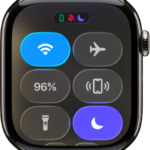
If you’re still having trouble using your iPhone Camera app to scan the QR code, you can add Apple’s built-in Code Scanner directly to the Control Center for easy access. This built-in feature works separately from the Camera app and can sometimes bypass issues that you might encounter while using the Camera app.
Here’s how to add the Code Scanner to the Control Center:
- Open Control Center by swiping down from the top-right of your screen.
- Touch and hold the background of the screen, then tap Add a Control.
- In the Control Center gallery, tap Scan Code, then tap anywhere on the screen to return to Control Center, then tap the Code Scanner icon to scan the QR code.
When scanning in a dark or dimly lit area, tap the Flashlight icon at the bottom of the screen to turn on your iPhone’s camera flash.
8. Restart Your iPhone
If your iPhone still isn’t scanning QR Codes, try restarting your phone. Sometimes, minor system glitches can cause certain features, like the QR code scanner, to malfunction. Restarting your iPhone can clear these glitches and get everything running smoothly again. Simply turn off your device and then turn it back on.
9. Update Your iPhone
Apple periodically releases software updates, including bug fixes that can clear any operating system glitches. An outdated iOS version may be causing issues with your QR code scanner, and an update will fix this.
To update your iPhone, head to Settings > General > Software Update to see if there is any available update. If there’s a new iOS version available, tap Update Now. Ensure you connect to a strong Wi-Fi network and that your iPhone is sufficiently charged before starting the update.
10. Check Out Third-Party QR Code Scanners
If your iPhone built-in QR code scanner still doesn’t work after trying all these fixes, you should consider downloading a third-party QR code reader from the App Store. Many options, both free and paid, offer a wider range of capabilities compared to the built-in QR scanner.
Popular iOS third-party QR code reader apps include QR Code & Barcode Scanner by TeaCapps, Scan Shot by Scanner App PDF Tool, and CamScanner by INSTIG.
Decode QR Codes on Your iPhone Without Issues
QR codes have become a great way to access information with a simple scan. If you’ve tried all our fixes and still can’t get your iPhone QR code scanner to work, you can always take a picture and scan the QR code with your Photos app.
When you open an image in Photos, you’ll notice a tiny Live Text icon in the bottom-right corner of the image when it recognizes a QR code. Also, remember to contact Apple Support or visit your local Apple Store for in-house repairs if you suspect hardware damage to be the cause of the issue.