Wondering what the name of the latest macOS version is? Want to know what the next version of macOS will be called? Curious about the versions of Mac OS X that came before? Here we’ll bring you up to speed on the names of the different versions of the Mac operating system in order: from the newest macOS to the first version of Mac OS X and the codenames that Apple used for them. We’ll also show you how you can check which version of macOS you are running and find out what the latest version of macOS is.
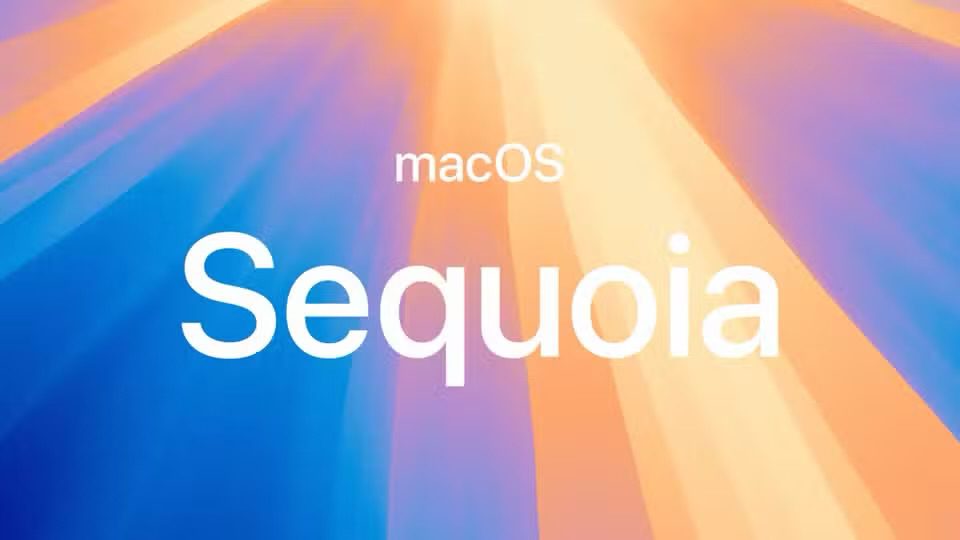
The latest version of macOS is called macOS Sequoia. It is named after the sequoia tree, which is a redwood that California is known for. That version of macOS was released on September 16, 2024, following a macOS beta program that is still underway as Apple develops more new features.
The previous version of macOS was Sonoma, also known as macOS 14. Sonoma was released in September 26, 2023.
What operating system does the Mac use?
All Macs run macOS, previously known as Mac OS X, and have done so since the introduction of the first version of Mac OS X in 2001. Before that, Macs ran Mac OS 9 which came out in October 1999 and received updates until December 2001. Mac OS X was based on technology from NeXT Computer, which was another company founded by Steve Jobs. Jobs brought the technology back to Apple with him when he was reinstated as Apple CEO. The operating system is Unix-based.
macOS Version History
Mac OS X was launched more than two decades ago on March 24, 2001. There’s been a lot of change over those two decades: good and bad. From the problems with the first edition (it was slow and didn’t run important apps like Microsoft Word) Mac OS X has evolved through various iterations and various designs to what we know today. We’ve seen tight integration with iOS devices, the incorporation of the cloud, and the arrival of excellent and helpful features including integrated Time Machine backups, Quick Look — which lets you see a preview of a document without opening the application, and innovations like Expose and Spaces and Desktop Stacks to help you work more efficiently.
If you want to know the names Apple assigned to Mac OS X over the years, and the codenames that were used internally, read on.
List of macOS version names and latest versions
Here’s an overview of every version of macOS and Mac OS X Apple has released since 2001. You’ll find a complete list of the latest release of each version of OS X and macOS, along version code names, along with internal code names (if available):
- OS X 10 beta: Kodiak — September 13, 2000
- OS X 10.0: Cheetah — March 14, 2001 (Latest: 10.0.4)
- OS X 10.1: Puma — September 15, 2001 (Latest: 10.1.5)
- OS X 10.2: Jaguar — August 14, 2002 (Latest: 10.2.8)
- OS X 10.3 Panther (Pinot) — October 24, 2003 (Latest: 10.3.9)
- OS X 10.4 Tiger (Merlot) — April 29, 2005 (Latest: 10.4.11)
- OS X 10.4.4 Tiger (Chardonnay) — January 10, 2006 (for Intel Macs) (Latest: 10.4.11)
- OS X 10.5 Leopard (Chablis) — October 26, 2007 (Latest: 10.5.8)
- OS X 10.6 Snow Leopard — August 28, 2009 (Latest: 10.6.8)
- OS X 10.7 Lion (Barolo) — July 20, 2011 (Latest: 10.7.5)
- OS X 10.8 Mountain Lion (Zinfandel) — July 25, 2012 (Latest: 10.8.5)
- OS X 10.9 Mavericks (Cabernet) — October 22, 2013 (Latest: 10.9.5)
- OS X 10.10: Yosemite (Syrah) — October 16, 2014 (Latest: 10.10.5)
- OS X 10.11: El Capitan (Gala) — September 30, 2015 (Latest: 10.11.6)
- macOS 10.12: Sierra (Fuji) — September 20, 2016 (Latest: 10.12.6)
- macOS 10.13: High Sierra (Lobo) — September 25, 2017 (Latest: 10.13.6)
- macOS 10.14: Mojave (Liberty) — September 24, 2018 (Latest: 10.14.6, July 2021)
- macOS 10.15: Catalina (Jazz) — October 7, 2019 (Latest: 10.15.7, Security Update 2022-005, July 2022)
- macOS 11: Big Sur (GoldenGate) — November 12, 2020 (Latest: 11.7.10, September 11, 2023)
- macOS 12: Monterey (Star) — October 25, 2021 (Latest: 12.7.6, July 29, 2024)
- macOS 13: Ventura (Rome) — October 24, 2022 (Latest: 13.7.1, October 28, 2024)
- macOS 14: Sonoma (Sunburst) — September 26, 2023 (Latest: 14.7.1, October 28, 2024)
- macOS 15: Sequoia (Glow) — September 18, 2024 (Latest: 15.1, October 28, 2024)
Apple is already working on macOS 16, which is codenamed Cheer, according to Mark Gurman of Bloomberg in his June 30, 2024 newsletter.
Mac OS X and macOS names
As you can see from the list above, with the exception of the first OS X beta, all versions of the Mac operating system from 2001 to 2012 were named after big cats, from Cheetah to Panther to the final release, Mountain Lion. But while the public-facing builds were named after big cats, internally, they were named after wines (aside from OS X 10.6 which had no codename).
Even after Apple switched public-facing code names to places in California back in 2013, it carried on naming them after wines internally until 2014. In 2015, Apple decided to change the theme of internal code names from wines to types of apples. Original.
In 2016 Apple shifted all of its operating systems into similar naming conventions. The "X" was removed, and Mac OS became macOS to match iOS, tvOS, and watchOS.
The version naming remained the same for four more years but ultimately shifted to a full numerical jump with each release starting in 2020.
Which versions of macOS are still updated?
Apple still supplies regular features and security updates to the most recent version of macOS. Right now this is Sequoia, also known as macOS 15.
The previous two versions of macOS also receive security updates and bug fixes. If you are running macOS 14 Sonoma or macOS 13 Ventura you will still get security updates.
Since the arrival of Sequoia, Apple no longer supports macOS 12 Monterey which arrived in 2021 (and with the arrival of Sonoma in 2023 it stopped support for macOS Big Sur, which arrived in 2020).
Apple also issues updates to its Safari web browser. The latest version of Safari for Mac is Safari 18 (as of November 2024) and it requires Ventura, Sonoma or Sequoia.
How to tell which macOS version you are running
You can tell which version of macOS you are running by clicking on the Apple logo in the top left and choosing About This Mac. It will clearly show which version of macOS you are running along with the most recent version that your Mac has installed
How to install the latest version of macOS
If you want to update your Mac to a newer version of macOS the method will be determined by the version of macOS you are running.
Very old versions of Mac OS X came on a disk and any security updates came via Software Update. Since the arrival of the Mac App Store in 2011 (as an update to Snow Leopard) versions of Mac OS X and macOS have been available to download via the Mac App Store.
However, that changed with Mojave, which arrived in 2018. Now operating system updates come in via Software Updates which is either located in System Settings > General > Software Update or in System Preferences > Software Update (pre-Ventura). One of the benefits of this is that your Mac can be set to automatically download the latest updates and install them, keeping your Mac up-to-date with minimum effort on your part. Incidentally, you can still find the macOS software on the Mac App Store.
Some Macs will be set to update macOS automatically. If you want your Mac to update automatically follow these steps:
In Ventura or later:
- Choose Apple menu > System Settings, click General in the sidebar, then click Software Update.
- Click on the info button next to Automatic Updates and make sure that Check for updates, Download new updates when available, and Install macOS updates are selected. This way your Mac will automatically update to the latest version. If you would prefer not to have your Mac do this automatically you can deselect these options.
In Monterey, Big Sur, Mojave, or Catalina:
- Choose Apple menu > System Preferences, then click Software Update.
- Check the box beside Automatically keep my Mac up to date (or Download new updates when available).
- Now select the box Install macOS updates.
In High Sierra or earlier:
- Open System Preferences.
- Click on App Store.
- Check the box beside Automatically check for updates — it should have a tick in it as should the four options below that…
- Now deselect the box beside Download newly available updates in the background.