Mail on the Mac
Apple says that Mail in macOS 27 Golden Gate has improved, more relevant search results. When you type in the Search field, a banner appears telling you that Mail looks for meaning beyond the specific words you enter, presumably using Apple Intelligence. I can’t say I noticed any improvements during my limited testing, but perhaps those will become more evident over time.
Suggestions may appear, too, when Mail notices something in a conversation that you may want to take action on; Apple’s examples are adding a calendar event or searching for a photo. I have not yet seen these suggestions in my testing.
If you have a bulleted or numbered list in a message you’re composing, you can now choose Remove List Formatting from the Format > Lists submenu or from the Lists pop-up menu to revert the list to regular text.
Messages on the Mac
Messages has improved searching. For example, if you enter a contact’s nickname or a portion of their phone number, the search lists both names and conversations that match, not just individual messages containing that exact text. Searching for media is also reportedly better, though I have so far been unable to produce any good examples.
Like Mail, Messages may offer suggestions as to actions you can take relevant to the current conversation. Smart Replies may also attempt, possibly without success, to mimic your style. And, if a message fails to send, Messages now retries it automatically.
Find My on the Mac
Apple decided in iOS 27, iPadOS 27 and macOS 27 to make the Find My interactions consistent. Previously, you had to click a person, device, or item, then click the Info button on the map to reveal information. It was a fussy way to do it, particularly when you could just tap one of those people or things on an iPhone or iPad and reveal an action sheet, where you could access Directions, Contact, or Play, among other features.
Now, Find My on all three platforms is a single operation: click or tap a person, device, or item in the sidebar to reveal basic information about the location (like Nearby or their distance, street, and city), along with contextually relevant buttons right below it. To get more information, you click or tap the More button for full details, including all the other information previously found on the Info popover.
There’s also a top-level Me tab, giving you more direct access to your own information, something already present for years in Find My for iPhone and iPad.
Maps on the Mac
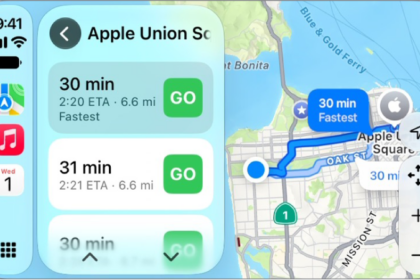
The Maps app now shows Guides for more locations, and, for certain locations, Satellite view yields more detailed images (enhanced, of course, with Apple Intelligence). I tried zooming in on Apple Park in Cupertino and the improved clarity was quite striking. The same was true for a few other urban locations in the United States that I spot-checked. But all the Canadian locations I tried, including Toronto and Vancouver, looked the same. Whether or when that will change, I have no idea.
Passwords on the Mac
Passwords can already identify passwords that are too weak, or that have appeared in data breaches. Passwords like these that need changing are marked with a red exclamation point and feature a Change Password button that takes you to the appropriate page on the website. macOS 27 takes that concept further, where Passwords automates the process: it goes to the site, chooses a strong new password, saves your new password on the site, and stores the new password in Passwords—all with one click. But this works only on a limited number of sites that support the mechanism Apple requires.
In addition, if “Show password hints” is turned on and you begin typing your password on the Lock Screen, a small question mark button appears to its right. Click that, and a message appears along with a Reset Password button, which you can click if you need to reset your password.
Phone on the Mac
If you’re on a voice call in the Phone app, relevant information, pulled from other apps like Calendar, Contacts, Mail, and Messages using Apple Intelligence, may appear on screen — Call Context. For example, if you’re calling a hotel, you may see the email they sent you when you booked your room.
I have not yet encountered a situation in which I used the Phone app on my Mac and also had contextually relevant information, so I can’t say precisely what this surfaced information looks like.
Home on the Mac
The Home app now offers a single interface in which you can see multiple cameras and search for events, as well as 4K camera recordings.
Additional features Apple announced are synthesized images from multiple cameras and natural-language search. These extras require at least a 2 TB iCloud+ plan, and I believe a 3rd-generation Apple TV running tvOS 27. Neither feature has appeared in testing so far.