This article explains how you can fix if Messages app is not opening on your Mac. You can use Messages with your Mac to send and receive iMessage. You can also send text messages (SMS) via your iPhone, this is of course if you own an iPhone. The only thing you need to set up is an Apple account.
Sometimes you may experience issues with the Messages app. One of the problems that frequently reported by users is that Messages may appear to stop responding and won’t open. And when you attempt to open, nothing happens or the app quits unexpectedly. If you are having this problem, then this article is for you.
Please try the steps below. Please check after each step to see if the Messages app starts opening.
Force Messages to quit
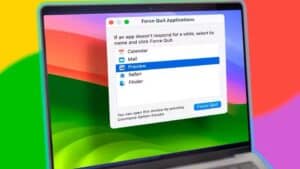
The first thing you should do if you are unable to open the Messages app on your Mac is to force quit and reopen the Messages app. To do this:
- Press these keys together: Option, Command, and Esc (Escape). Alternatively, you can click the Apple menu and then select Force Quit.
- Select Messages in the Force Quit window.
- Then click the blue Force Quit button.
Restart your Mac
Restarting your Mac may fix this problem. Here is how you can do this:
- Click the Apple Menu.
- Click Shut Down.
- Wait until your computer completely turns off.
- Then start up your Mac by pressing the power button.
Update your Mac
If you are still experiencing problems opening the Messages app, make sure that your Mac is running the latest version of the macOS software. Messages is a native macOS app and the only way to update the app is by updating macOS. Here is how:
- Click the Apple menu.
- Click System Settings.
- Click General in the sidebar, then click Software Update on the right.
- This will check for updates. If there is an update available, click the Update Now button and follow the onscreen instructions.
Note: If you are using macOS Monterey or earlier, the app is called System Preferences instead of System Settings. In that case, click System Preferences and then click Software Update.
Use Safe Mode
You may want to try Safe Mode to start up your Mac to fix this problem. The steps differ depending on whether you have a Mac with Apple silicon or an Intel-based Mac.
For Macs with Apple silicon (M1, M2, M3, M4, M5):
- Shut down your Mac completely.
- Press and hold the power button until you see "Loading startup options".
- Select your startup volume.
- Press and hold the Shift key, then click "Continue in Safe Mode".
- Release the Shift key.
- Log in to your Mac. You should see "Safe Boot" in the menu bar.
- Check whether you can open Messages.
- Restart your Mac normally to exit Safe Mode.
For Intel-based Macs:
- Turn off your Mac.
- Restart your Mac and immediately press and hold the Shift key.
- Keep holding the Shift key until you see the login window.
- Log in to your Mac (you may be asked to log in more than once).
- You should see "Safe Boot" in the menu bar.
- Check whether you can open Messages.
- Restart your Mac normally to exit Safe Mode (do not hold the Shift key).
Delete the .plist file
Your problem may be caused by a corrupt Messages preferences file. Deleting this file may resolve your problem. Here is how:
- Open a Finder window.
- Press and hold the Option key, then click Go and select Library.
- This will open a hidden folder called Library.
- Open the Preferences folder.
- Find the com.apple.iChat.plist file.
- Delete this file by dragging it to the Trash folder (you can also move it to the Desktop as a backup first, if you want).
- Restart your Mac and try opening the Messages app.
Reset NVRAM or PRAM
This step applies only to Intel-based Macs. If you have a Mac with Apple silicon, you do not need to reset NVRAM.
For Intel-based Macs:
- Shut down your Mac.
- Turn on your Mac and immediately press and hold these four keys together: Option, Command, P, and R.
- Keep holding these keys for about 20 seconds. Your Mac may appear to restart during this time.
- Release the keys.
- Your Mac will finish starting up. You may need to adjust system settings that were reset.
For Macs with Apple silicon:
No action is needed. Macs with Apple silicon automatically reset NVRAM during a normal shutdown and restart, so these steps do not apply to your Mac.
See also: What is ‘sshd-keygen-wrapper’ on Mac?