Several iPhone 18 Pro users have said that the Speak Screen feature is not working as expected. Some users have said that the feature stopped working after updating their devices to the newest version of iOS. Sometimes, it has been reported that the feature does not work at all, and sometimes it randomly stops working after speaking a few paragraphs and sometimes it skips whole sections of the page. Users have further reported that they get an error message saying “no speakable content could be found on the screen” even though there are readable items on the screen.
Speak Screen is an accessibility feature of iOS. What this does is to render the text and image content of your screen (emails, documents, webpages, app contents, digital books, Kindle, etc) as speech output. Speak Screen is primarily used by people with vision impairments.
This article will provide some basic troubleshooting steps that you may try to fix your Speak Screen problem. The following steps are in order. Try them until you have fixed your problem.
Please note that before doing anything, check for iOS updates. And if there is an update available, update your iPhone 18 Pro. Go to Settings > General > Software Update. Then follow the onscreen instructions.
1. Check your settings
It is obvious but please make sure that you enabled this setting. On your iPhone 18 Pro, go to Settings > Accessibility > Read & Speak. Tap Speak Screen, then turn on Speak Screen.
If this option was already turned on, then turn it off, wait 20 seconds and then turn it on.
If you are still having this issue, then try these in this order:
- Go to Settings > Accessibility > Read & Speak > Speak Screen and turn off Speak Screen.
- Restart your iPhone. Here is how you can restart your device:
- Simultaneously press and hold the side button and either volume button until the sliders appear, then drag the Power Off slider.

- Simultaneously press and hold the side button and either volume button until the sliders appear, then drag the Power Off slider.
- Then go back to Settings > Accessibility > Read & Speak > Speak Screen and turn on Speak Screen.
2. Reachability
Another accessibility feature of the iPhone is called Reachability. When activated, Reachability brings down the top section of the iPhone’s display. Are you using this feature? If not try turning it off. Some users have said that disabling this helped them fix the problem.
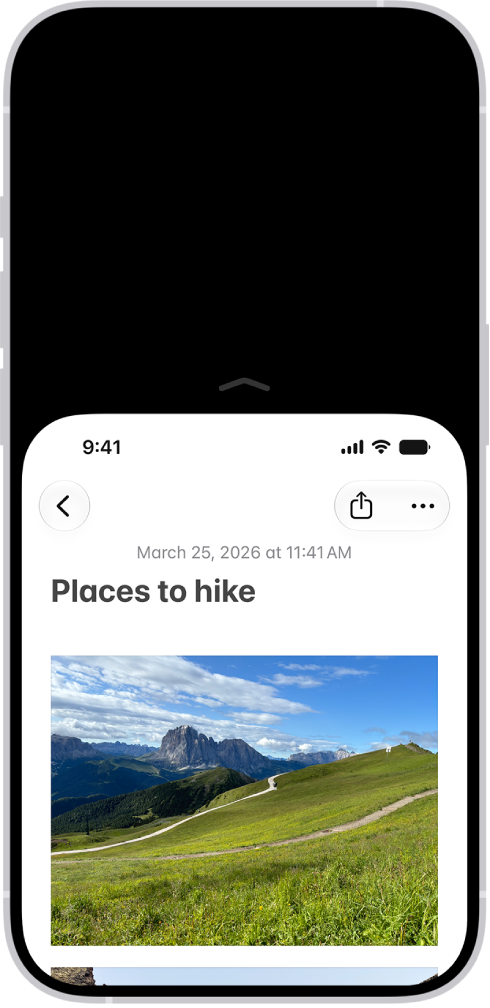
On your iPhone 18 Pro, go to Settings > Accessibility > Touch. Then turn off Reachability. Exit Settings and test Speak Screen if it is now working.
3. Change the voice
Changing the Speak Screen voice may fix your problem. Choose a different voice for Speak Screen to see if this helps. Go to Settings > Accessibility and tap Read & Speak. Make sure that Speak Screen is turned on. Tap Voices. And select a different voice. For example, if you were using the “Siri Female” or “Samantha” option, change it to Fred. Then exit settings and let’s see if Fred can read your screen. If it is not working, change it back to Samantha and then test again.
4. Force restart
Follow the steps below:
- Press and quickly release the volume up button. Press and quickly release the volume down button. Press and hold the side button. When the Apple logo appears, release the side button.

If you are having this issue only with a particular app, you may want to contact its developer for further help.