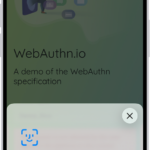
Several iPhone 18 Pro and iPhone 18 Pro Max users have said that the wireless Wi-Fi password sharing feature is not working as expected. Users have reported these problems:
- When attempted to share a password, an error message appears saying “Password Not Shared. There was a problem sharing your Wi-Fi password.”
- The Share Password popup window (set up animation) does not appear.
- Tapping the Share Password button does not work.
It is possible to share your Wi-Fi password from your iPhone 18 Pro with another nearby iPhone, an iPad, or a Mac. But this feature may not always function as you wanted. This article explains what you can do to fix iPhone 18 Pro Wi-Fi password sharing if you are unable to share or receive a password.
Apple makes it very easy to share Wi-Fi passwords between iPhones, iPads, and Macs. You can wirelessly share your Wi-Fi password with your friends and family members as long as you have everything set up correctly. This will allow others to connect to your network, without actually entering the password manually. This way, you do not have to disclose the actual password.
Check these first
- Make sure that your iPhone 18 Pro and the other device have the latest version of iOS, iPadOS, or macOS. You can check for updates and update your device if there is an update available easily:
- iOS or iPadOS: Settings > General > Software Update. If there is an update, tap Download and Install.
- macOS: Apple menu > System Settings, click General in the sidebar, then click Software Update.
- On each device, ensure that Wi-Fi and Bluetooth are enabled:
- iPhone or iPad: Settings > Wi-Fi, and Settings > Bluetooth.
- Mac: Click Control Center in the menu bar, then turn on Wi-Fi and Bluetooth.
- On both devices, turn off Personal Hotspot if it is on. Go to Settings > Personal Hotspot and turn off Allow Others to Join.
- Make sure that the Apple devices are close to each other. If not, move the devices closer.
- Make sure that your iPhone 18 Pro, the one sharing the password, is unlocked and connected to Wi-Fi.
- Make sure that each person is signed in to their Apple Account. On iPhone or iPad, open the Settings app and tap your name at the top.
- Make sure that each person has the other person’s Apple Account email address or phone number saved in Contacts.
- Have your friend or family member go to Wi-Fi settings on their iPhone, iPad, or Mac, then choose the network.
If Wi-Fi password sharing is still not working
If your iPhone 18 Pro still cannot share your Wi-Fi password, or if you cannot receive your friend’s Wi-Fi password, then try these:
- On your iPhone, go to Settings and turn Airplane Mode on and off. Wait five seconds between turning Airplane Mode on and off. On your Mac, turn off Wi-Fi and Bluetooth in Control Center, then turn them back on.
- Restart both devices, the device that provides sharing and the other device that needs to connect to the Wi-Fi network. On your iPhone, go to Settings > General > Shut Down, drag the power-off slider, then wait 30 seconds. Press and hold the side button until you see the Apple logo. After restarting, try to share your Wi-Fi password again. I had this problem a few times too. And when I restart the Apple device that is supposed to receive the password, the problem is fixed. If this does not work for you, restart the other device too.
- If you still can’t share your Wi-Fi password, have the other person enter the password manually. To find it, open the Passwords app, tap Wi-Fi, tap the Wi-Fi network, then tap the Password field to reveal the password.
- On the sharing device, reset your network settings. Please note that this will erase all of your network settings. For example, your saved Wi-Fi passwords will be erased. On your iPhone, go to Settings > General > Transfer or Reset iPhone > Reset, then tap Reset Network Settings.