Several users have said that widgets are not working for them as expected. This article lists several troubleshooting tips that you can use to fix the following widgets problems on your iPhone 18 Pro and iPhone 18 Pro Max:
- Widgets are not showing up.
- Some of the widget apps are missing or not updating.
- Some of the widget apps are not displaying content, and you may see messages like “couldn’t load stories” or “no stories to show” etc.
- Widgets have stopped working entirely.
By default, your device shows you widgets from the Weather, Stocks, Calendar, Maps, Siri apps, and more. However, that is not all. Many third-party apps (whether they’re popular apps or not) include useful widgets that you can add to widgets.
If you are having this issue also, then this article is for you. Try the following steps in order. After trying each step below, open your widgets again to see if you’ve fixed your issue.
Before you do anything, please ensure that your device is using the latest version of iOS. You can easily update your iPhone 18 Pro to the latest version of iOS wirelessly by going to Settings > General > Software Update.
Furthermore, please ensure that all of your apps are up to date. You can manually update your apps by opening the App Store on your device or turn on automatic updates by going to Settings > Apps > App Store > App Updates.
Restart your iPhone
Restart your iPhone 18 Pro but before restarting, close all apps and then restart. This is a two-step process. Here is how:
1. Force close all apps: at the Home screen of your device, swipe up from the bottom of your screen. This will open your most recently used apps. This is also called App Switcher. Then use a quick swipe upwards to close all of the apps.

2. Now restart your device. Here is how:
- Press and hold the side and the volume up (or down) buttons together until you see the power off slider. Then drag the slider. Wait for your device to fully power off. Then press and hold the side button until you see the Apple logo.

Change the language for your iPhone
Temporarily change the language of your iPhone 18 Pro to fix widgets problems. Here is how:
- On your device, tap Settings > General > Language & Region > Add Language and then select a language from the list. For example, if your current setting is “English (US)”, change it to “English (Canada)”.
- Your device will ask you to confirm your selection.
- iOS will update your device.
- Now check your widgets. Are they working? If Widgets are working, again go to Settings > General > Language & Region and change the language back to its original setting. Then check Widgets again. If Widgets are not working, change the language back, and then try the next tip.
Check your settings
If you are having issues with some of your widgets, your iPhone 18 Pro settings may not be correct. Please check the following:
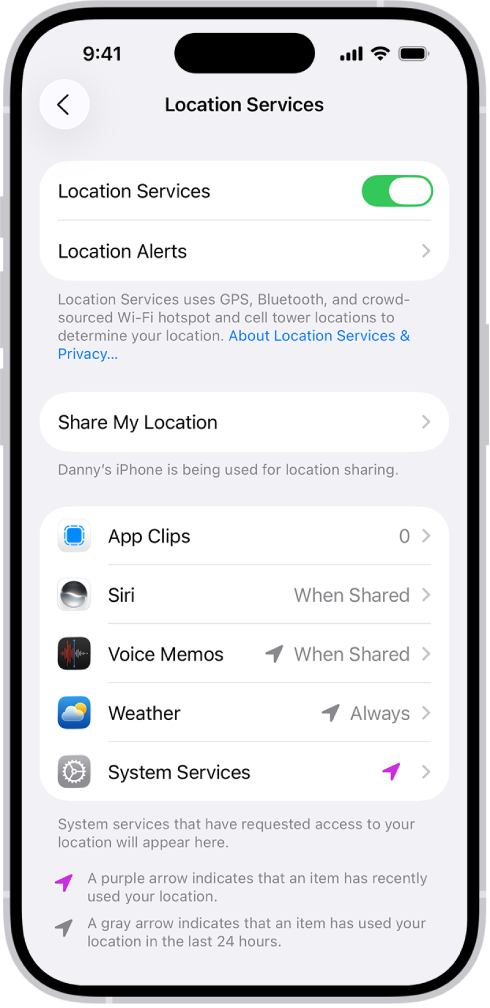
1. Some apps may not work if Location Services is disabled. For example, if you are having issues with a weather widget app (or similar apps), ensure that Location Services is turned on for it. If these apps are not allowed to access your location, you may not be able to function. You can check this by going to Settings > Privacy & Security > Location Services. Ensure that Location Services is enabled. Scroll down and find the app and change its location setting. Select While Using the App.
2. Some apps may require additional settings, especially security-sensitive apps like credit card apps. You may have to enable Widgets within the app.
3. If some of the widget apps are not refreshing themselves, please ensure that Background App Refresh is turned on. If this is disabled, apps can not check for updates and new content when they aren’t actively in use. On your iPhone 18 Pro, go to Settings > General > Background App Refresh and turn on Background App Refresh.
4. If the Batteries widget is not working, please ensure that your iPhone 18 Pro is connected to another supported device or accessory via Bluetooth.
Remove, re-add and remove, re-install
If you are still having issues with some of the widgets, first remove the widget that is not working from your iPhone 18 Pro and then re-add. Here is how:
- Touch and hold the widget.
- Tap Edit Widget (or Edit Stack, if it’s a Smart Stack).
- Tap the Remove button in its upper-left corner.
- Tap Done.
- Restart your device.
- Then re-add the widget.
- Go to the Home Screen, then find the Home Screen page where you want to add the widget.
- Touch and hold the background until the apps begin to jiggle, tap the Edit button, then tap Add Widget.
- Scroll or search to find the widget you want, tap it, then swipe through the size and style options.
- When you see the size you want, tap Add Widget.
- While the apps are still jiggling, move the widget where you want it, then tap the Done button.
- Now check to see if it is working.
If removing and then re-adding widgets do not work, now try to remove and reinstall the widget apps that you are having issues with.
- Delete the app. Touch and hold the app on the Home Screen or in App Library. Tap Remove App, then tap Delete App. Tap Delete to confirm.
- Then open the App Store and find the same app and then download and install.
- After that, add the app to widgets.