





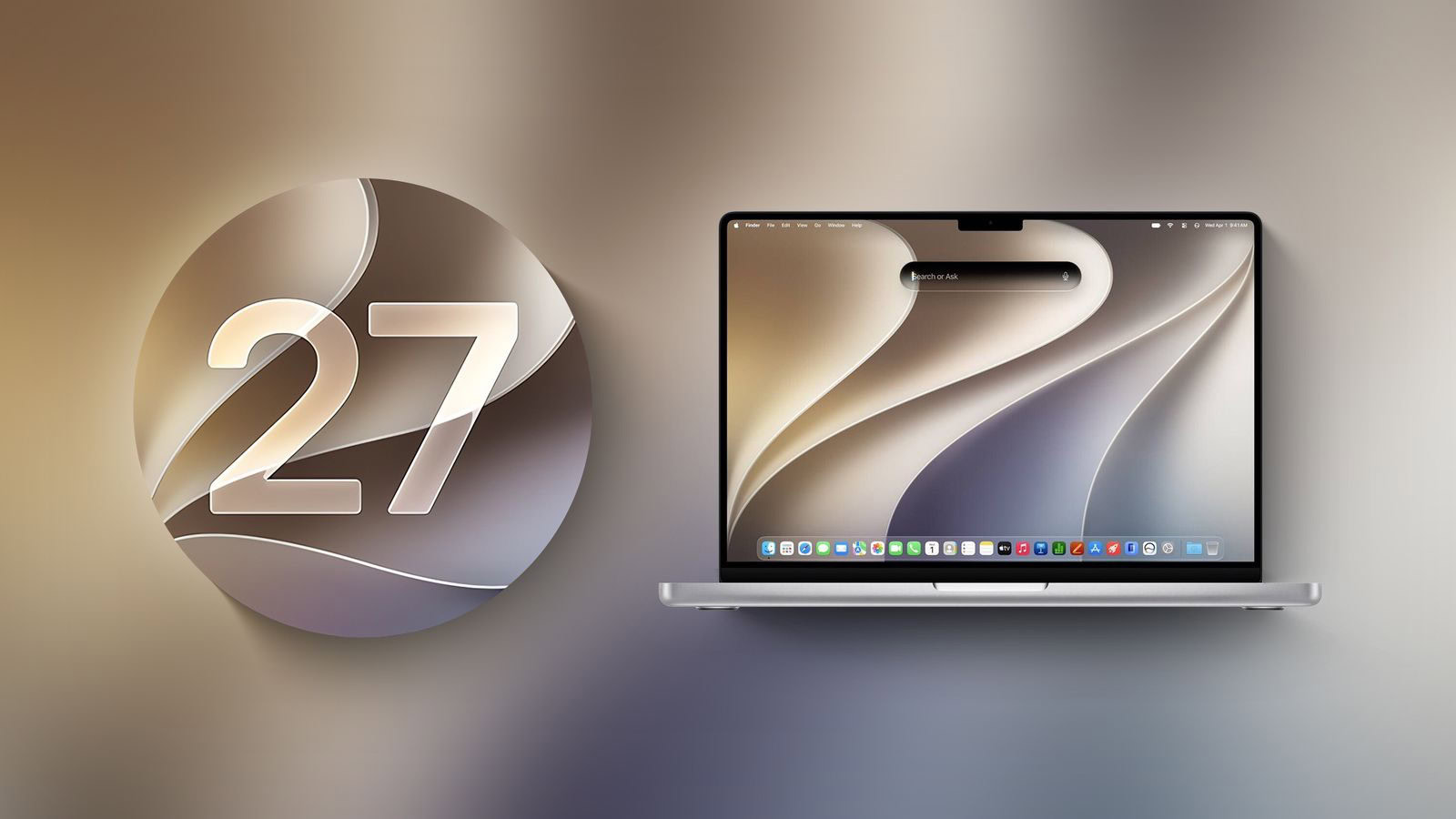
Apple has made the first macOS Golden Gate 27 developer beta available for testing before its official release in the fall, but don’t be fooled into thinking only developers can download it. Keep reading to learn whether you should install it on your Mac, and if so, how to go about it.
Getting access to the macOS Golden Gate developer beta is simple, and can be done by registering your Apple Account with the Apple Developer program. The extra steps you need to complete to install the software on your Mac are provided towards the end of this article, but before you jump ahead, here are a few things worth considering.
Should I Install the macOS Golden Gate Developer Beta?
Much like Mac OS X Snow Leopard in 2009, Apple said it focused on improving macOS’s performance and dozens of underlying technologies this year.
Apple says macOS Golden Gate offers quicker AirDrop transfers, faster network file browsing, improved syncing in the Messages app, better Spotlight search suggestions, and other changes that make your Mac feel "more responsive than ever." With so many additions and a striking visual update, it’s no surprise that macOS Golden Gate is generating a lot of interest among Mac users.
But before you commit, bear in mind that Apple does not recommend installing macOS developer beta updates on your main Mac. Remember, this is beta software, which means there are almost certainly bugs and issues that can prevent software from working properly or cause other problems with the system. Indeed, one of the reasons that Apple releases the beta to developers early is so that they can feed back problems and help Apple debug them. If you have a spare Mac hanging around, by all means use that, but we would be the first to advise holding off until at least July, when the macOS 27 Golden Gate public beta is expected to drop.
Is My Mac Supported?
macOS Golden Gate is compatible with the following Mac models, according to Apple:
- MacBook Neo (2026)
- MacBook Air with Apple silicon (2020 and later)
- MacBook Pro with Apple silicon (2020 and later)
- iMac with Apple silicon (2021 and later)
- Mac mini with Apple silicon (2020 and later)
- Mac Studio with Apple silicon (2022 and later)
- Mac Pro with Apple silicon (2023 and later)
macOS Golden Gate officially drops support for the following Macs (earlier models than those shown are also not supported):
- MacBook Pro (16-inch, 2019)
- MacBook Pro (13-inch, 2020, Four Thunderbolt 3 ports)
- iMac (2020)
- Mac Pro (2019).
Don’t Forget to Back Up Your Mac
Be sure to back up your Mac using Time Machine before installing the software using the method, otherwise you won’t be able to revert back to the previous version of macOS if things go wrong.
How to Install macOS Golden Gate Developer Beta
- If you haven’t already, register your Apple Account with the Apple Developer Program (it’s free) over at developer.apple.com.
- Open System Settings on your Mac and select General ➝ Software Update.
- Look for “Beta Updates” and click the info (i) symbol next to it.
- Choose macOS Golden Gate 27 Developer Beta from the dropdown list.
- Click Upgrade Now to begin the update process to macOS 27.
That’s all you need to do. The installation process will complete just like a standard macOS update, so sit back and let the installation finish, after which your Mac will boot directly into the macOS Golden Gate beta.
See also: iOS 27, iPadOS 27, watchOS 27, macOS 27 supported devices









.)