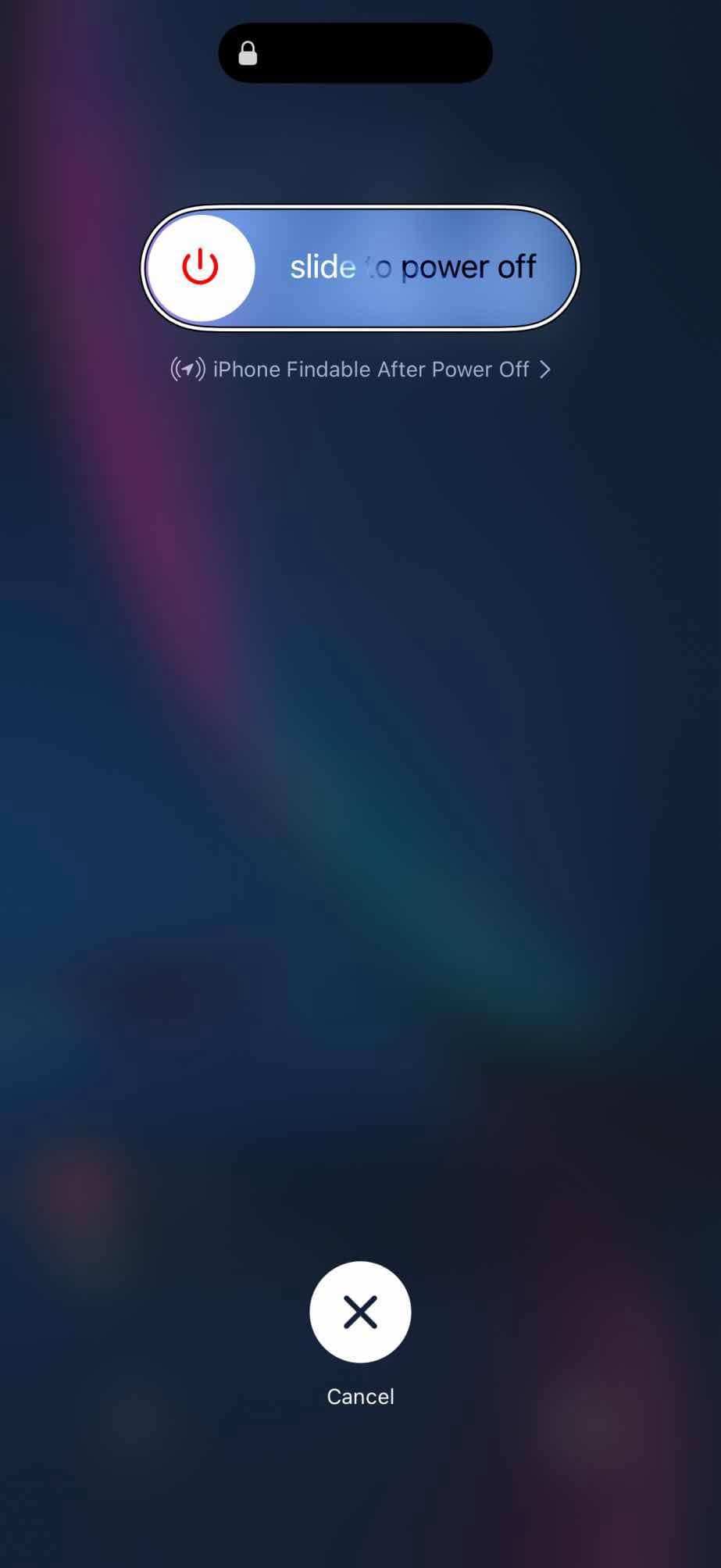
- If your iPhone won’t turn off after iOS 27 update, try using the Settings app to shut it down.
- A force restart can help if the normal iPhone restart process isn’t working.
An iPhone stuck in the on position is rare, but if it’s happening to you, here’s what to do to fix it.
Before you start troubleshooting, you should try different ways of turning off your iPhone.
The quickest way to turn off your iPhone is using the physical buttons. Press and hold down the Sleep / Wake button (what most people refer to as the power button). If you have an iPhone without a Home button, press and hold the side button and either volume button simultaneously. Release the button or buttons when slide to power off appears on the screen. That’s your cue to touch the red power icon and swipe it with your finger from the left to the right side of the screen. Ideally, your iPhone will turn off when you do this.
Pro tip: If you see the “slide to power off” wording on your screen, but your screen won’t respond, try some of the tricks from my article about what to do when your iPhone touch screen isn’t working after iOS 27 update.
You can also turn off your iPhone through the Settings app. Go to Settings, tap General, scroll down to find Shut Down, then drag the power off slider to complete the process. This method is particularly useful if your physical buttons aren’t working properly.
Another way to shut down your iPhone if your physical buttons aren’t working properly is swipe down from the top right corner of the screen to open the Control Center and press and hold (then release) the power button for a second. Then, you can simply drag the power slider to turn off your iPhone.
How to Fix an iPhone that Won’t Power Off After iOS 27 Update
You should force restart your iPhone if it doesn’t power off after iOS 27 update. It’s a fail-safe method to ensure you can turn it off if the screen is unresponsive or the phone’s software is misbehaving.
The process to force restart all iPhone models running iOS 27 is the same. Here’s how:
Quickly press and release the volume up button, then quickly press and release the volume down button, then, press and hold down the side button until the screen goes black and the Apple logo appears.
Now try turning off your iPhone using any of these methods:
- Simultaneously press and hold the side button and either volume button until the sliders appear, then drag the Power Off slider.
- Go to Settings > General > Shut Down, then drag the slider.
- Swipe down from the top-right of your iPhone and press and hold down on the power button in the top-right of the control center, then drag the slider.
If your iPhone still won’t turn off, use Siri to shut down your device. All you need to do is say, “Hey Siri, turn off my iPhone.” Siri should respond with a confirmation, asking, “Just to confirm, you want to power off this device?” Then, saying “yes” shuts down your iPhone right away.
How Do I Turn My iPhone Back On If The Power Button Doesn’t Work?
To turn your iPhone back on if the power doesn’t work, plug it into power. The Apple logo will appear on your screen and you’ll be able to use your iPhone as usual.
Cayses to Why your iPhone Won’t Turn Off
The most likely reasons your iPhone won’t turn off are:
- It’s frozen due to software problems.
- The Sleep/Wake button is broken.
- The screen is broken and isn’t responding to taps.
Manage Always on Display
Most iPhones running iOS 27 comes with an Always-On display feature enabled by default. If you want to conserve battery without fully shutting down, you can turn this off by going to Settings, Display & Brightness and toggling off the Always On Display option.
See also: How to fix iPhone stuck on the Apple Logo after iOS 27 update