In this step-by-step guide, we’ll show you five ways to delete invisible apps from your iPhone or iPad to declutter things and free up local storage.
Why don’t you see an installed app on your Home Screen
You may not see an app on the Home Screen because of the following reasons:
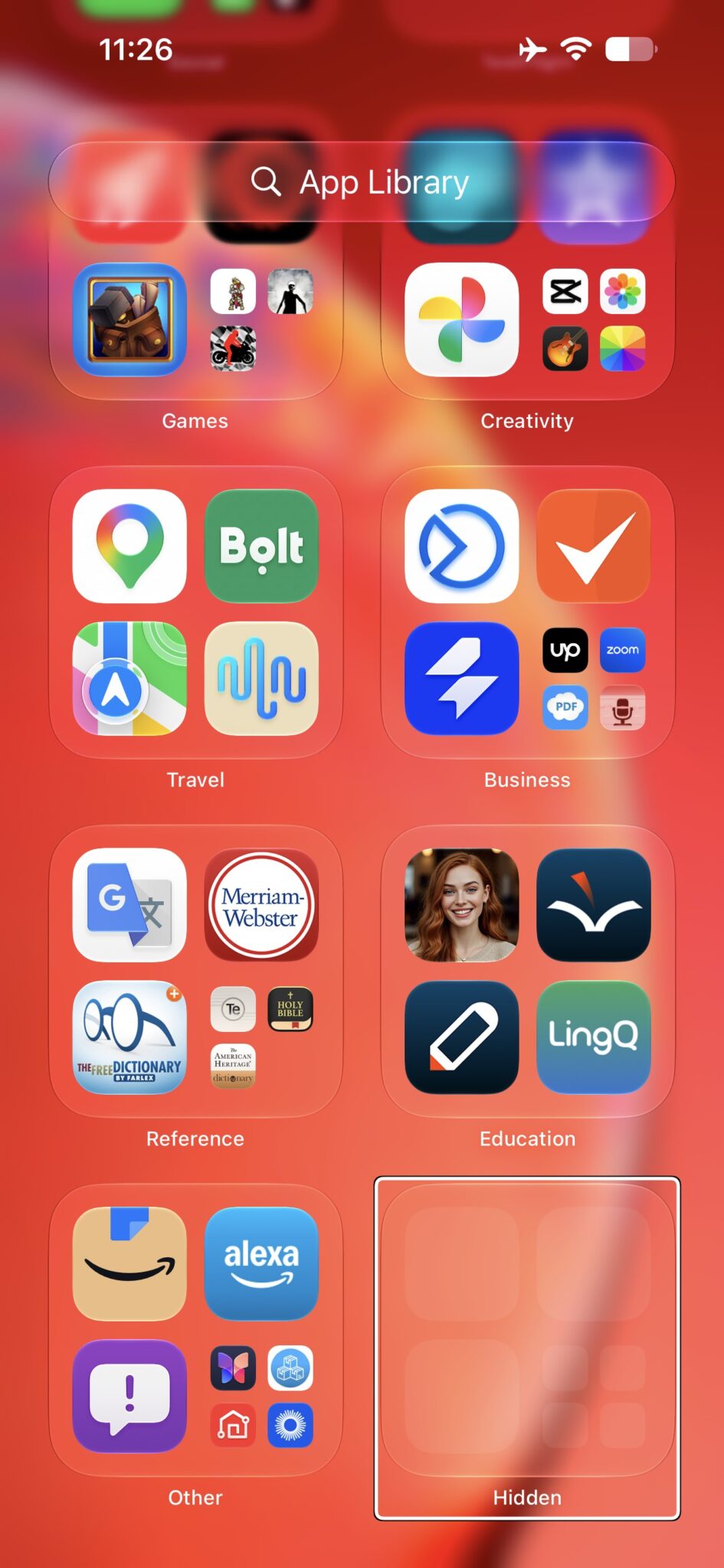
- You have hidden the app behind Face ID, Touch ID, or your passcode. A hidden app disappears from the Home Screen and moves to the Hidden folder at the bottom of App Library. Apple notes that a hidden app also can’t be found with Search until you unhide it.
- The app is only in App Library and not on the Home Screen. After you touch and hold the app on the Home Screen, tap Remove App, then tap Remove from Home Screen, the app stays in App Library and is visible only there.
- If you go to Settings > Home Screen & App Library and choose App Library Only under Newly Downloaded Apps, all new apps you download will no longer appear on the iPhone Home Screen. Their app icons are only visible inside App Library.
- If you hide a Home Screen page, this naturally hides all the apps on this page. Those apps still appear in App Library, and you can still find them with Search.
- The app may be hidden inside an app folder or on the second or third page inside the folder.
1. Delete apps from the Hidden folder
iOS lets you hide apps so that other people using your iPhone cannot see or access them. Apps hidden this way live in the Hidden folder, and Apple’s documented way to get one off your device is to unhide it first, then delete it from App Library.
- Go to the Home Screen, then swipe left past all your Home Screen pages to get to App Library.
- Scroll down to the bottom, tap the Hidden folder, then authenticate using Face ID (or Touch ID or a passcode).
- Touch and hold the app, tap Don’t Require Face ID (or Touch ID or Passcode), then authenticate again. The app moves back near the top of App Library.
- Touch and hold the app in App Library, tap Delete App, then tap Delete.
If you just want to see what’s in there first, go to Settings > Apps > Hidden Apps and authenticate to view the full list of apps you’ve hidden.
2. From Spotlight
You can find an app using Spotlight Search and delete it from there. This works for apps that are simply off the Home Screen — one sitting in App Library, or on a Home Screen page you’ve hidden. It won’t work for an app in the Hidden folder, because Apple excludes hidden apps from Search results.
- Swipe down from the middle of the Home Screen to open Search, then type the app name.
- Touch and hold the app, then tap Delete App. On some screens you’ll need to tap Remove App first, then Delete App.
- Tap Delete to confirm.
3. From iPhone Settings
The Settings app lists all the installed apps on your device. You can remove unnecessary apps from here in an instant.
- Go to the Settings app and tap General.
- Tap iPhone Storage — or iPad Storage on an iPad — and give it a while to display all your apps.
- Tap the app name you want to remove.
- Finally, tap Delete App and confirm.
4. From the App Library
You can locate an app in App Library and remove it from there.
- Go to the Home Screen, then swipe left past all your Home Screen pages to get to App Library. You’ll see apps inside proper categories.
- Find the desired app.
- Touch and hold the app, tap Delete App, then tap Delete.
If you tap the search field at the top of App Library, you’ll see all apps listed alphabetically. When you touch and hold the app icon, you’ll see an option to Delete App.
5. Using the App Store
You can use this method to delete only those apps that have a pending update or ones that have been updated recently.
- Open the App Store, tap your picture at the top right, then tap App Updates.
- If you see the app in the list of available updates or below Updated Recently, swipe left on its name and tap Delete.
See also: How to free up iPhone storage without deleting apps