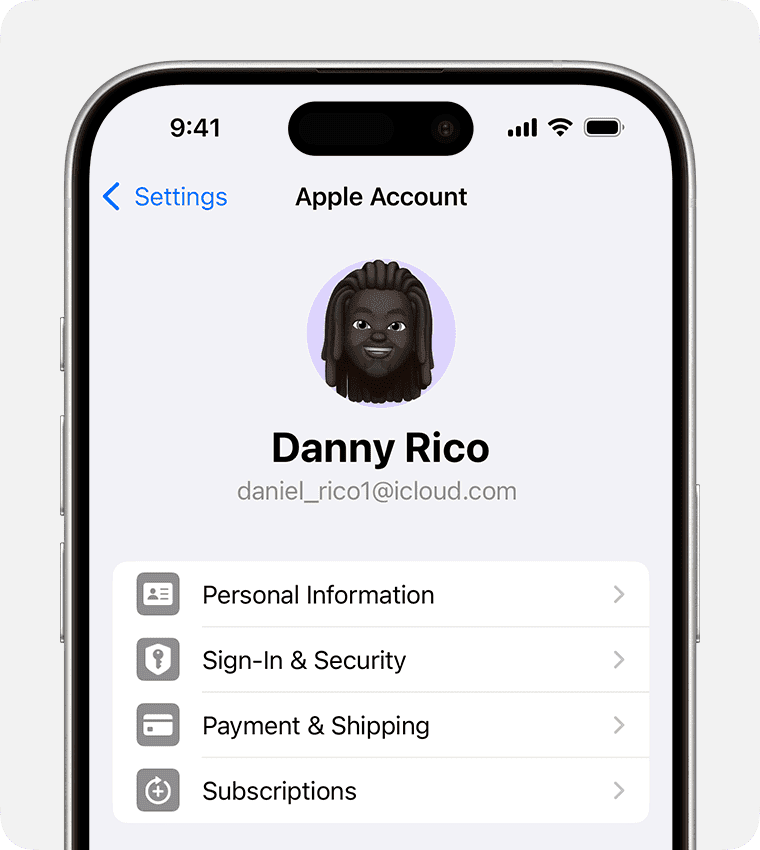
Learn what to do if you cannot access your iCloud or Apple Account settings because they’re grayed out or unclickable on your iPhone, iPad, Mac, or web browser.
Signing in to your iCloud or your Apple Account and accessing its settings is important because it allows you to review and update your personal Apple Account information, manage sign-in and security, add or change payment methods, see and cancel your active subscriptions, restore deleted files, bookmarks, contacts, and a lot more.
How to access your iCloud or Apple Account settings
Before moving on to the fixes, you must know where to access these settings.
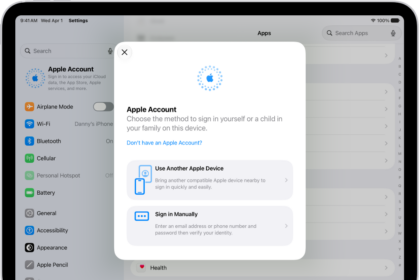
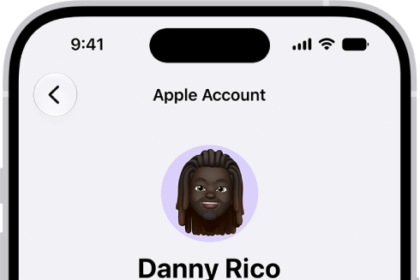
On iPhone and iPad: Open the Settings app and tap Apple Account at the top. Once you’re signed in, this is the tile that shows your name.
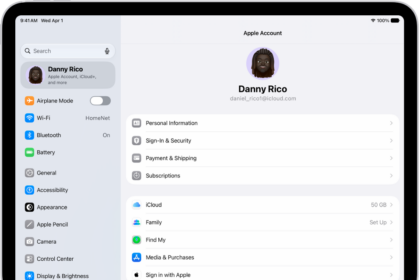
On Mac: Open System Settings and click your name at the top of the sidebar.
In a web browser: Visit icloud.com/settings and sign in using your Apple Account email address and password (or Touch ID/Face ID/device passcode if you’re in Safari). From here, you can also access your Apple Account settings at account.apple.com.
Now you know where to look for your iCloud settings, but if you can’t tap, go inside, or change them, the solutions listed below should take care of the problem.
1. Force quit settings
You may not be able to get inside your Apple Account settings because the Settings app has a temporary bug or glitch. Simply closing and reopening it should help.
On iPhone: Swipe up from the bottom edge of the screen and pause in the center to open the App Switcher (on an iPhone with a Home button, double-click the Home button instead). Now, swipe right to find the Settings app, then swipe up on it to close it.
On iPad: Swipe up from the bottom of the screen, pause in the center, then lift your finger to open Exposé, which is what iPadOS 26 calls the view of your open apps and windows. Now, swipe up on the Settings app to close it.
On Mac: Click the Apple menu in the corner of your screen and choose Force Quit. Select System Settings and click Force Quit.
After waiting for about five seconds, reopen the Settings app or System Settings, and you should be able to get inside your iCloud/Apple Account settings.
2. Agree to the pending terms and conditions from Apple
When you open the iOS Settings app or macOS System Settings, look for an option at the top showing you “New iCloud Terms and Conditions” or something similar. Select it, review the new terms, and agree to them (if you do).
3. Restart your iPhone, iPad, or Mac
The Apple Account tile at the top of Settings or System Settings may be grayed out because of a minor glitch, which can be fixed by turning off your iPhone or iPad and turning it back on. On Mac, click the Apple menu in the corner of your screen and choose Restart.
4. Ensure you have a solid internet connection
You may be unable to access and tweak your iCloud or Apple Account settings if your phone or computer’s Wi-Fi or cellular connection is weak and inconsistent. Fix any relevant Internet issues, and then try again.
5. Turn off your VPN
If you’re using a VPN, try turning it off, and then you should be able to get inside and change your iCloud or Apple Account settings.
6. Try connecting to another Wi-Fi network or personal hotspot
In some cases, joining another Wi-Fi network can help. If you don’t have access to another network, use cellular data or your iPhone’s Personal Hotspot.
7. Turn off Screen Time restrictions
Screen Time can be used to restrict some functionality on your iOS devices, and blocking account changes is the single most common reason the Apple Account tile appears grayed out. Head over to iPhone Settings > Screen Time > Content & Privacy Restrictions. If Content & Privacy Restrictions is turned on, scroll down to the Allow Changes To section, tap Accounts, and set it to Allow. Enter your Screen Time passcode if you’re asked for it.
From that same screen, check whether any other settings are set to Don’t Allow. If so, tap the setting and choose Allow. If you’d rather clear everything at once, you can simply turn off the switch for Content & Privacy Restrictions.
Now, force quit and reopen the Settings app, and you should be able to access your iCloud/Apple Account settings.
Important: You may not be able to access or disable Screen Time restrictions if:
- You are a child, and your parents or guardian manage your device.
- You have forgotten your Screen Time passcode.
8. Check Apple’s server status
Apple’s system may be unresponsive because of an outage. Quickly check the Apple System Status page, and if you see an issue with Apple Account or iCloud Account & Sign In, you’ll have to wait a while until it’s fixed by Apple engineers.
9. Retry after a while
Even when everything, including Apple’s servers, seems fine, I recommend waiting for a couple of hours. In some situations, simply having a little patience does the trick.
10. Update your device
Running an outdated version of iOS, iPadOS, or macOS can be the cause of the problem. Before moving to the remaining solutions, head over to iPhone or iPad Settings > General > Software Update and get the latest version of the operating system currently available. On Mac, choose System Settings from the Apple menu, click General in the sidebar, then click Software Update on the right.
11. Remove installed configuration profiles
If you have installed extra configuration profiles, they may prevent you from accessing your Apple Account and iCloud settings.
- Open your iPhone or iPad Settings > General > VPN & Device Management, select any profile you don’t remember installing, tap Delete Profile, follow the onscreen instructions, then restart your device. If you don’t see any profiles listed, none are installed.
- On Mac, you’ll have to go to System Settings > General > Device Management (you may need to scroll down), select the profile, then click the remove button. On macOS 12 or earlier, choose System Preferences from the Apple menu, then click Profiles instead.
Important: If the iPhone, iPad, or Mac is given to you by your office or educational institution or managed by them, you should not and may not be able to remove the configuration profile. In these cases, it’s best to contact the concerned office/college technical admin for help.
12. Reset network settings or all settings
You may not be able to access or change your iCloud or Apple Account settings because of network issues or conflicting settings. Start by resetting the network settings: go to Settings > General > Transfer or Reset iPhone > Reset, then tap Reset Network Settings. If that doesn’t help, go ahead and return to the same screen and tap Reset All Settings, which resets your preferences without deleting any of your data or media.
13. Sign out of Apple Account and sign back in
Finally, if you can tap the Apple Account tile in Settings or System Settings but cannot go beyond it or change the settings there, then the best way to fix that is by signing out of your iCloud/Apple Account and signing back in. On iPhone and iPad, open Settings, tap the Apple Account tile, scroll to the bottom, and tap Sign Out. On Mac, open System Settings, click your name at the top of the sidebar, then click Sign Out.
If you see “Sign out is not available due to restrictions,” a Screen Time passcode is standing in the way. Go to Settings > Screen Time, scroll down, tap Change Screen Time Passcode, then tap Turn Off Screen Time Passcode and enter your passcode.
If you can’t log in using a web browser
Here are the possible solutions to address this:
- Make sure you’re using your correct Apple Account email address and password.
- Use Safari on your Mac to log in and use your Mac’s password or Touch ID to sign in to iCloud or Apple Account.
- Try visiting iCloud in a private/incognito browser window.
- Close and reopen the browser.
- Turn off VPN if you’re using one.
- Restart your computer.
- Clear all browser history and data.
- Update the web browser.
- Make sure web access to your iCloud data is switched on. In iOS 26.4 and iPadOS 26.4 or later, go to Settings > Apple Account > iCloud > iCloud.com and turn on Allow Data Access. In macOS 26.4 or later, go to System Settings > your name > iCloud > Data Access on iCloud.com and turn on Allow Data Access. On earlier versions, the switch is named Access iCloud Data on the Web and sits directly in your iCloud settings. It’s turned off automatically if you use Advanced Data Protection.
- Disable newly installed extensions and try again.
- Instead of using a lesser-known browser, try Safari, Google Chrome, or Microsoft Edge.
See also: How to Use a Different Apple Account for App Store & Purchases on iPhone & iPad