Learn how to set your iPhone or iPad to flash its LED light or its screen for calls, messages, and app notifications, which is ideal for receiving visual alerts in addition to or instead of sound and vibrations.
Your iPhone usually lets you know when there is an incoming call, text, or app notification using sound, vibration, or both. However, in certain situations, audible alerts and vibrations may not be enough to capture your attention, such as when in a loud environment like a nightclub. Or perhaps you simply don’t want to be disturbed by sound or vibration at all.
Thankfully, iPhone and iPad can use the LED flash next to the rear camera to alert you of incoming calls, messages, and other app notifications. On iPad, the feature requires a model with an indicator light, which Apple lists as iPad Pro (9.7-inch), iPad Pro (10.5-inch), iPad Pro 12.9-inch (2nd generation) and later, iPad Pro 11-inch (all models), and iPad mini (6th generation). Here’s how to turn it on.
Enable LED flash alerts for calls and notifications
1) Open the Settings app on your iPhone or iPad and tap Accessibility.
2) Tap Audio & Visual, which sits in the Hearing section.
3) Scroll to the bottom and tap Flash for Alerts.
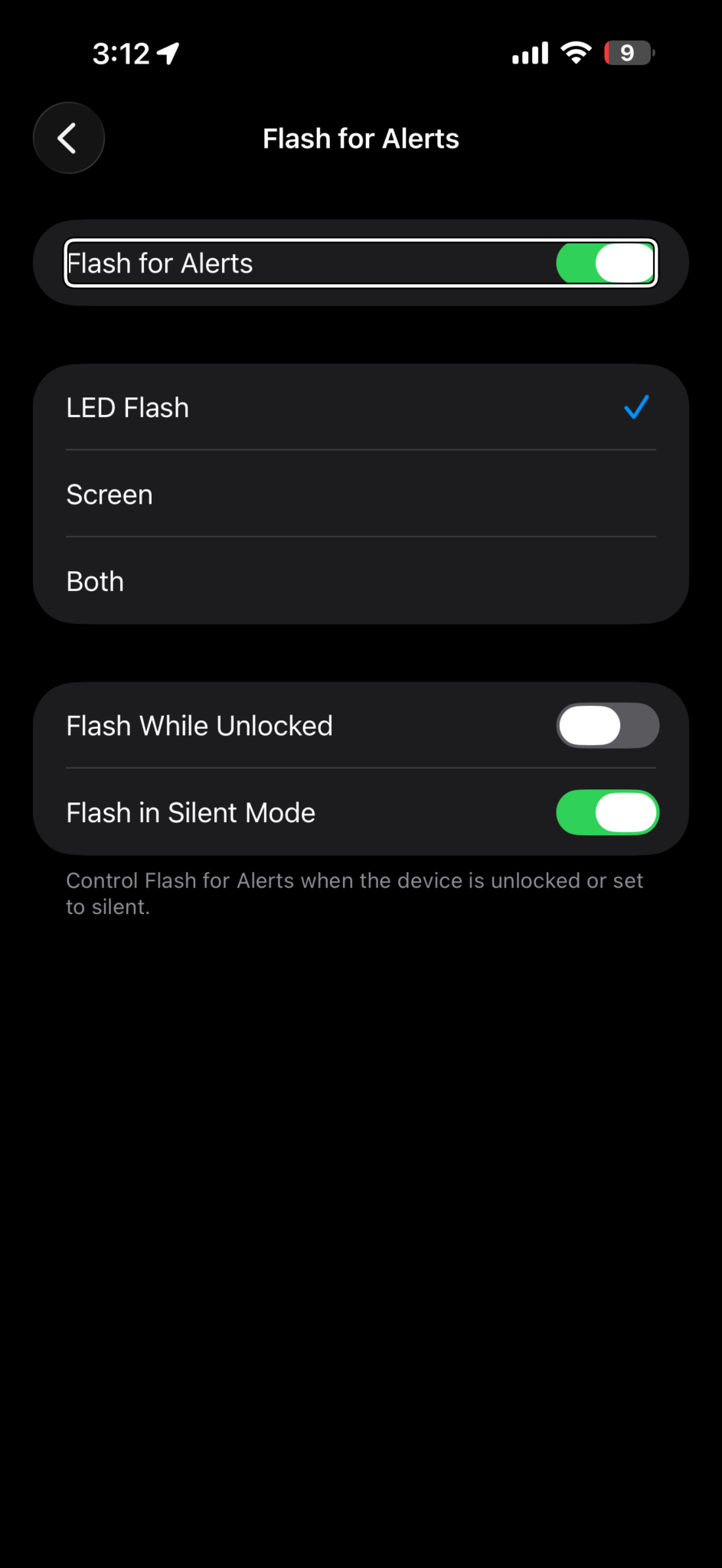
4) Enable the switch next to Flash for Alerts, pick what you want to flash, and do the following:
- LED Flash: The indicator light on the back of your iPhone or iPad flashes.
- Screen: Your iPhone or iPad screen flashes.
- Both: Both the indicator light and the screen flash.
- Flash While Unlocked: If you turn it on, the indicator light will flash for calls, texts, and notifications, even when your iPhone or iPad is unlocked and you’re using it. Keep this switch off if you want the light to flash only when the device is not in use.
- Flash in Silent Mode: Keeping this on ensures your iPhone or iPad flashes when in Silent mode.
- If you want the flash to fire under all conditions, turn on all three switches you see here.
From now on, your iPhone or iPad will flash when notifications for incoming calls, texts, and other alerts hit your handset. To disable the notification light, excuse me, Flash for Alerts, toggle the above setting to the off position.
The reason why this feature is nested under the Accessibility section of the Settings app is that Apple designed it for people with hearing impairments. However, anyone who prefers visual alerts over audio can also use it.
See also: How to Mute iPhone & Turn Off All Sound: Complete Guide