Are you having issues with visual voicemail on your iPhone 18 Pro or iPhone 18 Pro Max? One of the commonly reported problems is that your voicemails and/or your voicemail transcripts are not showing up. Or sometimes it may seem that your voicemails have suddenly vanished. Sometimes you may see your voicemails but they won’t play. Sometimes, you may experience that voicemail stops working for no apparent reason following an iOS update. This article explains how you can troubleshoot these issues.
The following are a handful of tips that you may try to troubleshoot voicemail issues with your iPhone 18 Pro or iPhone 18 Pro Max.
Please note that you can use the visual voicemail feature if your carrier supports this. In the USA, most carriers, if not all, support this.
Have someone call you. Can he or she leave a voicemail message? If not, make sure that you have set up your voicemail — the first time you tap Voicemail, you’re asked to create a voicemail password and record your voicemail greeting. Another problem is that the inbox of your voicemails may be full, or may only seem full. You may need to delete some voicemails.
Greeting
On your iPhone, open the Phone app. Where you find the greeting depends on your Phone app layout: in the Classic layout tap the Voicemail tab, then tap Greeting; in the Unified layout tap Calls, tap Edit, then tap Edit Voicemail Greeting. What setting do you have there? If it is Default, change it to Custom and if it is Custom, change it to Default.
Restart the Phone app
You may be having this issue because the Phone app may not be working as expected. You may try restarting the Phone app to see if this helps:
- From the Home Screen, swipe up from the bottom of the screen and pause in the middle of the screen.
- Swipe right or left to find the app that you want to close.
- Swipe up on the app’s preview to close the app.
- Now reopen the Phone app and test to see if you can see your voicemails.
Reset your password
Try resetting your voicemail password. On your iPhone, you can do this easily. Here is how:
- Go to Settings > Apps > Phone and tap Change Voicemail Password.
- Enter a new password.
Update your iPhone
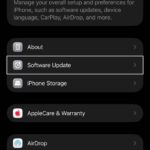
Make sure that the iOS software on your iPhone is up to date. Update to the latest version of iOS. You can update your iPhone wirelessly by going to Settings > General > Software Update.
You can also turn on automatic updates by turning on Automatic Updates (Settings > General > Software Update > Automatic Updates).
Airplane Mode
On your iPhone, turn on Airplane Mode, wait for about a minute and turn it off. When you first turn on Airplane Mode, Wi-Fi, Bluetooth and cellular all turn off. Turning on and off may fix your problem. If this does not work, also try this in the following order:
- Open the Settings app. Turn on Airplane Mode for at least 15 seconds.
- Restart your phone (see the next section).
- Then when your phone is on, turn off Airplane Mode.
Restart
Restart your iPhone 18 Pro. Here is how:
- Press and hold either volume button and the side button until the power-off slider appears.
- Drag the slider, then wait 30 seconds for your device to turn off.
- To turn your device back on, press and hold the side button (on the right side of your iPhone) until you see the Apple logo.
Cellular connection
Make sure that your iPhone is connected to a cellular network. Visual voicemails require a strong cellular connection to work effectively. You can check this easily. Turn off Wi-Fi on your iPhone (Settings > Wi-Fi) and call someone. If the call works, your cellular connection is working.
You may also try the following tips:
- Go to Settings > Cellular and turn off Cellular Data. Wait for one minute. And then turn it on.
- Remove your SIM card, and place it again. If your iPhone model doesn’t have a SIM tray, it supports eSIM only. To pop open the SIM tray, insert a paper clip or a SIM-eject tool into the hole beside the tray. Push in, towards your iPhone, but don’t force it.
- Contact your carrier. Maybe there are outages in your area that your carrier is experiencing.
Carrier settings
Update your carrier settings. You can check for pending carrier updates on your iPhone, go to Settings > General > About. If there is a carrier update, you will see an option to update. Follow the onscreen instructions to install your carrier update.
Carrier updates include updates from your carrier to add new features or enhance the performance.
Voicemail transcripts not working
If your voicemail transcripts are not working, or if you are getting an error message like “Transcription not Available”, Siri may be the cause. Follow the steps below:
- Settings > Siri > Requests.
- Tap Off so iPhone doesn’t listen for “Siri” or “Hey Siri”.
- And turn off Press Side Button for Siri.
- Restart your phone.
- And now turn on these Siri settings by going to Settings > Siri > Requests.
You may also want to troubleshoot if Siri is not working.
Reset network settings
On your iPhone, reset your Network Settings. Go to Settings > General > Transfer or Reset iPhone > Reset > Reset Network Settings. Please note that your network-related settings will be erased like your Wi-Fi passwords etc.
Call voicemail directly
You can also check your voicemail messages by calling voicemail. Here is how you can do that on your iPhone 18 Pro:
- Open the Phone app.
- Tap Keypad.
- Press and hold 1. This will call voicemail. Here is where you can check voicemails.