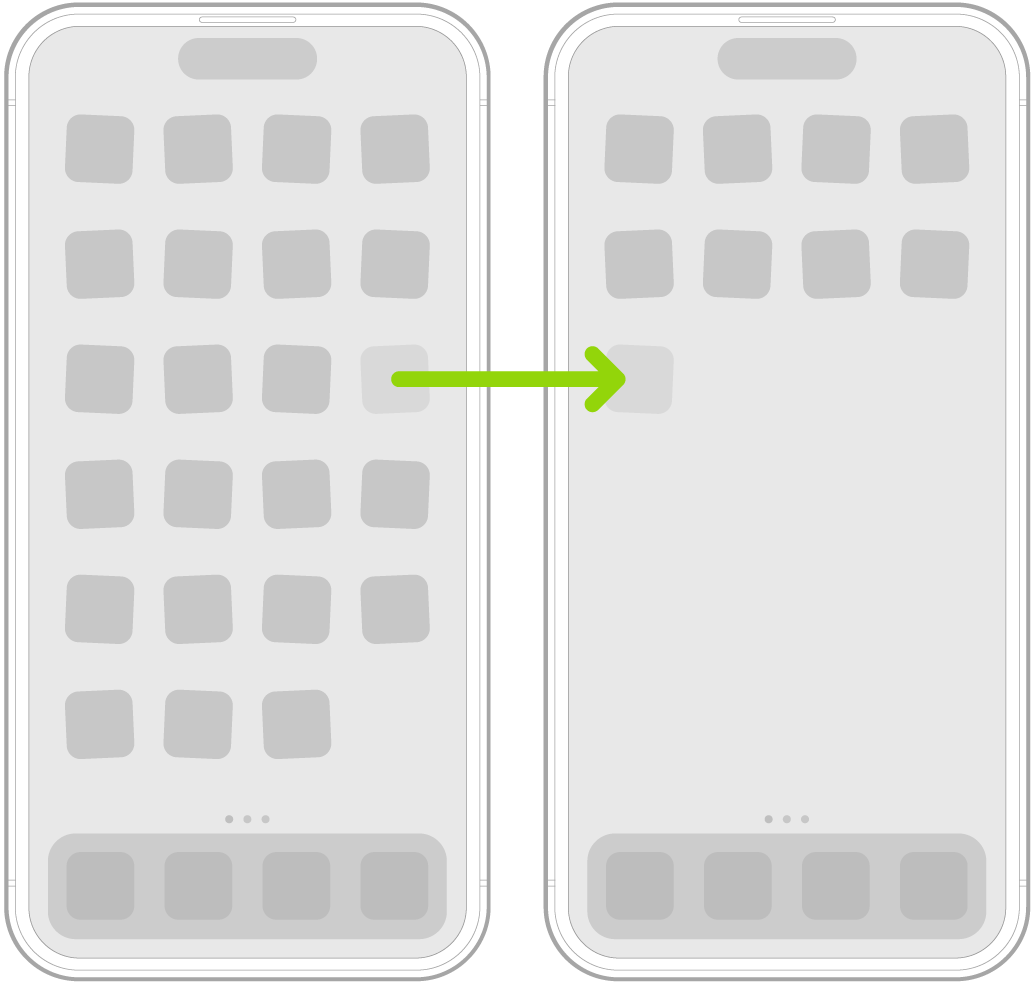
This article explains how you can fix when you are unable to move or organize your apps on the Home Screen. You can reorganize your home screen easily. Simply touch and hold an app until it jiggles, and then move it to another location. If you are unhappy about your reorganization, do not worry, you can reset your Home Screen by going to Settings > General > Transfer or Reset iPhone > Reset > Reset Home Screen Layout. Doing so will move and reset your apps to their original layout. Doing so will further remove all apps from folders and put them in alphabetical order on the Home Screen.
Are you having issues? Do not worry, you are not alone. Users reported various issues, for example:
- unable to move apps
- app freezes
- apps do not jiggle
- unable to move apps out of folders
Fix:
Please try each step until your issue is resolved:
1. Touch and hold the Home Screen background until the items begin to jiggle.
2. When touching and holding an app, it may not jiggle if you have Zoom on. Here is how you can disable this:
- On your iPhone 18 Pro, tap Settings and Accessibility
- Tap Zoom
- Disable this and try again
3. Restart your iPhone 18 Pro. Here is how:
- Simultaneously press and hold the side button and either volume button until the sliders appear, then drag the Power Off slider. You can turn off your device by going to Settings > General > scroll down and tap Shut Down. When your device is off, press and hold the side button until your device starts.

4. Force restart your iPhone 18 Pro.
- Press and release the Volume Up and press and release the Volume Down buttons and then press and hold the side button until your device restarts.

Nothing above helped you? Then you may want to contact Apple Support. You can live chat with an Apple support representative.