It appears that some users are experiencing issues with Dictation and Siri after the recent iOS update. In this dictation problem, as soon as the dictation button is tapped, Dictation appears and then immediately disappears again. The dictation icon may show an (X) icon or Dictation does not produce any text at all. Likewise, some users have also said Siri is not working after the update. Siri gives the “something went wrong” message when users want to use Siri.
I use Siri and Dictation a lot, as do many others. Dictation is a convenient feature that lets you say words and sentences instead of typing them anywhere you can write text. For example, I know that a lot of people use Dictation when they are composing notes, text or email messages. This feature may also be called speech-to-text. Siri is used a lot as a virtual assistant. Siri’s capabilities have evolved quite a bit since its launch. Siri can help you get things done on your iPhone 18 Pro or Mac.
It appears that some users are having issues with both Siri and Dictation while some users are experiencing problems with just one of them. Regardless, if you are having issues with Siri, Dictation or both, follow the steps below. You may skip the steps that are not applicable to your issue.
Basic steps if Dictation and Siri are not working
- Go to the System Status page to ensure that there are no Dictation or Siri outages.
- Restart your iPhone 18 Pro and try again.
- Ensure that Dictation is enabled. Go to Settings > General > Keyboard, then turn on Enable Dictation.
- Ensure that Siri is turned on. Tap Settings > Siri > Requests and ensure that “Siri” or “Hey Siri” is enabled.
- Again go to Settings > General > Keyboard and turn off Enable Dictation. Restart your iPhone and then go to Settings > General > Keyboard and turn Enable Dictation on again.
- Ensure that your iPhone 18 Pro has the latest version of iOS.
- Test to see if your microphone is working. If your microphone isn’t working, your iPhone 18 Pro may not be able to hear what you say, and that may affect Siri and Dictation. You can easily test this:
- Open the Voice Memos app.
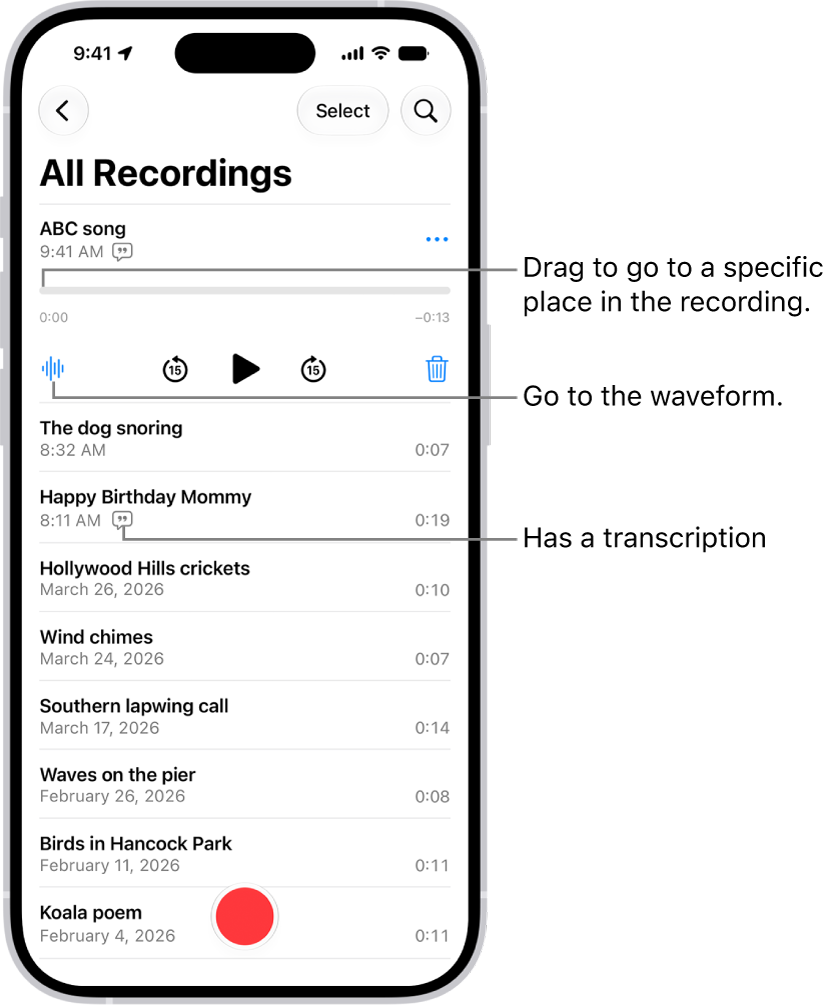
- Tap the Red record button to record a new memo. Speak for about a minute. Speak into the microphone at the bottom of your iPhone 18 Pro (you can locate the iPhone’s microphones easily).
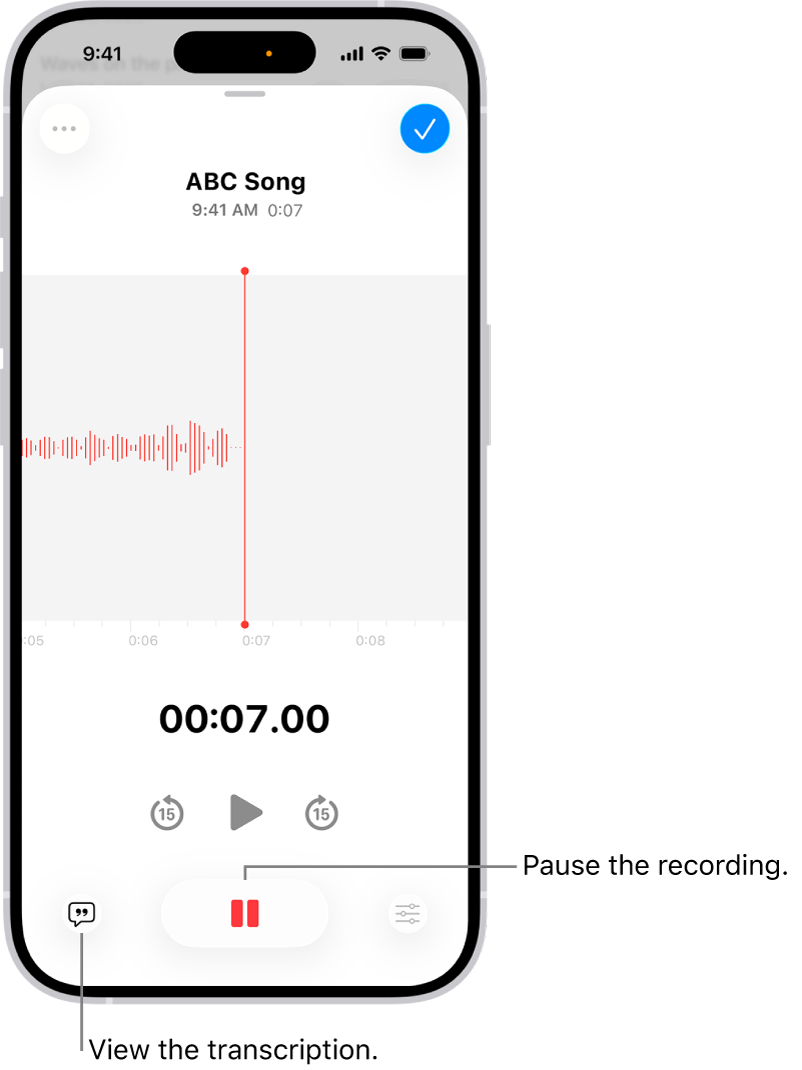
- After stopping the recording, listen to your recording. Are you hearing everything correctly? If not, you can try to clean your iPhone’s microphones. If cleaning does not work, this could be a hardware problem. You may want to contact Apple or get a Genius Bar appointment.
- Open the Voice Memos app.
Change the phone, Dictation and Siri language
Some users have expressed success with changing the language. In this step, we will change the language to a very similar language. For example, we will change the language from English US to English UK or Spanish (Latin America) to Spanish (Mexico).
Follow these steps. Please note that in this example, we will be changing the language from English (United States) to English (United Kingdom). You can change the language based on your own circumstances:
- Tap Settings > General > Language & Region, then tap Add Language and add English (UK). Tap on Use English (UK). Your iPhone may need to restart. Now test to see if the problem has resolved itself. If not, you can try the next step.
- Tap Settings > Siri > Language and then select English (United Kingdom), assuming your current setting is English (United States). Now, as the pop-up tells you, after you change the language, you will need to go back and turn on “Hey Siri” (Settings > Siri > Requests). When you turn “Hey Siri” back on, you will need to retrain Siri.
Now test Dictation. Is it working? If this fixes your problem, but you may not like the idea of changing the language, you can continue to use these settings until a new iOS update is released. You may want to revert these settings back as soon as Apple releases an update for this issue. Simply update your device, then test Siri and Dictation.