Several users have reported Face ID problems. More specifically, this problem occurs when users attempt to turn on iTunes & App Store in Settings > Face ID & Passcode. Thus, some users are unable to purchase content from the iTunes Store, App Store, and Book Store using Face ID on iPhone 18 Pro or iPhone 18 Pro Max. The error message:
Unable to Set Up. There was a problem setting up biometric authentication on this device. Please try again later.
If you experience this problem, please try the following tips to resolve:
After you try each step below, please check to see if your problem is fixed.
1-On your iPhone 18 Pro, go to Settings > Face ID & Passcode, and turn off “iTunes & App Store”. Wait a few seconds and then turn it on, you will have to enter your Apple Account and password.
2-Make sure that your iPhone 18 Pro is running the latest version of iOS. You can update your device easily. Simply go to Settings > General > Software Update. And if there is an update available, tap Update Now.
3-Hard reset your device. This is also called force restart. Here is how:
- Quickly press and release the Volume Up button.
- Quickly press and release the Volume Down button.
- Press and hold the side button until the Apple logo appears and your device restarts.

4-It is possible that you may have changed your Apple Account username and password. You will have to enter your new Apple Account password to access Apple features and services including Face ID and iTunes, App Store. On your device go to Settings > [your name] > Media & Purchases. If you are signed out, sign in using your new Apple Account password and if you are signed in with your old Apple Account password, first sign out and then sign in.
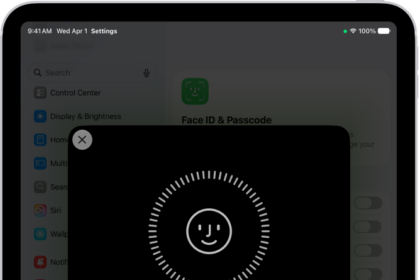
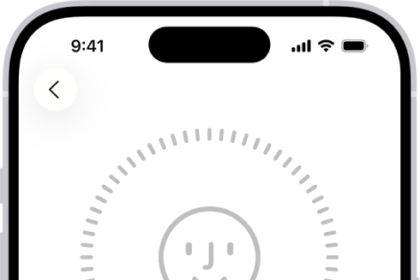
5– You may want to set up an alternate appearance. Tap Settings > Face ID & Passcode (you may have to enter your passcode) and then tap “Set Up an Alternate Appearance”. And follow the instructions.
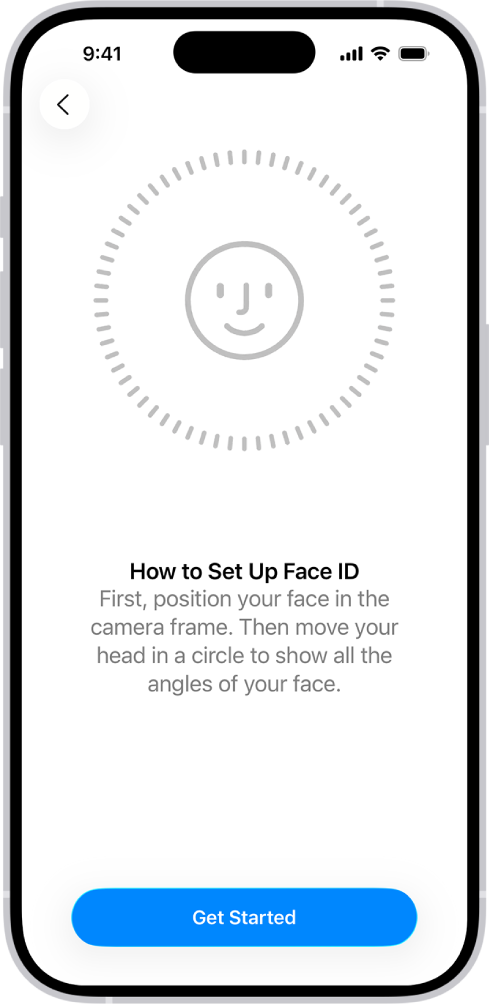
6-You can reset Face ID and then set up again. To do this, Settings > Face ID & Passcode (you may have to enter your passcode) and tap Reset Face ID. Now the same button will say “Set Up Face ID”.
Tap Set Up Face ID and follow the instructions.
7-On your iPhone 18 Pro, you may want to make sure that your payment information is accurate. Here is how:
- Tap Settings > [your name] > Payment & Shipping.
- You may have to enter your Apple Account password, if asked, enter it.
- And make sure that all info is accurate. And there is nothing missing.
If you can’t solve your problem, you may want to take your device to an Apple Retail Store or contact Apple Support.