Some users have reported that they are unable to make backups with iCloud. Users have stated that they are receiving an error about files being unavailable. More specifically iOS users claim that they see an alert message saying “some files were unavailable during the last backup”.
Using iCloud as a backup location, Apple’s cloud storage service, is a great idea. iCloud lets you back up your device easily and wirelessly via a Wi-Fi network so that you do not have to use manual backups using iTunes.
Automatic backups occur when your iPhone 18 Pro is locked and connected to a power source and a Wi-Fi network. All you need to do is to turn on iCloud Backup by going to Settings > [your name] > iCloud > iCloud Backup.
As we explained below, “some files were unavailable during the last backup” may indicate different things. If you experience this problem, here is how you can troubleshoot:
You can also try to back up your device using iTunes. To do this:
- Connect your device to your computer
- Switch to the Finder on your Mac, or open the Apple Devices app on your PC. If your PC doesn’t have the Apple Devices app, or your Mac is using macOS Mojave or earlier, open iTunes instead.
- Select your device and click “Back Up Now”
Some files were unavailable during the last backup, fix
- Restart your device and try again by going to Settings > [your name] > iCloud > iCloud Backup > and “Back Up Now”
- This error message may also indicate that some app is running continuously. Kill all apps running in the background. Simply swipe up from the bottom of the screen and pause, then swipe up on all of the apps. If you want, you can use multiple fingers to make things faster.

- “Some files were unavailable during the last backup” may mean that your connection was lost temporarily for a short time on your last iCloud backup. If this is the issue, first back up your device using your computer (see above) then use iCloud.
- Delete your last backup then try again.
- Force restart your device (Press and quickly release the volume up button. Press and quickly release the volume down button. Press and hold the side button. When the Apple logo appears, release the side button.) and try again.

- Make sure that you have enough iCloud storage. You can manage your storage by going to Settings > [your name] > iCloud. If you are having this problem, you can free up space by deleting old backups, photos/videos and files.
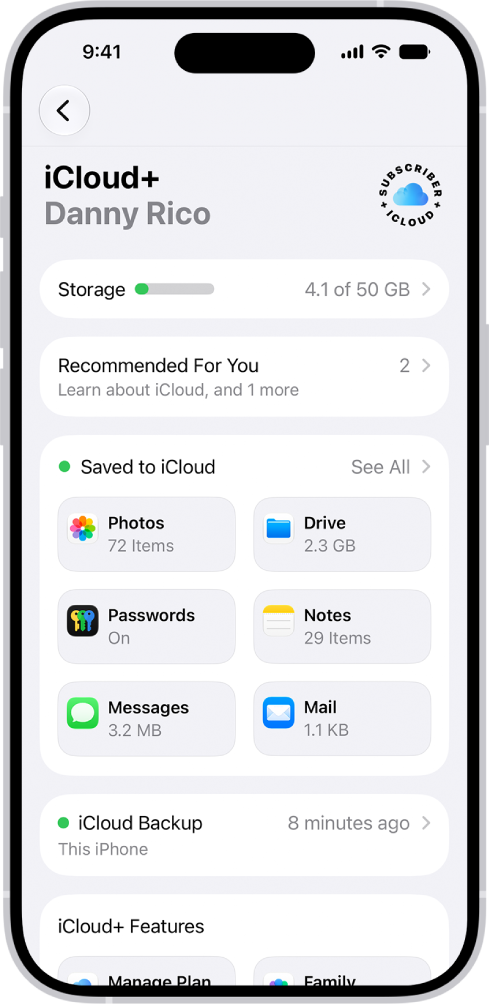
- Go to Settings > [your name]. Tap iCloud and sign in to iCloud.
- Go to Settings > [your name] > then scroll down and tap Sign Out. Wait a few minutes and sign back in again then try again.
- Remove network settings. To do this go to Settings > General > Transfer or Reset iPhone > Reset > Reset Network Settings. Note that this action will remove your network settings such as your Wi-Fi passwords etc.
- Make sure that your iPhone 18 Pro is up to date. You can check this by going to Settings > General > Software Update.
iCloud: How to back up your iPhone
- Connect your iPhone to a Wi-Fi network
- Tap Settings > [your name] > iCloud > iCloud Backup