It seems that Face ID is not working when users want to install or purchase apps. You can use Face ID to purchase apps, games and other content from the App Store. If you cannot authenticate your App Store purchase with Face ID, you will need to enter your Apple Account password. If Face ID works, you will only need to double-click the side button while glancing at your iPhone 18 Pro or iPhone 18 Pro Max.
If Face ID is not working for the App Store, you will not see the double-click to install option. Instead, you will be presented with an Install button that you can tap to install the app.
If you are having this issue, it can create an inconvenience. Having to enter your Apple Account password can get annoying if you are downloading apps often.
I should note that this issue may also affect the iTunes Store; in other words, Face ID may not work with iTunes as well.
Before continuing, ensure that the App Store is allowed to use Face ID. You can check this by following these steps:
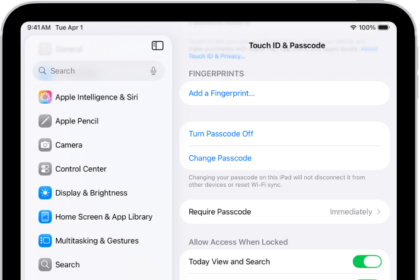
- On your iPhone 18 Pro, go to Settings > Face ID & Passcode.
- Enter your passcode to continue.
- Then ensure that iTunes & App Store is enabled.
If it is off, turn it on. After turning it on, Face ID will work again. If this was already on, then see the steps below.
Steps to fix the Face ID in App Store issue
In this article, I provide two possible fixes. Please try Fix 1 first, and if that is not helpful, move to Fix 2.
Fix 1: Sign out of the App Store and then sign in
Sign out and then back into the App Store. Follow these step-by-step instructions:
- Go to Settings, tap your name, then tap Media & Purchases.
- Tap Sign Out.
- Then tap Media & Purchases again and sign in again.
Fix 2: Reset Face ID
The steps here involve disabling Face ID, resetting it and then setting up Face ID again. Here is how:
- On your device, go to Settings > Face ID & Passcode and then enter your passcode.
- Disable Face ID for all apps and services: iPhone Unlock, iTunes & App Store, Contactless & Payments, Password AutoFill and others. Everything in the Use Face ID For section.
- Now restart your iPhone 18 Pro, open the Face ID settings again and turn back on everything you just turned off. Check if Face ID can be used to buy or download apps. If not, continue.
- Open the Face ID settings again and turn off everything again, everything under the Use Face ID For section. Then scroll down and tap the red Reset Face ID button.
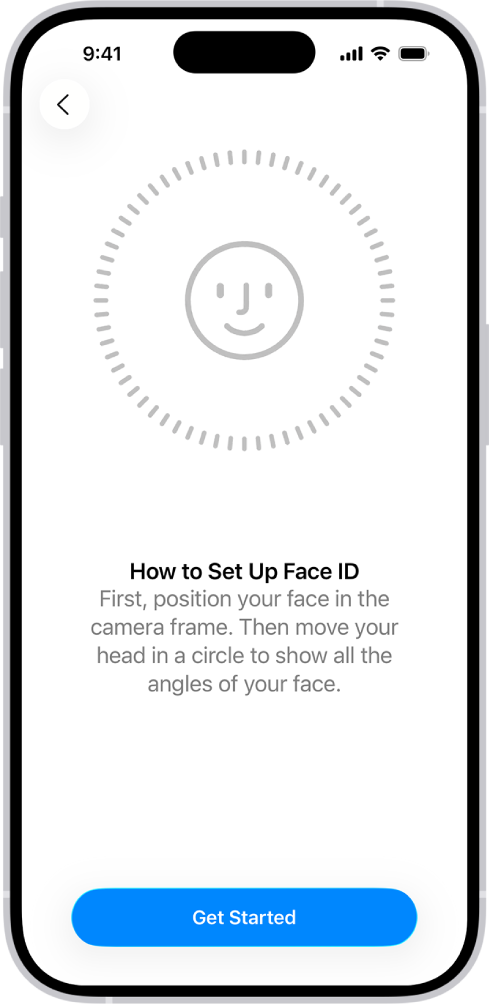
- After tapping the reset option, a new button will appear saying Set Up Face ID; tap that. Follow the onscreen instructions to set up Face ID again.
- After setting up Face ID, turn on all of the features that you turned off.