Many users are encountering an issue when trying to accept the new iCloud Terms and Conditions on their iPhone 18 Pro. It starts with a notification stating that in order to use iCloud, users must agree to the updated terms and conditions. This message leaves no alternative, as users are required to click “Continue” to proceed and accept the terms.
However, after clicking “Continue,” the process fails. Instead of successfully accepting the terms, a Cannot Complete Action message appears, stating, “This action cannot be completed at this time.” The only option provided is to click “OK,” which dismisses the message but does not fix the problem. Restarting the device—usually a reliable troubleshooting step—does not resolve the issue, leaving users unable to proceed.
To make matters worse, if iCloud is not working due to the terms not being accepted, you will begin receiving notifications that iCloud is not syncing. This can cause disruptions with backups, file sharing, syncing across devices, and other services that rely on iCloud functionality.
Here we will focus on solutions for iPhone. If this scenario sounds familiar, you’re not alone—this appears to be a widespread issue impacting many users.
Are you having this problem too? Are you seeing a red badge notification appear on the Settings app icon? No matter how many times you tap Agree, your device still asks for you to accept the iCloud Terms and Conditions. Sometimes iCloud may get into this loop. Having a device (iOS) that is stuck in this strange iCloud loop can be extremely annoying. It seems that this problem primarily affects users who use more than one Apple Account on their devices.
First Fix: Update Your iPhone 18 Pro
One of the most effective solutions is to update your iPhone 18 Pro to the latest version of iOS. This issue is known by Apple, and they recommend updating your device to resolve it. According to Apple’s official support page, updating your software can fix problems related to accepting the iCloud Terms and Conditions. Here’s how to update your device:
- Open the Settings app on your iPhone.
- Go to General > Software Update.
- If an update is available, tap Update Now. Follow the on-screen instructions to complete the process.
Once your device is updated, try accepting the terms again. In most cases, this resolves the error and restores normal iCloud functionality. Following Apple’s guidance, this should be your first step in troubleshooting.
Second Fix: Accept iCloud Terms and Conditions via the Web
If updating doesn’t resolve the issue, you can try accepting the new iCloud Terms and Conditions through the iCloud web interface. Here’s how:
- Open a browser on your computer or mobile device and go to iCloud.com.
- Log in with your Apple Account and password.
- Once logged in, the iCloud Terms and Conditions should automatically pop up.
- Read through the terms (or scroll down) and click Accept to agree.
After accepting the terms on the web, your iCloud services should return to normal on your iPhone 18 Pro, and you should no longer encounter the error message. This method has worked for many users facing the same issue.
Third Fix: Turn Off VPN and Try Again
If you’re using a VPN on your iPhone 18 Pro, it might interfere with the connection required to accept the iCloud Terms and Conditions. Disabling your VPN can help resolve the issue. Here’s how:
- Open the Settings app on your device.
- Go to General > VPN & Device Management.
- Toggle off any active VPN connections.
Once the VPN is turned off, try accepting the iCloud Terms and Conditions again. This has worked for many users who experienced connectivity issues caused by VPN interference.
Fourth Fix: Change Your Connection Type
Switching your internet connection type can help resolve the issue, as the problem might be related to your current network. If you’re on Wi-Fi, try switching to cellular data, or if you’re on cellular data, switch to Wi-Fi. Here’s how:
- If you’re using Wi-Fi:
- Open the Settings app.
- Go to Wi-Fi and toggle it off.
- Use your cellular data to connect and try accepting the iCloud Terms and Conditions again.
- If you’re using cellular data:
- Open the Settings app.
- Go to Cellular and toggle it off (or turn on Airplane Mode and then re-enable Wi-Fi).
- Connect to a Wi-Fi network and try accepting the iCloud Terms and Conditions again.
Switching the connection type often resolves network-related issues and might help you successfully complete the process.
Accept the new terms and conditions
iOS (iPhone): On your device, tap Settings > Apps > Mail > Mail Accounts, and then tap the first iCloud account (under the Accounts section). You should see a popup asking you to accept the new terms and conditions and scroll down and tap Accept. Repeat these steps for other iCloud accounts.
Check and see if Screen Time is enabled on your device
- iOS: Tap Settings > Screen Time
If Screen Time is enabled, disable it and try accepting the iCloud Terms and Conditions again.
Sign out of iCloud
Sign out of iCloud and restart your iPhone 18 Pro and then sign in. We recommend that you do this one by one if you have multiple devices and you should back up your device.
- iOS: Go to Settings > Your Name > Sign Out. You will have to enter your Apple Account and password.
Restart your device.
And sign in.
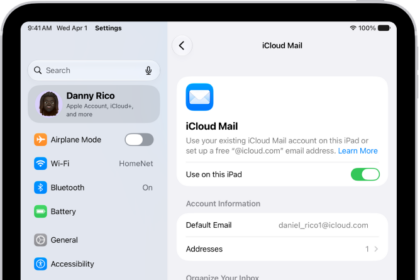
- iOS: Settings > Apple Account.
When logging out, you will be asked if you want to keep a copy of your iCloud data. Select everything. And then when you log in, tap Merge when you are asked.
By trying these fixes, you should be able to resolve the issue and regain full access to iCloud services on your iPhone.