With your personal information saved on iPhone, you can automatically fill in contact information, user names, and passwords. You can also automatically fill in payment information.
Saving your details on your iPhone speeds up filling in online forms, and you can even use AutoFill to enter another person’s information from your contact list, like a friend’s address when you ship a gift. You set up AutoFill first, and you can fill in your passwords the same way.
Here’s how to fill in personal information in Safari on iPhone.
Set up AutoFill
To speed up filling in online forms, you can save your personal information on your iPhone.
- Open the Settings app on your iPhone.
- Tap Apps, then tap Safari.
- Tap AutoFill, then turn on Use Contact Info.
- Tap My Info, then choose your contact card.
The contact information from that card is entered when you tap AutoFill on webpages in Safari.
Fill in your contact information automatically
AutoFill can quickly add your personal information to online forms.
- Open the Safari app on your iPhone.
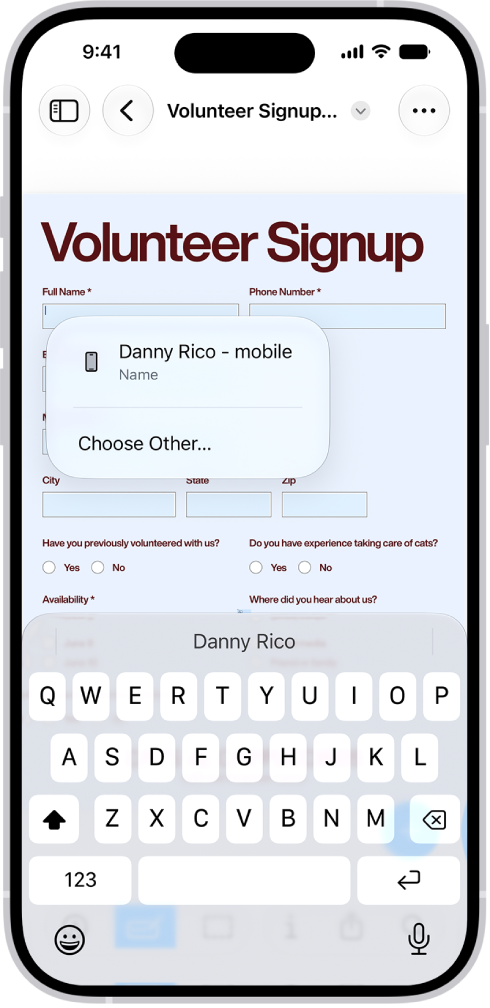
- In a form on a website that supports AutoFill, tap a blank field.
- Tap AutoFill Contact above the keyboard, then select a contact.
- Tap any field to make changes.
Note: AutoFill also works with another person’s information from your contact list. Say you’re buying a gift and shipping it to a friend: AutoFill can enter their address for you. Tap AutoFill Contact, tap Other Contact, and then choose their contact card.
Fill in your passwords automatically
For many of your accounts, iPhone can create and save strong passwords when you sign up for services on websites and in apps. Important: Never enter a password on a site with a “Not Secure” warning.
Turn off AutoFill
Turning off AutoFill for your contact information and for passwords is helpful when you don’t want your contact information to be readily available, such as if you share a device with others.
- Turn off AutoFill for your contact information: Go to Settings > Apps > Safari > AutoFill, then turn off Use Contact Info.
- Turn off AutoFill for passwords: Go to Settings > General > AutoFill & Passwords, then turn off AutoFill Passwords.