Some users have said that they see a popup message saying “Current location not available, your current location cannot be determined at this time” when they want to use Location Services. This error message indicates that Location Services on your iPhone is not working and it is important to fix this issue because some apps (Maps, Google Maps, Weather, Find My, etc.) may not work properly when your location cannot be found.
Your iPhone will use Wi-Fi, Bluetooth, and GPS (if applicable) to determine your location when needed. If your iPhone says your location could not be determined, please follow the steps below to resolve it.
Before continuing, ensure that your iPhone 18 Pro has the latest version of iOS (Settings > General > Software Update).
1. Location Services
The first thing you should do is to check if Location Services is enabled on your iPhone. On your iPhone 18 Pro, go to Settings > Privacy & Security > Location Services and ensure that Location Services is on. If your Location Services was already on, turn it off, wait a few seconds and then turn it on.
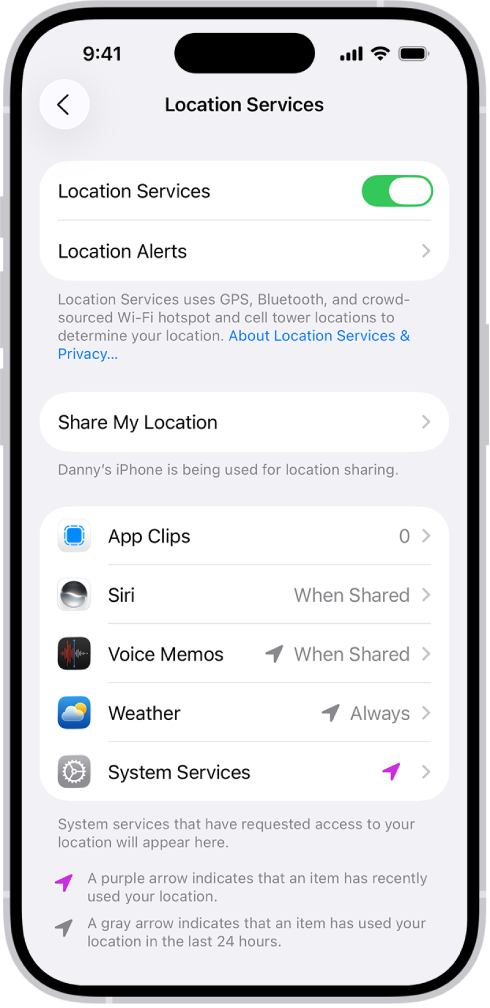
2. Check app settings
If you are seeing this message while you are trying to use certain apps (Calendar, Maps, etc), make sure that Location Services is on for that app. On your iPhone 18 Pro, go to Settings > Privacy & Security > Location Services. You will see a list of apps. Find your problematic app and ensure that it is set to While Using the App.
Furthermore, restart the app that gives the error message. Here is how:
- Go to your Home Screen.
- Swipe up from the bottom and pause in the middle.

- Find the app.
- Swipe up on the app and then open it again and then test it.
And lastly, you may want to remove the app and then reinstall it. Simply touch and hold the app, tap Remove App, tap Delete App, then tap Delete to confirm. Then open the App Store app on your iPhone, find the app and download / install it.
3. Check your connection
Ensure that your iPhone has a Wi-Fi connection or a cellular-data connection. If you are having connection issues on your iPhone, you may try:
- Turn on Airplane Mode (Settings > Airplane Mode) and wait a few seconds and then turn it off.
- If you are having Wi-Fi issues, you may want to restart your Wi-Fi router (simply unplug the power cord, wait 30 seconds and then replug the cord).
4. Check the date, time, and time zone
Another setting you should check is to make sure that the date, time, and time zone settings are correctly set on your iPhone. Here is how you can check:
- Go to Settings > General > Date & Time.
- Ensure that your settings are correct. If not, correct them.
- Please also enable the “Set Time Automatically” option.
5. Restart your iPhone 18 Pro
Simply try restarting your iPhone. This may fix your location problem. Here is how you can restart your iPhone 18 Pro:
- Simultaneously press and hold the side button and either volume button until the sliders appear, then drag the Power Off slider.

After restarting your iPhone, check to see if you still see this message.
6. Reset Location Services
If you are still having this problem, you may want to reset your location settings to the factory default. On your iPhone, tap Settings > General > Transfer or Reset iPhone > Reset and tap Reset Location & Privacy and then follow the onscreen instructions.
7. Reset your network settings
Is your iPhone still saying the location is unavailable? Then you may want to reset your network settings. When you do that, all of your network settings (your Wi-Fi passwords, etc) will be erased. Go to Settings > General > Transfer or Reset iPhone > Reset > Reset Network Settings.
Your iPhone 18 Pro will restart.