After the recent iOS update, a growing number of iPhone users say that their notification sounds have become unreliable or stopped working altogether. Text tones may work sometimes and then go completely silent, even though all the usual notification settings look correct. This has been reported on several models, and in many cases the sound temporarily comes back only after changing a setting—then disappears again a day or two later.
It seems that this isn’t just one person’s misconfiguration. Some users report that updating reduced or resolved the problem, while others say the issue persists or even affects additional apps and alerts. Until Apple fully addresses this in a software update, there are a number of checks and workarounds you can try to restore your notification sounds and reduce the chances of missing important calls, texts or app alerts.
In this article, I explain what seems to be going wrong after the update, then walk you through step-by-step troubleshooting—from simple checks (Focus, text tone, per-conversation muting) to more advanced options such as resetting notification settings.
1. Make sure your iPhone 18 Pro isn’t actually muted
Many users report their iPhones slip into silent mode.
- Press and hold the Action button to turn Silent mode on. Press and hold the Action button again to turn Silent mode off.
This temporary fix works for many, but it may return after restarts—so continue with the steps below.
2. Turn off Allow Notifications for Messages, restart, then turn it back on
- Go to Settings > Notifications > Messages
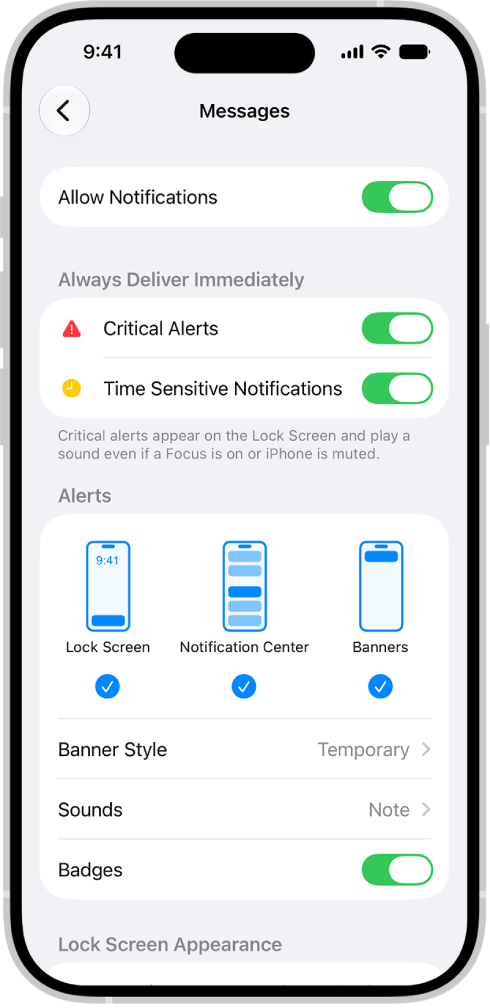
- Turn Allow Notifications OFF
- Restart your iPhone 18 Pro
- Return to the same menu and turn Allow Notifications ON again
Some users say this permanently restored text tones; others say it only helped partially.
3. Force restart your iPhone 18 Pro
A force restart can reset the audio + notification processes without erasing anything. Do these steps:
- Press Volume Up
- Press Volume Down
- Hold Side button until the Apple logo appears

This works for some users, although the issue may return after powering off/on.
4. Check your notification tone (it may have changed to None)
After updates, iOS sometimes assigns “None” as the text tone.
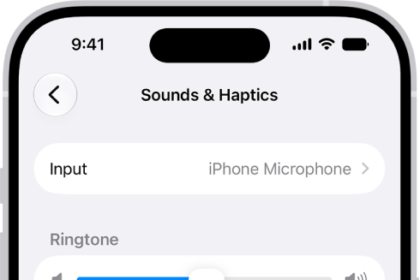
- Go to Settings > Sounds & Haptics > Text Tone
- Make sure a sound is selected (not None), mine is Rebound.
- Try choosing a different tone and test it
5. Check for per-conversation muting in Messages
It is possible that your message threads had a muted bell icon.
- Open Messages
- Swipe left on a conversation
- If you see a bell without a slash, tap it to unmute
- Or open the thread > tap the name at top > make sure Hide Alerts is off
6. Make sure Focus modes aren’t blocking sounds
A bug in iOS may activate Focus quietly in the background.
- Go to Settings > Focus
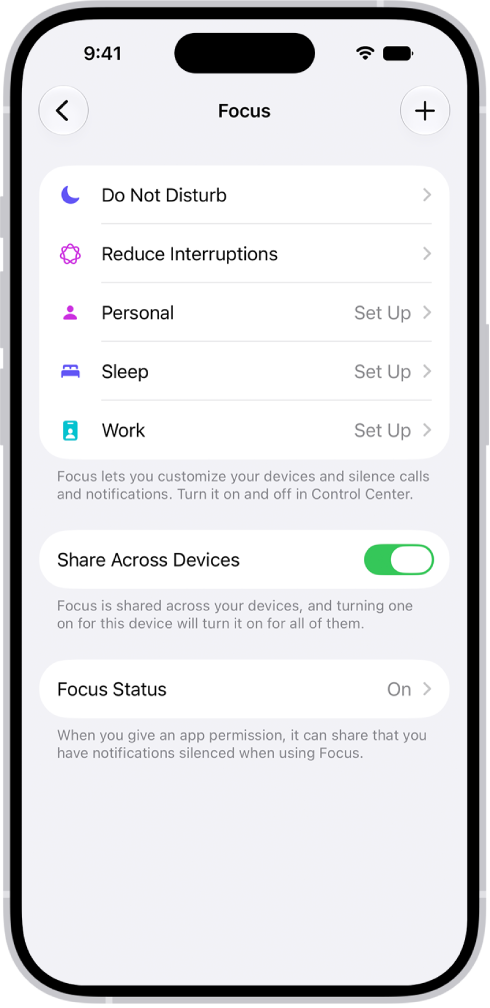
- Turn off all Focus modes temporarily
- Disable Share Across Devices
- Test your alerts again
If Notification Center seems unusually quiet, this is a likely cause.
7. Reset All Settings (recommended when nothing else works)
This was suggested by several experienced users and often fixes audio/focus routing issues.
Go to Settings > General > Transfer or Reset iPhone > Reset > Reset All Settings
This does NOT erase personal data. All settings—including network settings, the keyboard dictionary, location settings, privacy settings, and Apple Pay cards—are removed or reset to their defaults.
Many users say this resolved random audio failures after updates.